Challenges are the mechanism for capturing ideas, and thus they need to be planned, described, and communicated well. In this guide, we cover the essentials in the setup of the challenge page itself, including how to capture and upload the contents.
1. Extract the challenge details
Before writing any content into the challenge itself, we recommend running a challenge “extraction” process. This can take the form of a hack or by simply answering a few questions about your challenge and its purpose.
To do so, use our challenge extraction document template to build a more complete picture of your proposed challenge.
2. Transfer the challenge details
Once the challenge hack or extraction is complete, you can add the content directly into the platform.
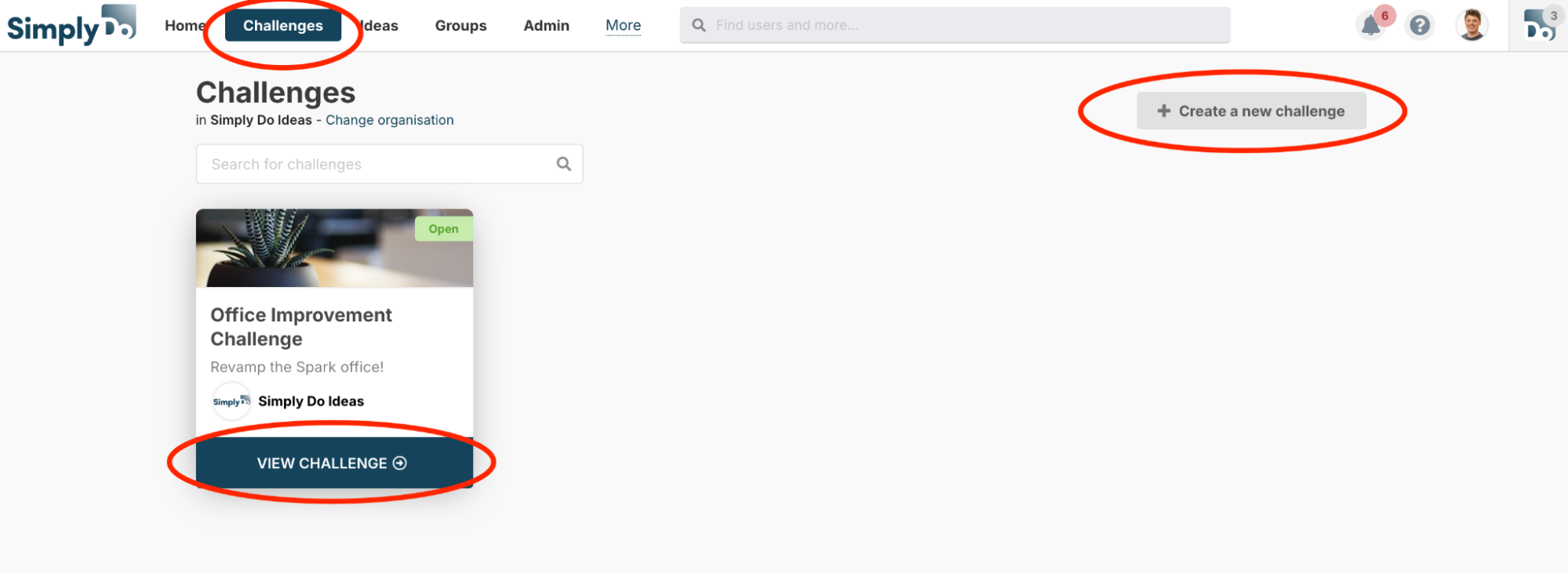
If you don’t yet have a challenge, click the “Create a new challenge” button on the “Challenges” page and follow the instructions to create a new empty challenge.
If you already have a challenge, you can find it either via the “Challenges” link in your navbar, or via the admin dashboard, and then tap “View challenge”.
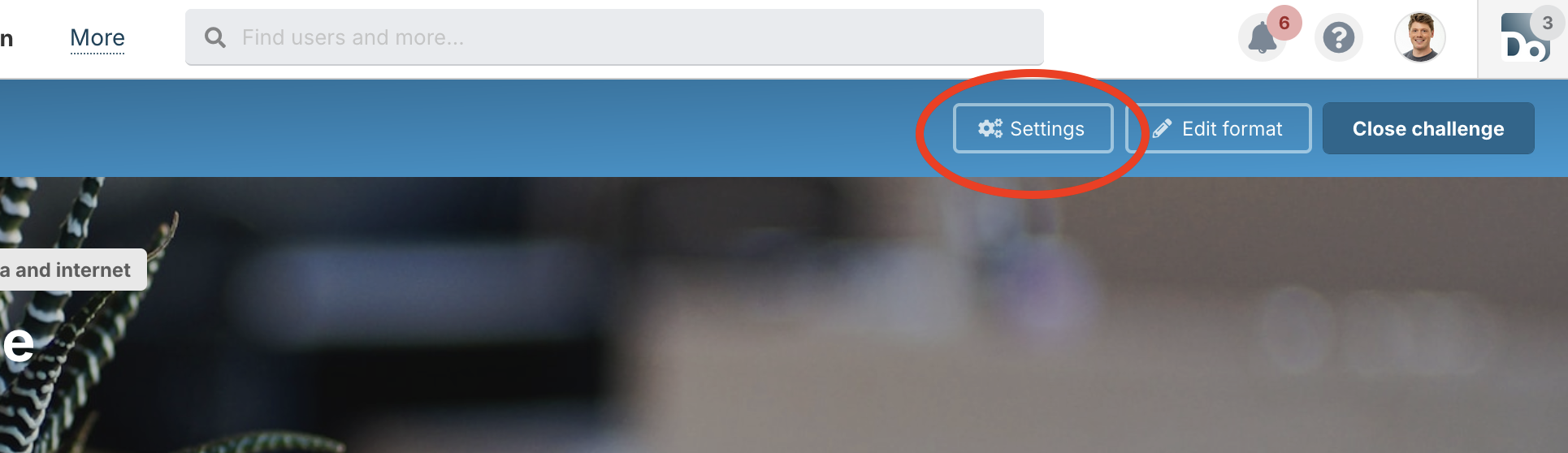
Once in your challenge, tap “Settings” in the challenge toolbar, and then go to the “Details” tab in the settings sidebar.
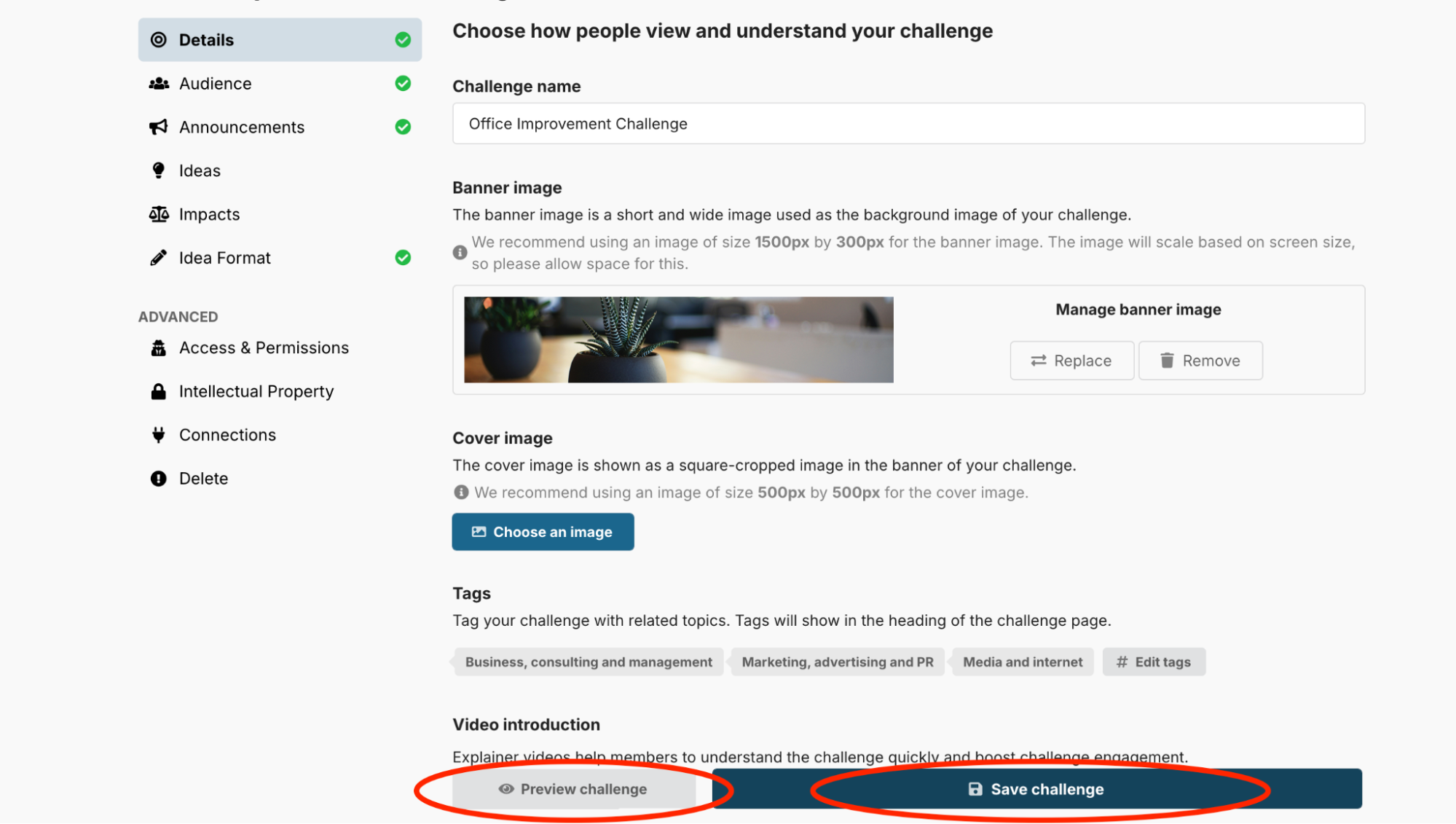
On the details tab you’ll see a number of fields that match the questions you answered in the challenge extraction document. You can simply copy-and-paste your answers into the fields, applying any additional styling as needed.
On this page, you can also upload other content, including imagery (e.g. a banner image) and a video. These can be powerful for giving your challenge more of a visual identity and for improving accessibility to your challenge.
3. Set a challenge deadline
If you want your challenge to automatically close to new ideas at some point in the near future, you can configure a challenge deadline.

To do so, toggle on the “Challenge deadline” setting on the challenge’s Details settings page, and enter a date and time.
You can change the deadline at any point, or disable it again, by updating the fields or de-toggling the setting.
4. Save and preview your challenge
We recommend saving your challenge periodically, and once you have finished making changes. You can do this using the “Save challenge” button at the bottom of the screen.
SimplyDo also enables you to preview your challenge (via the “Preview challenge” button), which shows how it will look to others and is useful to make sure things look as you expect them to.
5. View your challenge
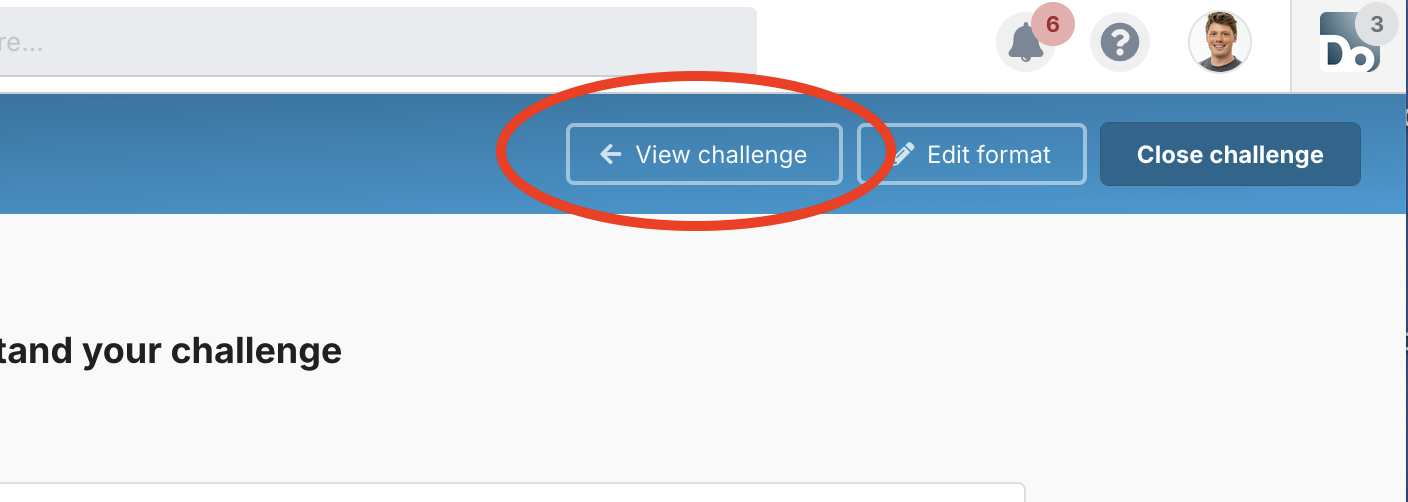
Use the “View challenge” button in your challenge toolbar to return to the challenge page in order to see your newly-added details.