Now you’ve added your challenge content (or, at least a draft of it), it’s time to fine-tune some of your challenge’s settings. This ensures that you and your ideators have a smooth journey when your challenge launches, and that visibility and security is correctly managed.
1. Find the Idea Settings page
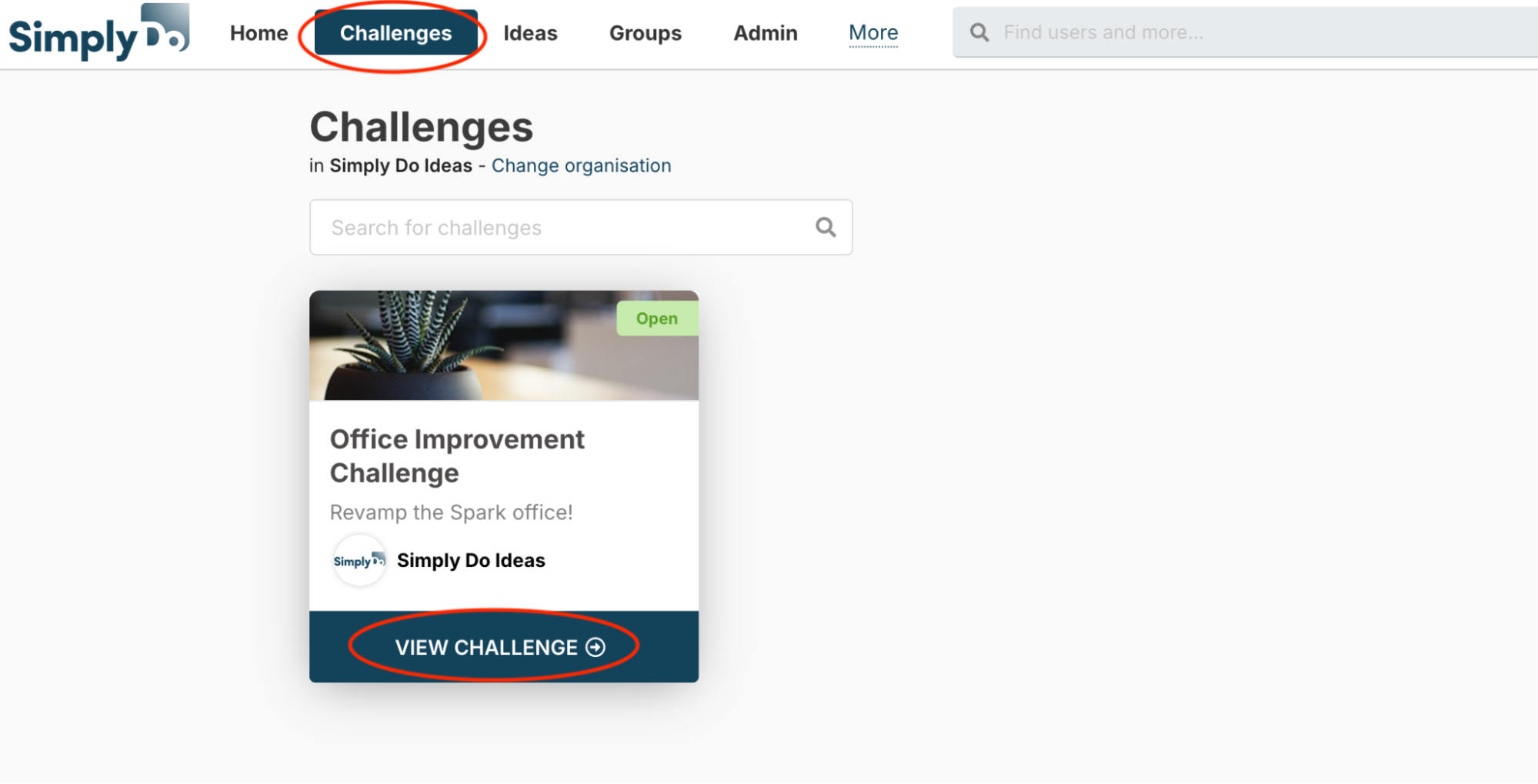
Firstly, navigate to the Settings page of your challenge. Find your challenge via the “Challenges” link in the top navbar, and then select “View challenge”.
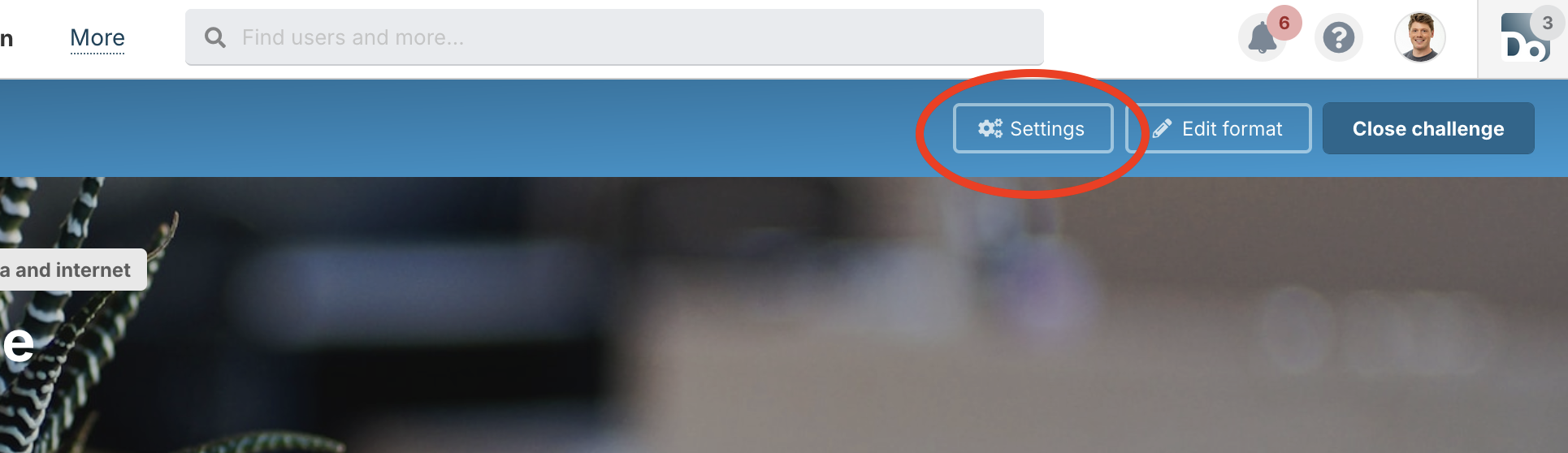
From here, click the “Settings” button in the challenge toolbar.
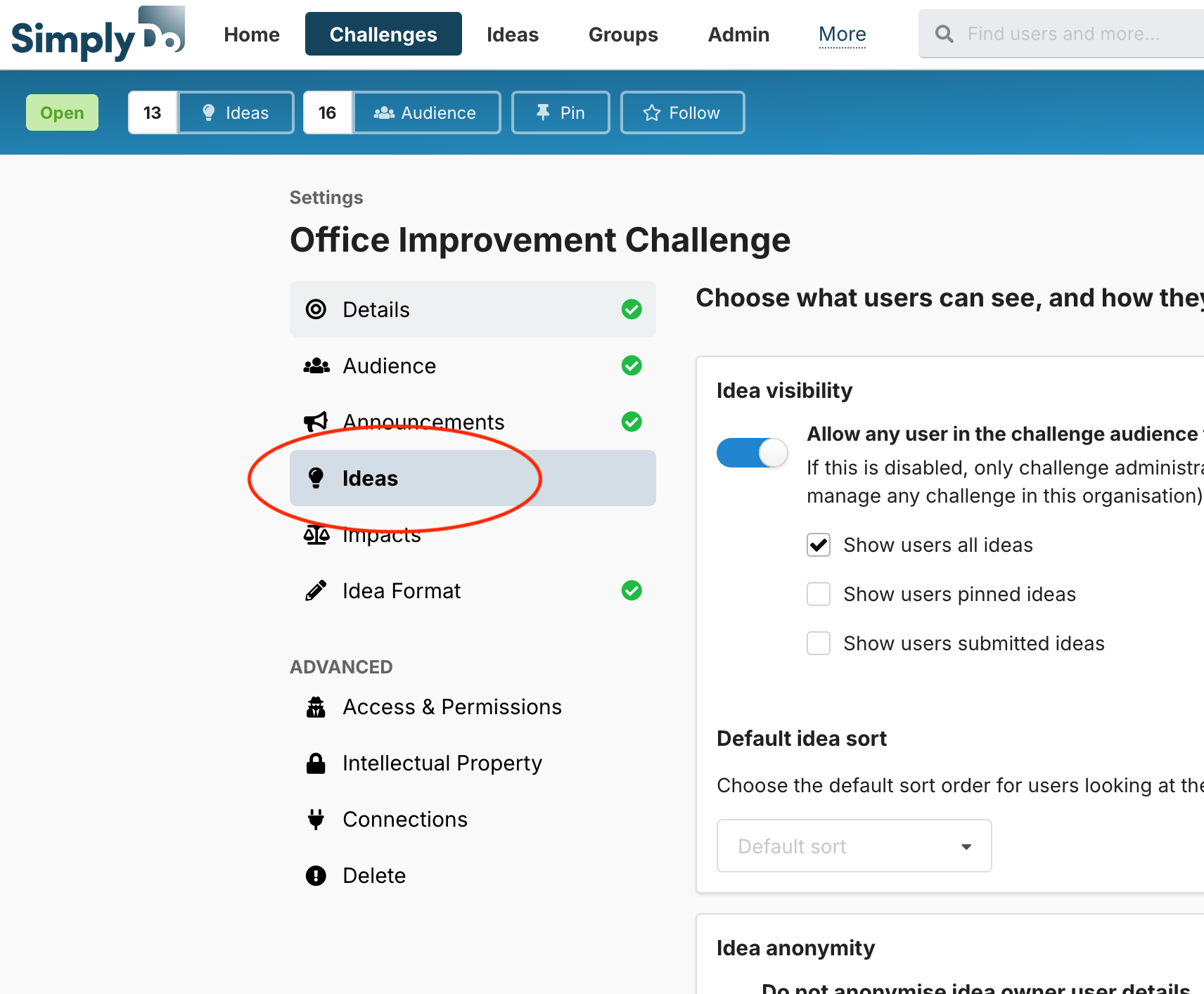
Finally, tap the “Ideas” tab in the sidebar.
2. Set your idea visibility settings
“Idea visibility” allows you to control who can view the ideas submitted to this challenge.
If “Allow any user…” is selected, then any person in the challenge audience can view ideas belonging to the challenge.
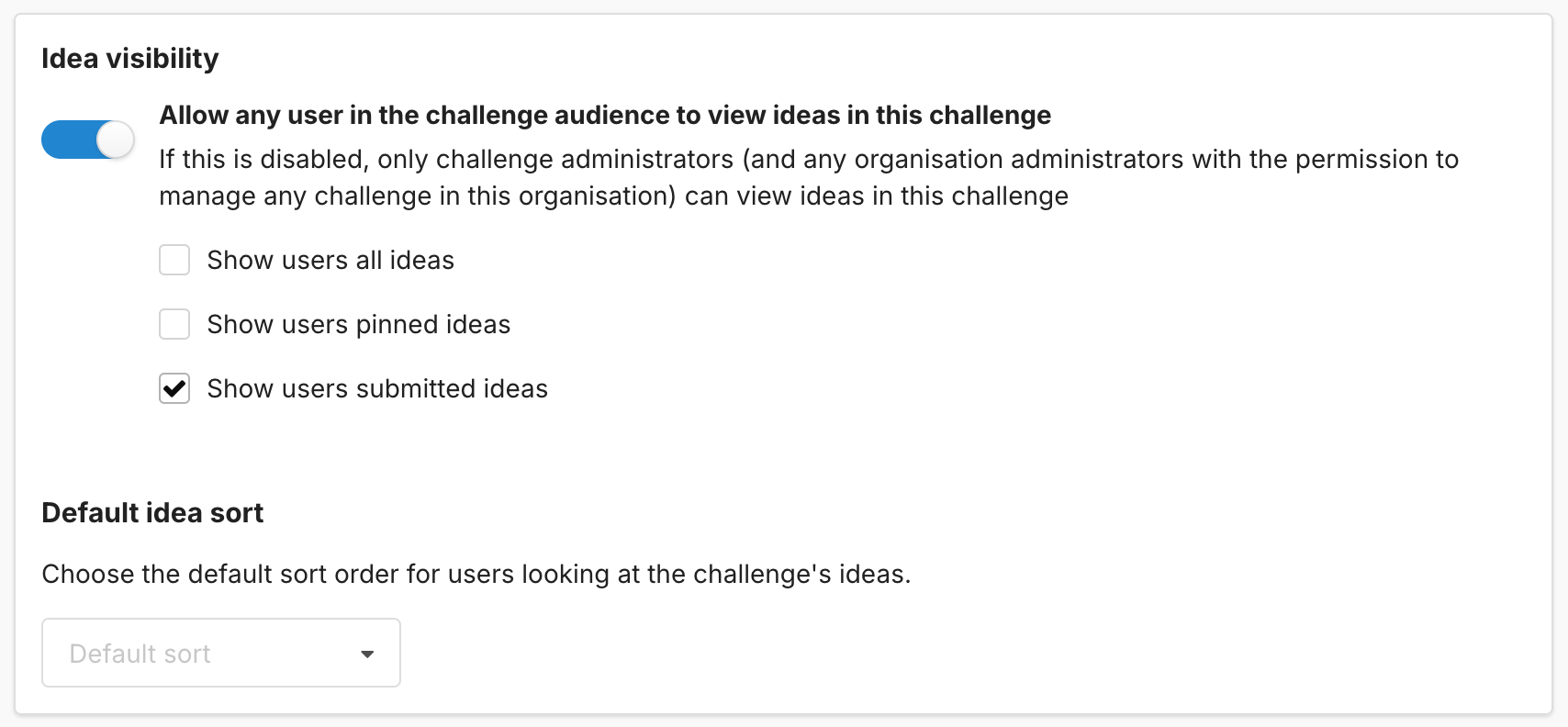
You can further restrict this using the controls below:
-
All ideas: all ideas (with any status) will be shown in the list
-
Pinned ideas: only ideas marked as “pinned” by challenge administrators will be shown in the list
-
Submitted ideas: only submitted ideas will be shown in the list
Default idea sort lets you choose the default order in which users experience the idea list. Users can choose to re-order the list as they need.
3. Choose your anonymity settings
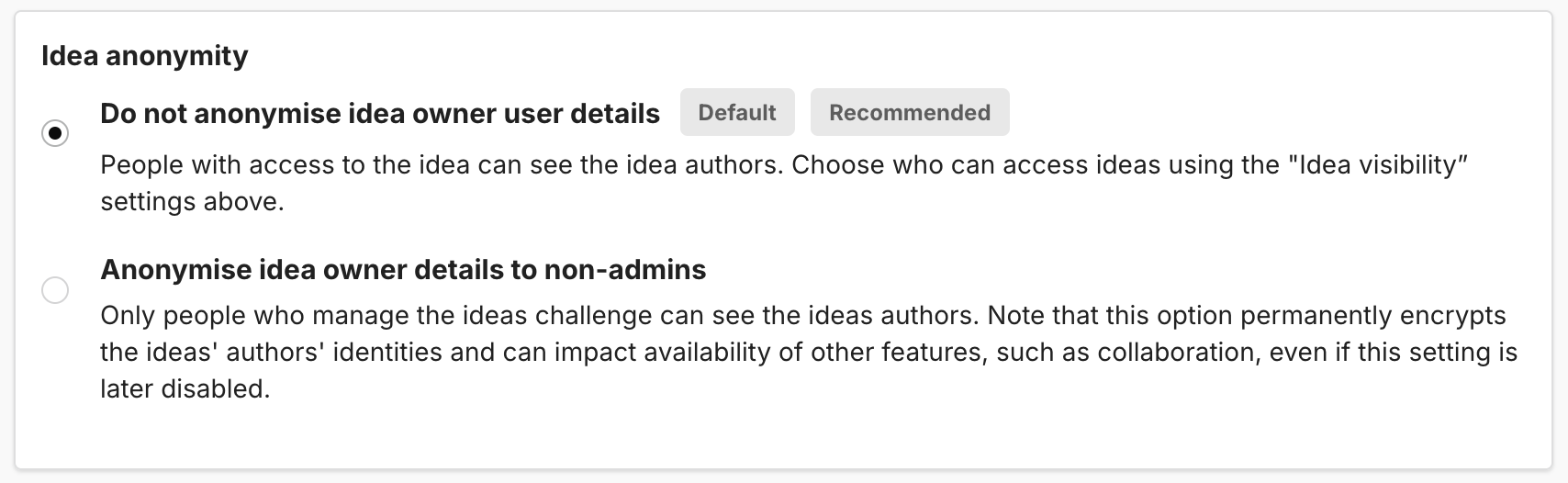
If needed, you can choose to make idea authors anonymous. This allows users to create and submit ideas anonymously (though challenge managers and administrators can still see the authors).
In most cases, we recommend not anonymising idea authors, as it might inhibit your ability to build an innovation ecosystem. Encrypting author details can interfere with other collaboration and communication systems.
4. Manage your project board
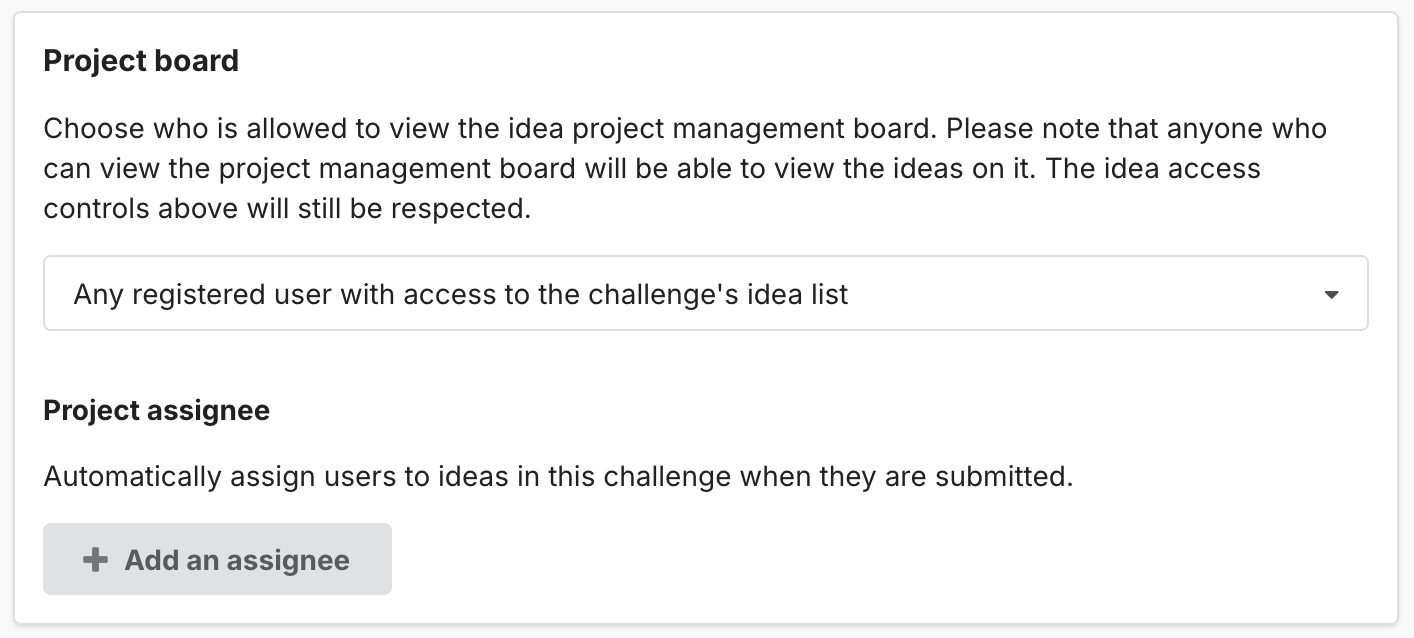
When ideas begin to arrive into your challenge, they’ll be placed on your project board. We’ll cover the project board in more detail in a later article, but for now you can choose some basic settings for your board.
The first thing is to choose who can access the board – either only people who manage the challenge or all people with access to the idea list. For transparency in internal-led challenges, we recommend the latter. This way, everyone can keep track of what’s being submitted, worked on, and completed.
Also, if the latter is selected, users will get automatically notified by the system if their ideas progress between lanes, and other important updates.
The Project assignee control lets you set a blanket assignee for all ideas submitted to the challenge. For example, this can be useful if you have a dedicated member of staff
5. Social settings
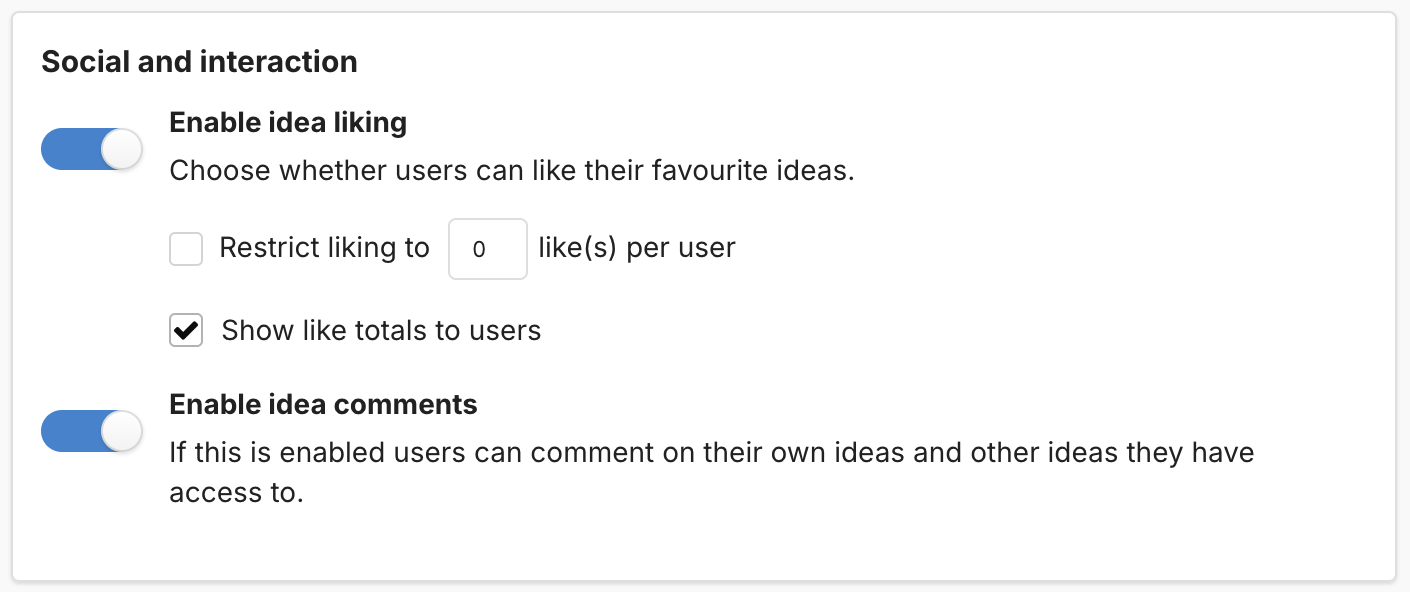
The Social and interaction settings let you choose how people can interact with others’ ideas.
Idea liking (similar to “votes” or “upvotes”) is a mechanism through which users can indicate agreement or positivity about another idea. En-masse, it can be used to determine idea popularity. You can choose to enable “liking” here, including the ability to restrict the number of likes a user can distribute in this challenge, and whether like totals should be shown to other users.
Idea comments are public messages that users can leave on ideas. Idea authors receive an email notification when comments are left, and individuals can @-mention other users in order to bring others into the conversation. You can choose to enable commenting using this setting.
Note that, if enabled, users can like and comment on ideas they have access to within your challenge.
6. Collaboration and invitation
Multiple people working together on a single idea helps reduce duplication and produces higher-quality and more well-rounded content.
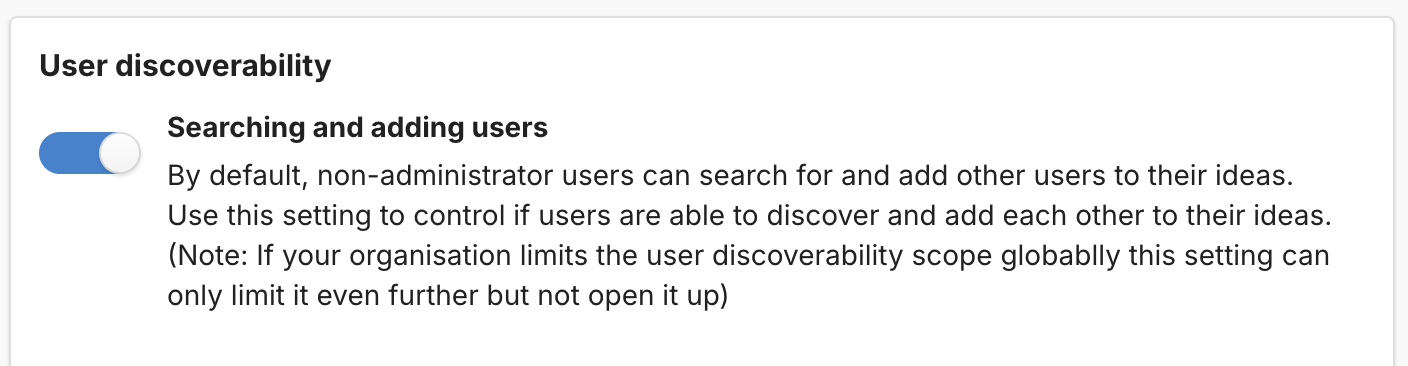
SimplyDo allows you to control whether users can search for and “discover” each other, within your organisation, in order to allow them to send invitations to collaborate.
You can turn the setting off (to prevent searching) by toggling off Searching and adding users.
7. Tagging
If your organisation has tags configured, you can require that users tag their ideas when they submit them. This can help reduce management overheads by “crowdsourcing” idea categorisation against your organisational tags.
To enable this feature, toggle on the Prompt the idea creator to tag their idea before submission setting.

8. Content-specific settings
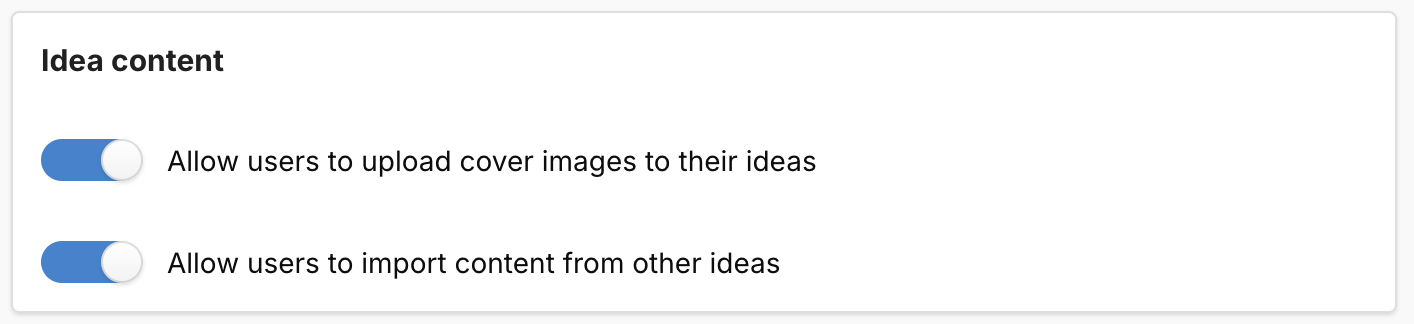
In Idea content settings, SimplyDo offers some additional flexibility in how ideas are created for your challenge.
Cover images are the large full-width images displayed in the hero (title segment) of each idea. In some cases, the use of cover images may be inappropriate and so you can choose to disable them using the toggle.
If users already have previous ideas (either for the same or another challenge), they can import existing content into their ideas. This is useful when answering similar, and long, questions, but can be deactivated using the relevant toggle in this section.