On SimplyDo, the “audience” of a challenge signifies the cohort of individuals that the challenge is aimed at. Audiences can be made up of your entire organisation, external organisations (if allowed by your plan), specific internal or external groups, or a mixture of all of these.
Only users in your audience can find your challenge (once it’s “open”) and create ideas for it. Depending on your [idea settings], the audience may also dictate who can view the ideas belonging to your challenge and your challenge’s project board. It’s therefore important to get your audience correct!
In this article, we explain how to change your challenge’s audience settings.
1. Find the Audience Settings page
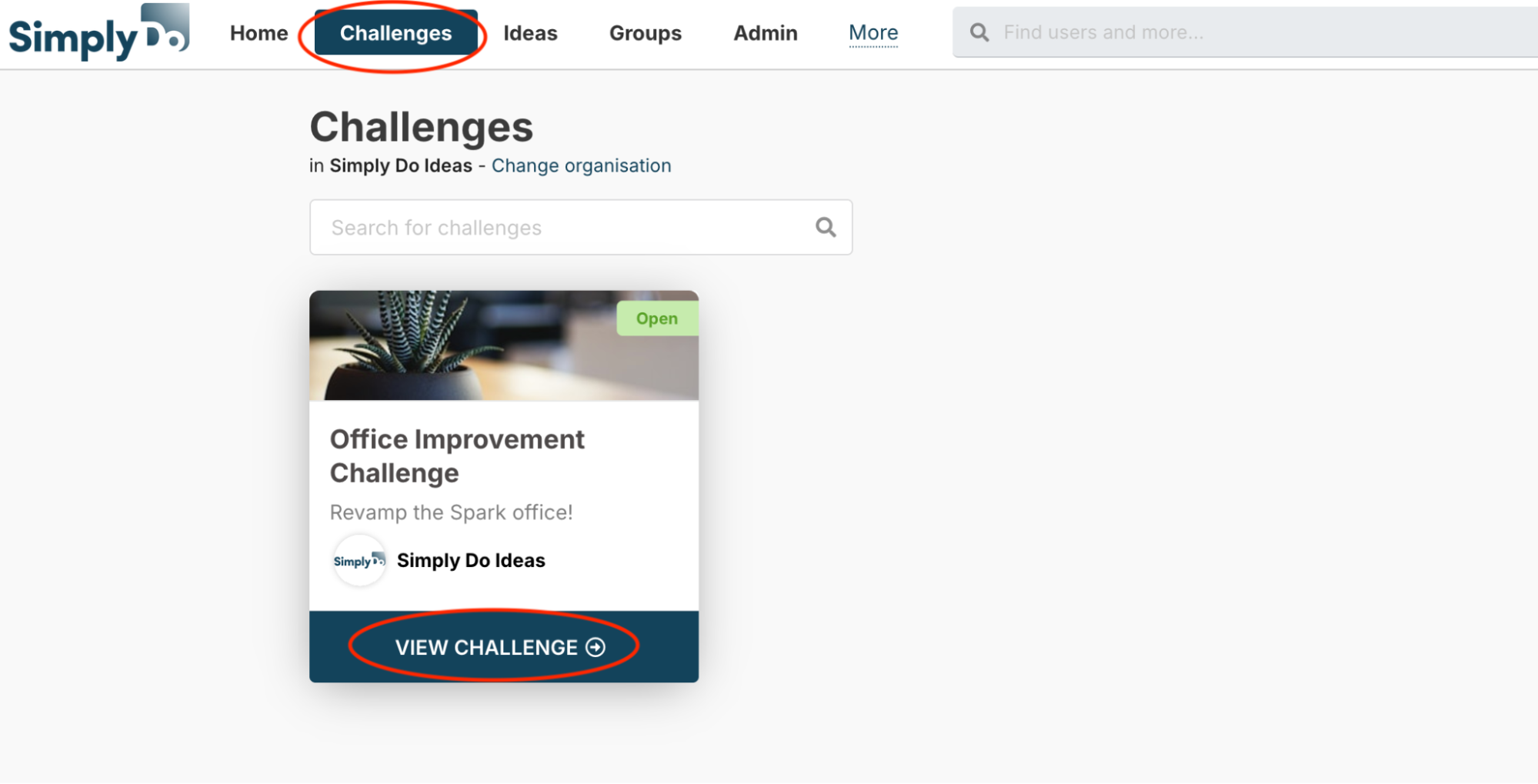
Firstly, navigate to the Settings page of your challenge. Find your challenge via the “Challenges” link in the top navbar, and then select “View challenge”.
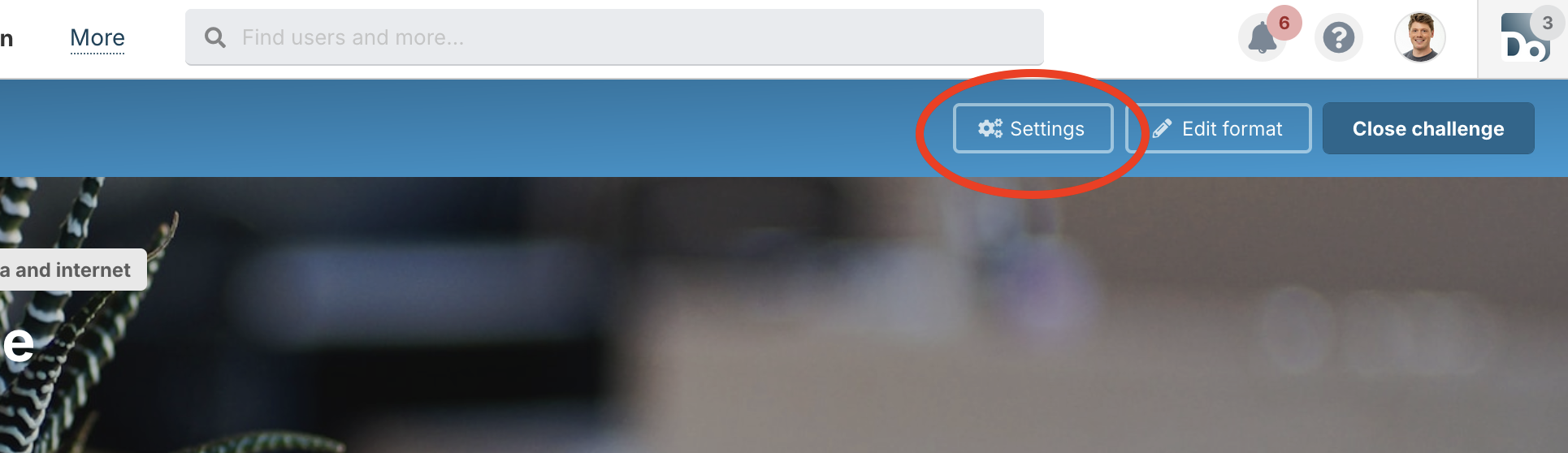
From here, click the “Settings” button in the challenge toolbar.
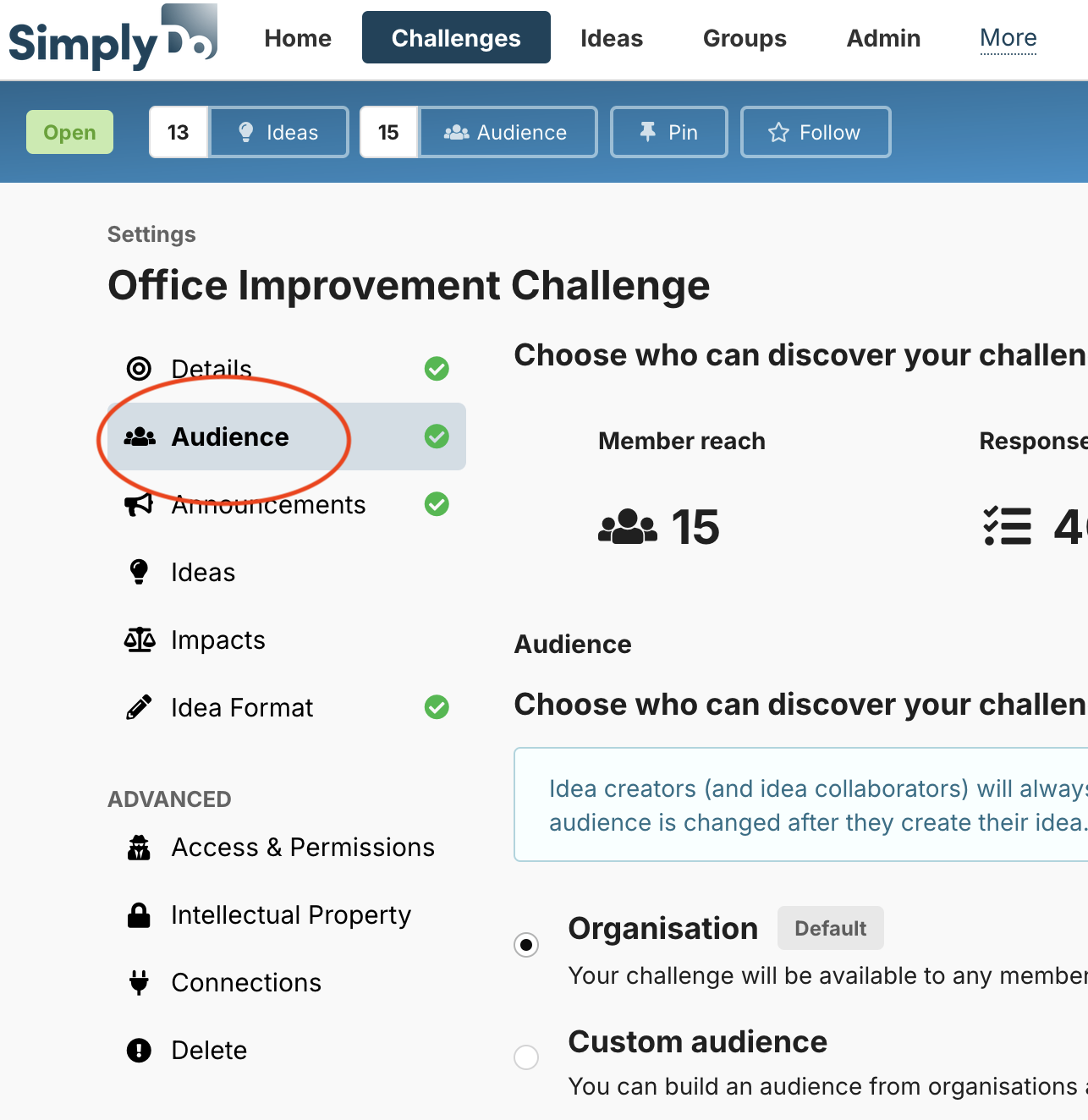
Finally, tap the “Audience” tab in the sidebar.
2. View summary information
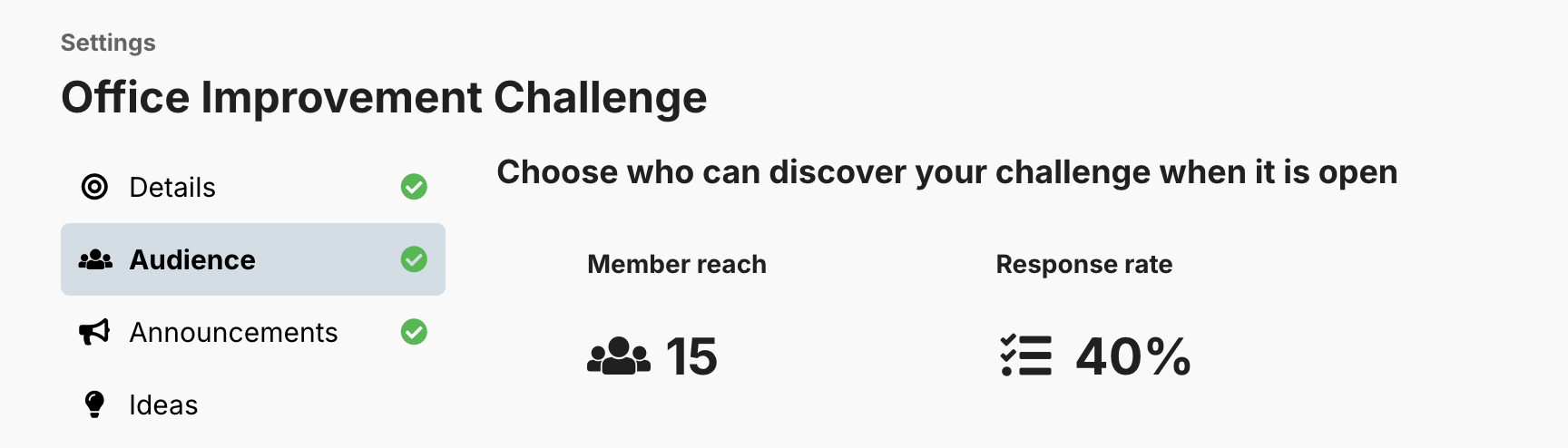
The area at the top of the audience settings page provides a brief summary, telling you the reach of your challenge (i.e. the number of users in your challenge’s audience) and your challenge’s current response rate (the proportion of users in the audience that have begun an idea).
This information can be useful for measuring the performance of different challenge campaigns.
3. Change the audience
There are two primary audience settings: organisation and custom.
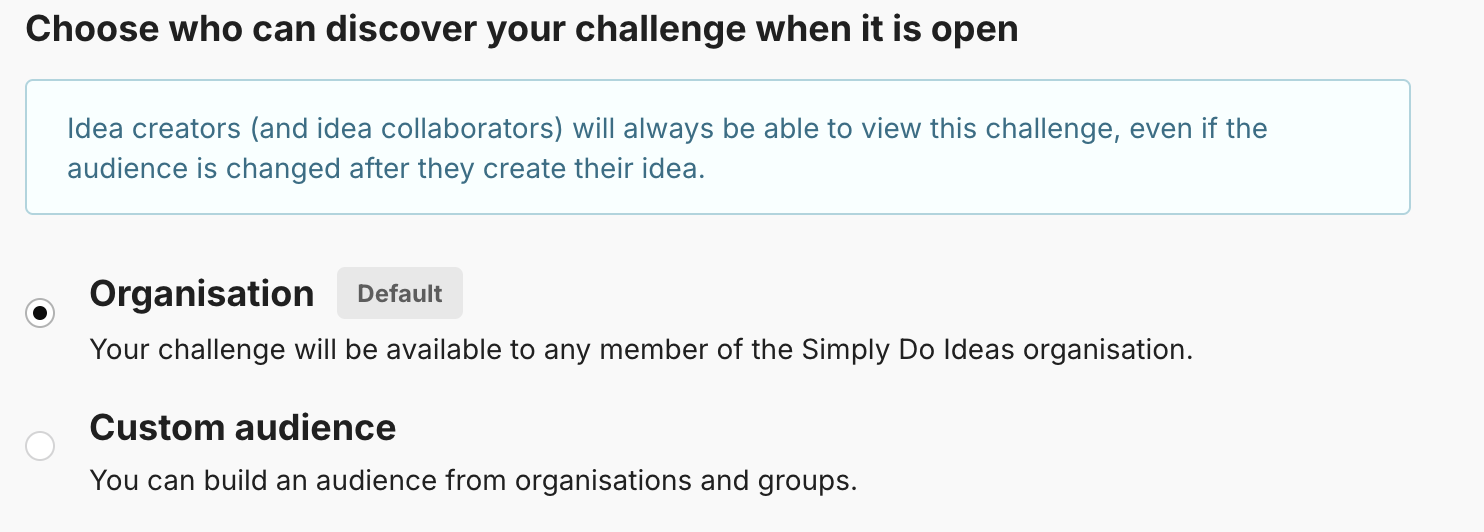
Choosing organisation is the simplest option and is generally what most challenges apply to. If selected, the audience becomes the user base of all of the registered users in your organisation.
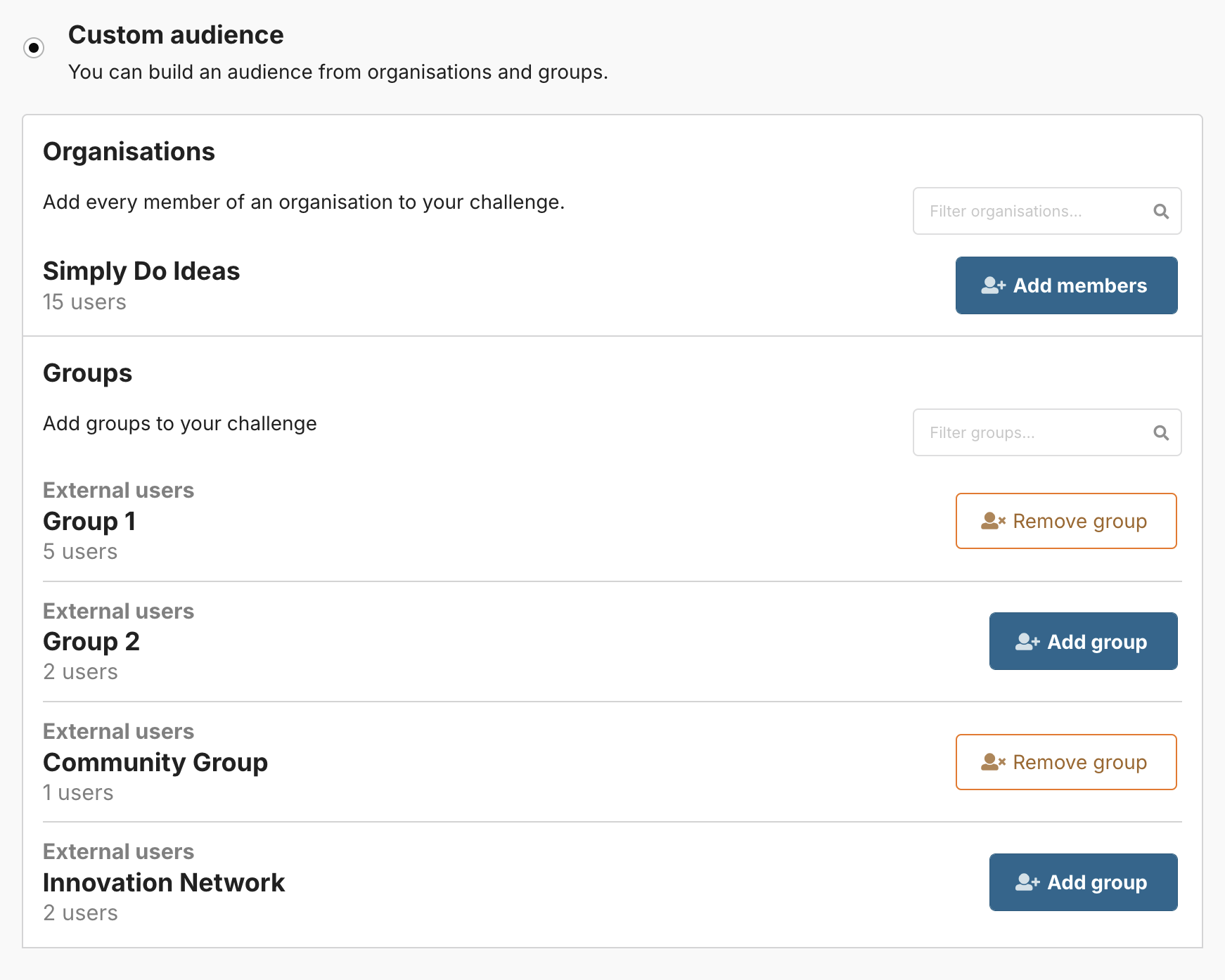
If you choose custom audience, more options appear to help you fine-tune your challenge’s audience. In this view, SimplyDo lists the user segments you can choose to include in your audience. This can include:
-
Your own organisation (the equivalent to selecting organisation, as described above);
-
Other organisations linked to your own;
-
User groups you have access to.
You can use the “Add” and “Remove” buttons to adjust your audience. As you make changes, the audience count will change in the member reach view at the top of the screen, enabling you to sense-test your selection.
If you have lots of organisations and groups listed, you can use the search bars to find the segments you’re looking for.
4. Public visibility
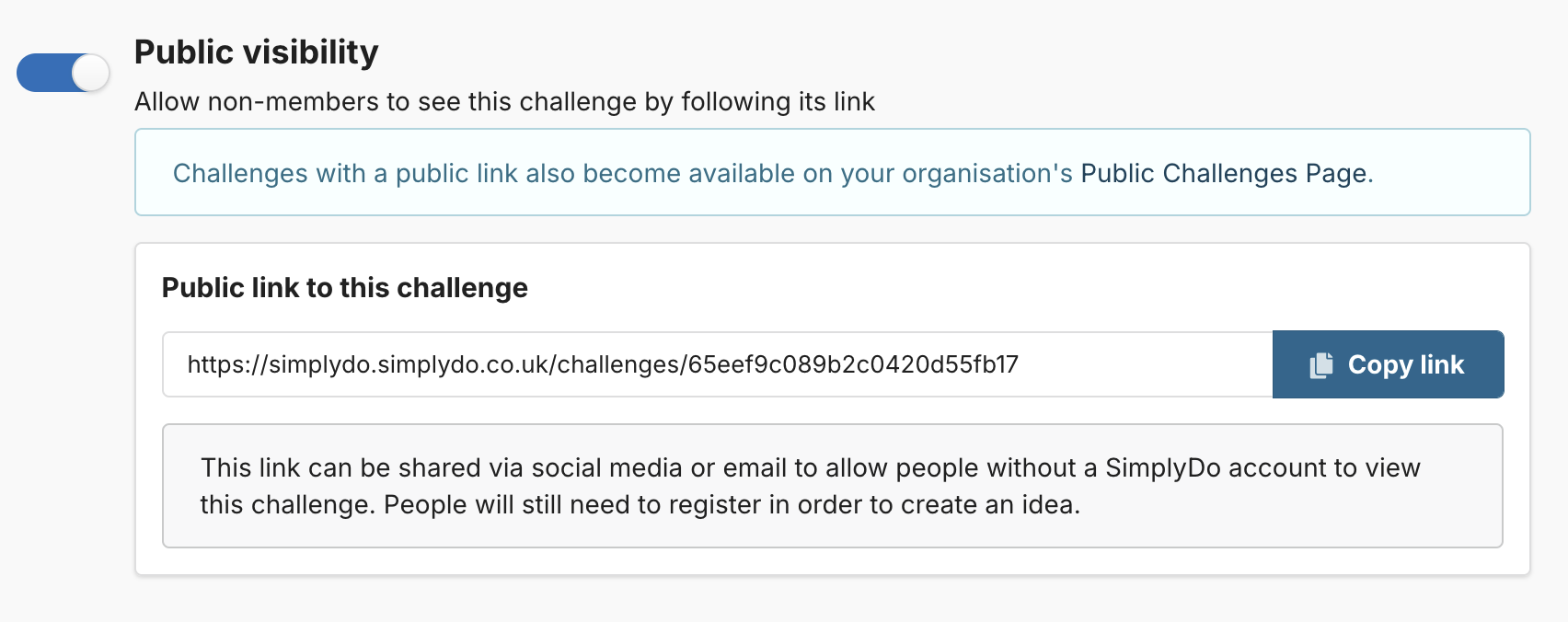
Publicly-visible challenges have a unique link that enables visitors to view your challenge page without having an account.
This allows such visitors to find out more about your challenge before proceeding to login or register. However, please note that users will still need to login to an account (which belongs to the challenge audience) in order to create an idea for your challenge.
Publicly-visible challenges are also listed on your organisation’s “public challenges” page.
To make your challenge publicly-visible, toggle on the Public visibility option. Once enabled, the unique shareable link to your challenge is displayed, along with a link to your organisation’s “public challenges” page.
5. Challenge followers
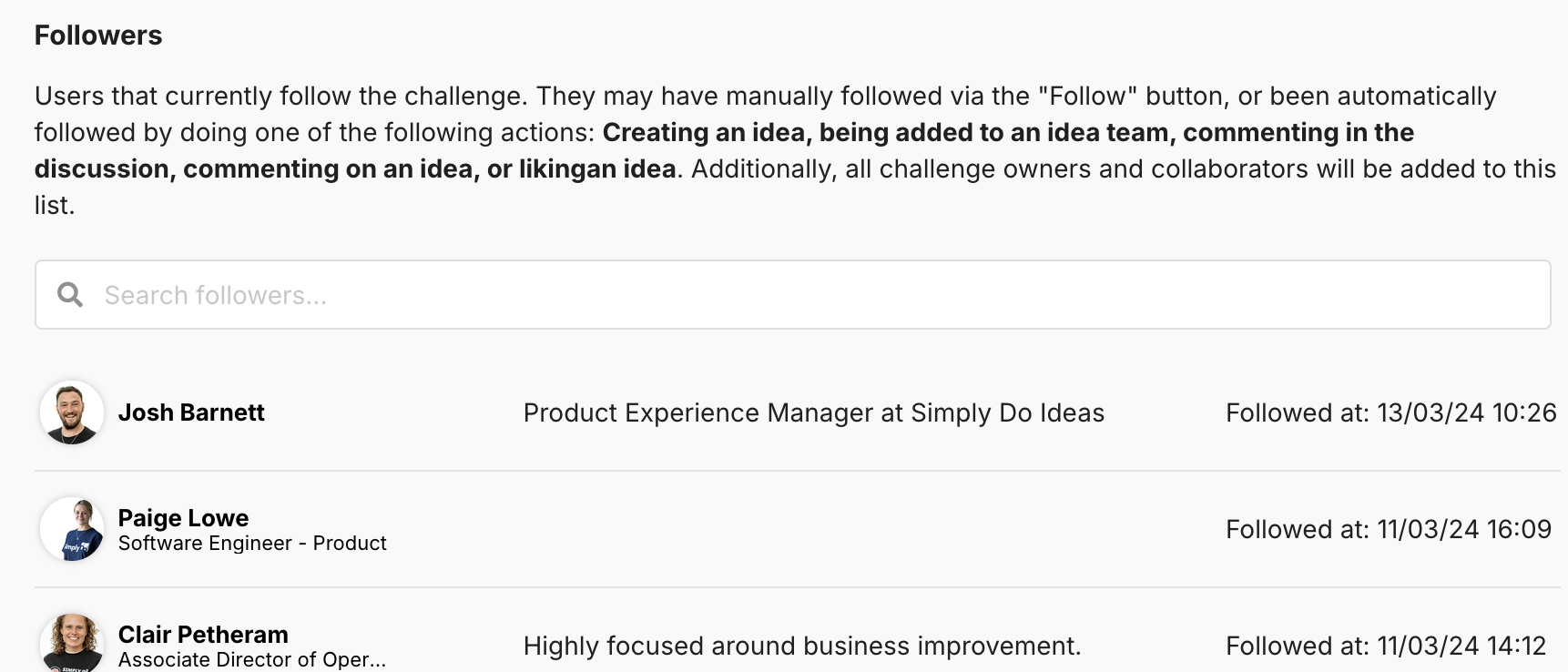
Users that follow your challenge can easily find it by visiting their “Challenges” page (available from SimplyDo’s main top navbar). By default, users auto-follow your challenge as they engage with it (e.g. if they create an idea for it or if they comment on an idea).
You can view and search the current follower list in the Followers section of the audience page.