The challenge project board is a great place to manage the ideas belonging to your challenge. It’s a Kanban-like board, with lanes (representing stages or statuses) containing the challenge’s ideas. Ideas can be reordered within lanes, and moved between lanes as their statuses change. Deadlines, assignment, and other project management tools are provided as a one-stop shop for ensuring ideas get managed and progressed appropriately.
It is good practice to set up your lanes and management structure in good time such that you are ready to begin your management process when the time comes.
In this article, we explain how to use and manage your challenge’s project board. We cover the management of ideas using the board in a later article.
1. Find the Project Board page
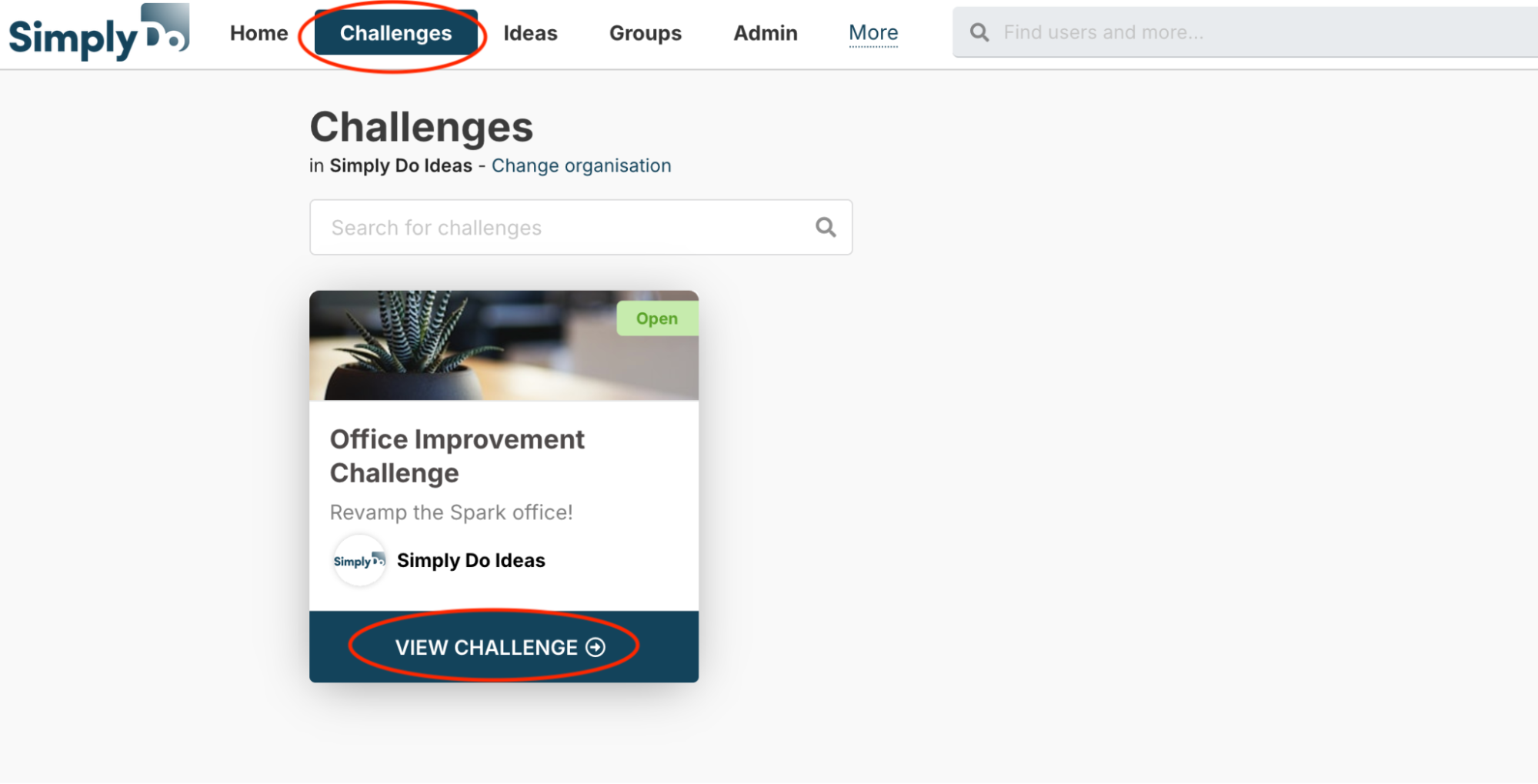
Firstly, navigate to the Settings page of your challenge. Find your challenge via the “Challenges” link in the top navbar, and then select “View challenge”.
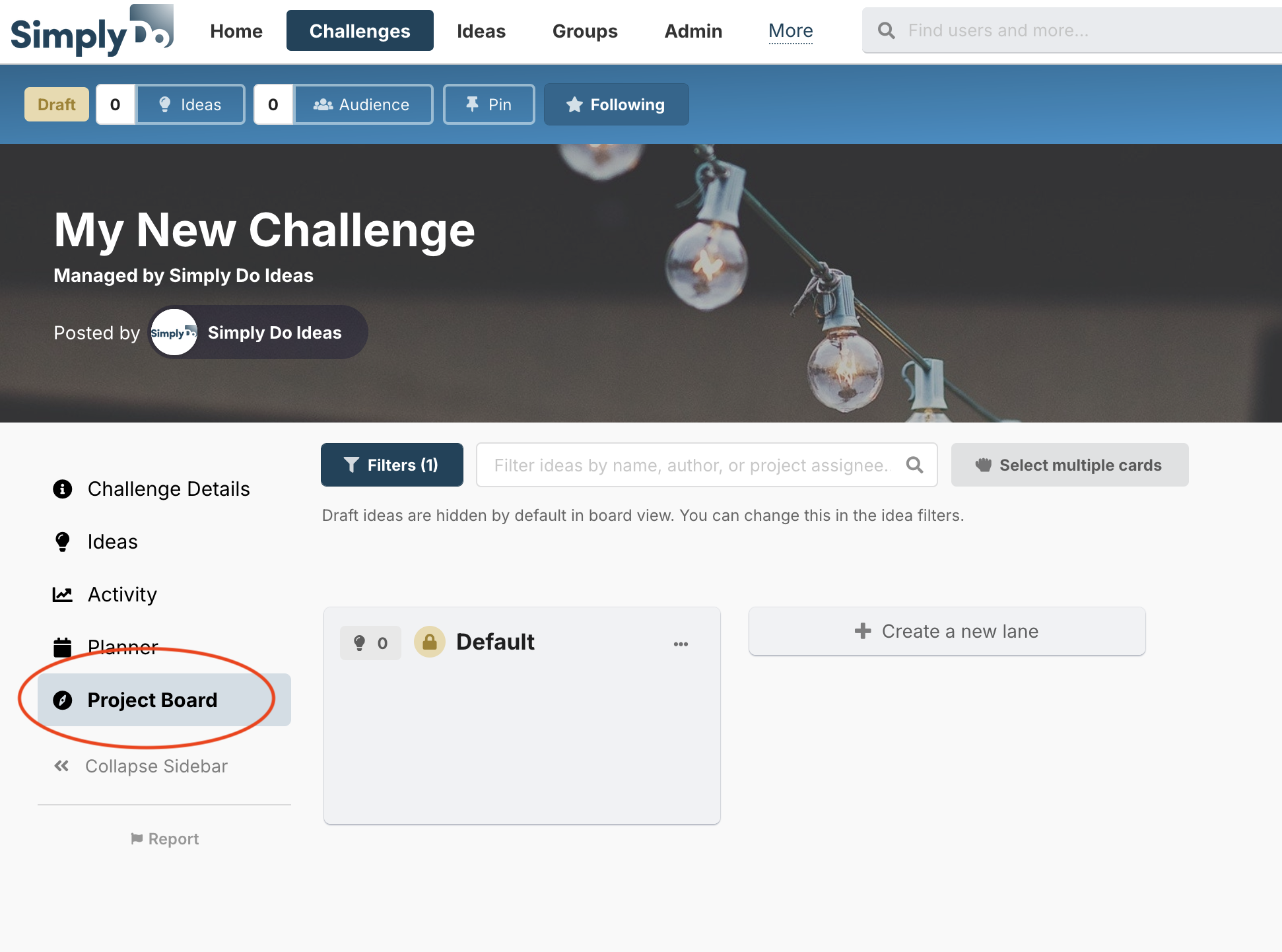
From here, click the “Project Board” tab in the sidebar.
2. Choose a starting point
When you first arrive at your challenge’s project board, it will be empty. You’ll be asked to select a starting point for your board’s structure, according to two choices:
-
Start from scratch: Select this option to begin with an empty board, creating all the lanes you need.
-
Import from another challenge: Select another challenge in order to import the lane structure from that challenge. This is useful if you run multiple challenges and often need to use the same (or similar) management processes.
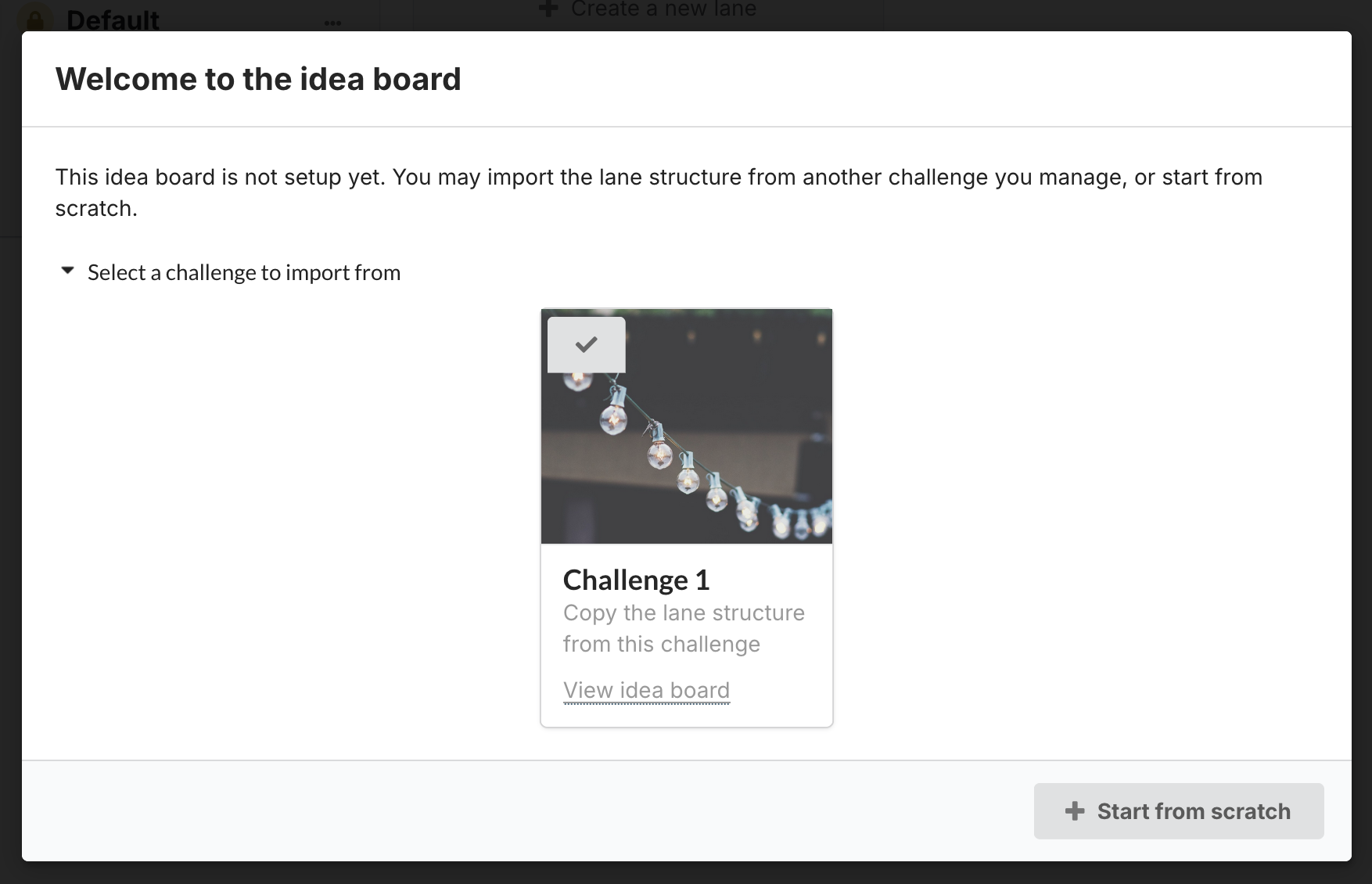
If you choose to import from another challenge, you can safely make changes to the new project board without affecting the original challenge’s board.
In most cases, if available, we recommend copying a lane structure from a previous challenge and then making tweaks in order to fine-tune your management structure for your new challenge.
3. About project board lanes
Project board lanes can contain any number of ideas belonging to your challenge. Each idea can only be on one lane at a time, and so lanes are useful for indicating a status or stage progression.
Idea visibility
All ideas belonging to your challenge, including ones in draft, have a place on the project board. However, the default filter for the board is just to show “submitted” ideas. If you want to show all ideas, use the “Show filters” button and select a “Status” of “All”.
Default lane
Each board starts with at least a “default” lane, which is the lane that new ideas are added to once they are created. Once ideas are on the board, they can be moved from the default lane to another lane. You are free to rename and provide a description for your default lane (for example, “Inbox lane”).
The default lane cannot have a “type” and cannot be moved (it’s always in the left-most position).
Lane types
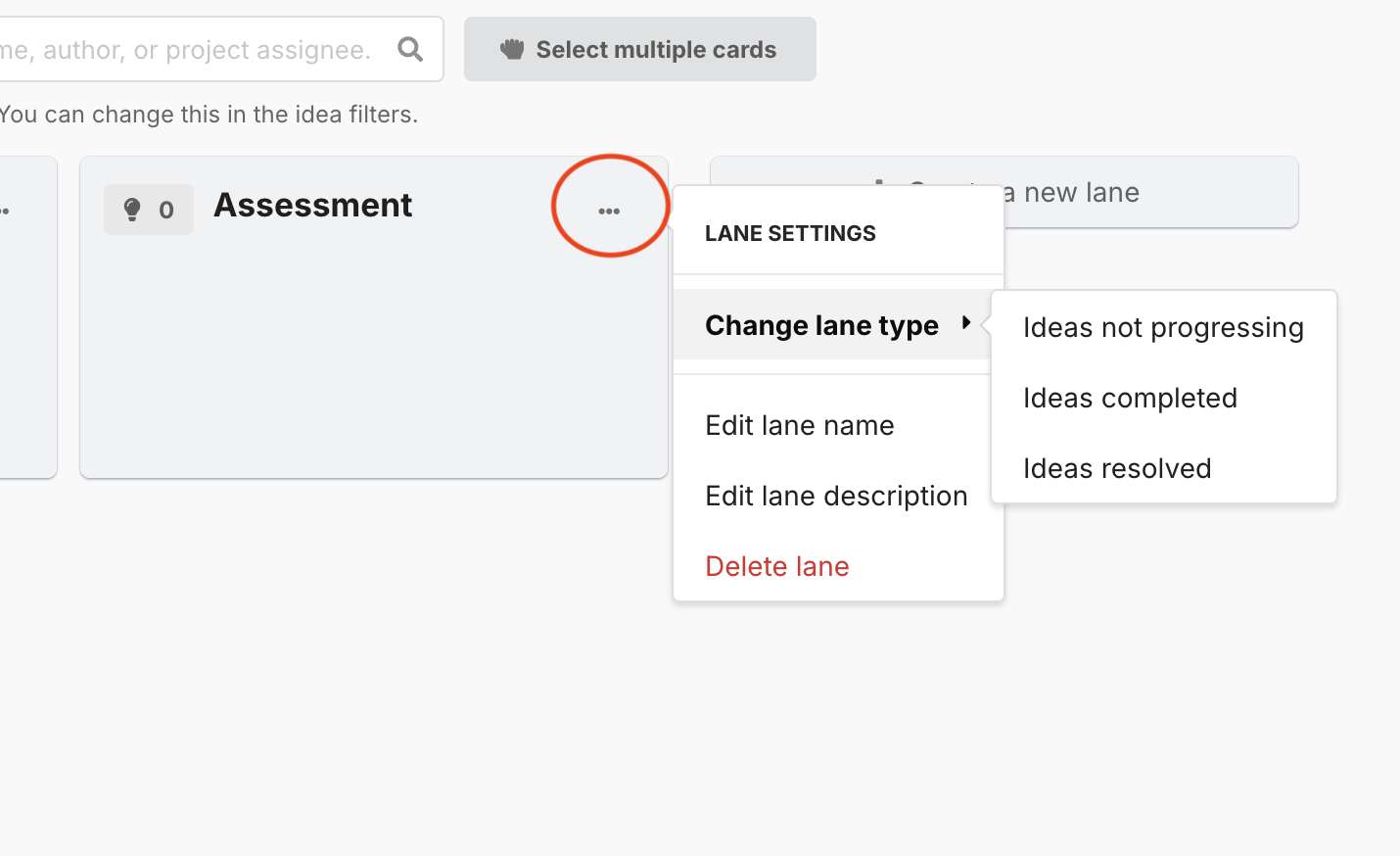
Each lane (aside from the default lane) can have a “type”. The type is used to further define what your lane means. Lanes can have one of the following types:
-
Normal lane: a standard lane with no type (the default).
-
Not progressing lane: a lane to indicate ideas that aren’t being progressed (for example, unsuccessful ideas).
-
Completed lane: a lane to indicate ideas that have been completed.
-
Resolved lane: a lane to indicate ideas that have been “resolved”. Typically this might be ideas that are successful, but have already been done or are already underway.
Using types correctly enables you to target comms appropriately and also prevents reminder emails from being sent for past deadlines on completed ideas.
Lane details
As well as a type, each lane can have a name and a description. You can use these to describe what your lanes mean to others.
In automated emails related to your board, the lane name might help provide context to notifications. For example: “Your idea has been moved to the In-Progress lane.”
4. Create a new lane
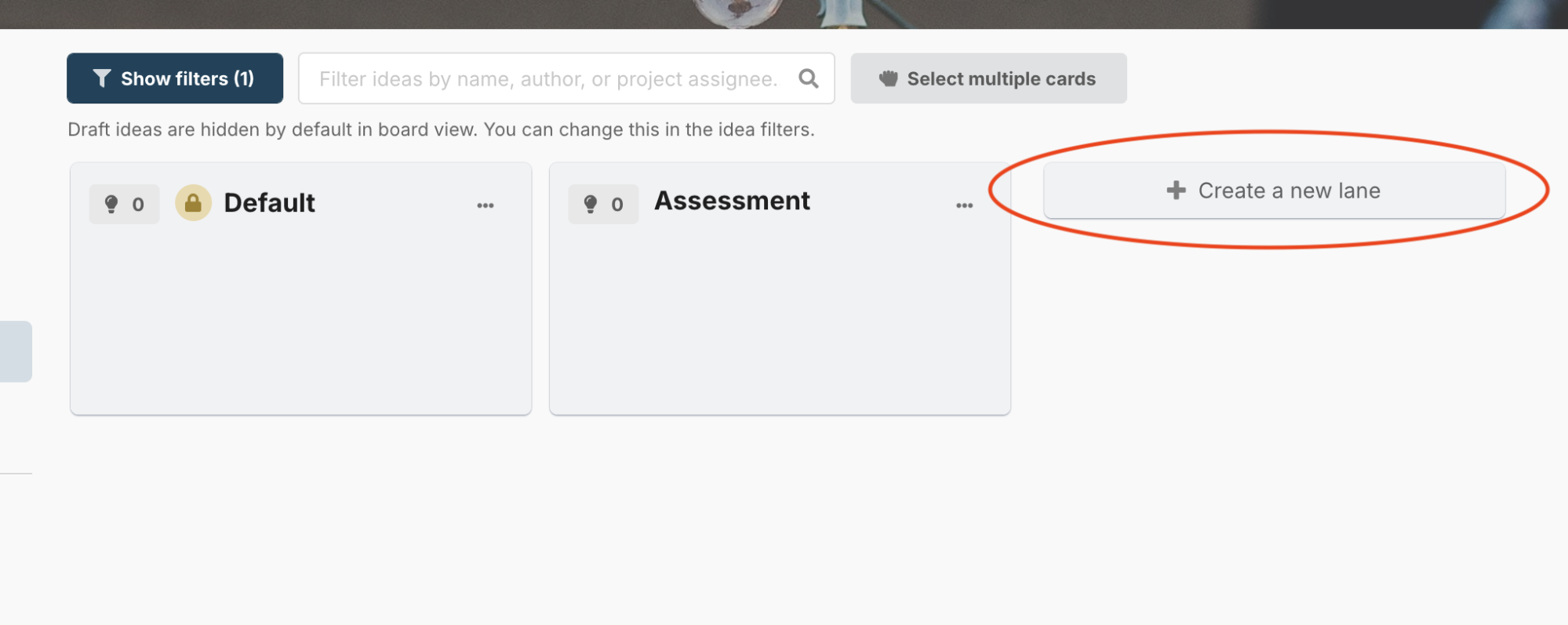
To add a new lane to your board, click the “Create a new lane” button that appears to the right of your existing lanes. New lanes are created with a default name, which can then be changed (please see the instructions for this below).
5. Edit a lane
To change a lane’s settings (including the lane’s type, name, or description), click the “...” button shown at the top of the lane.
In the dropdown that appears, select the value that you want to change.
6. Delete a lane
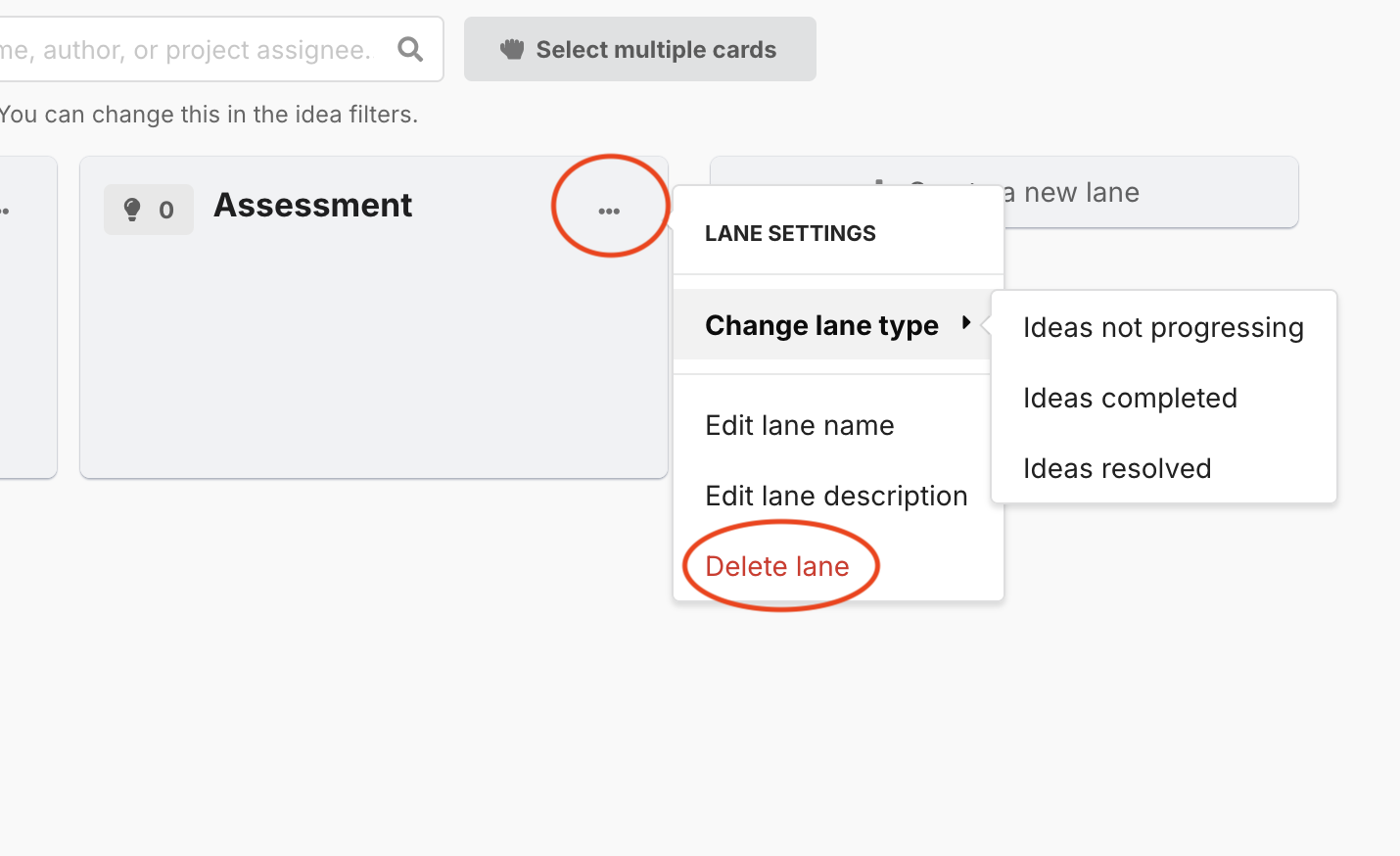
You can delete a lane using the “Delete lane” option that appears in the “...” dropdown available at the top of the lane.
When a lane is deleted, any ideas it contains are moved back to the default lane.
7. Reorder lanes
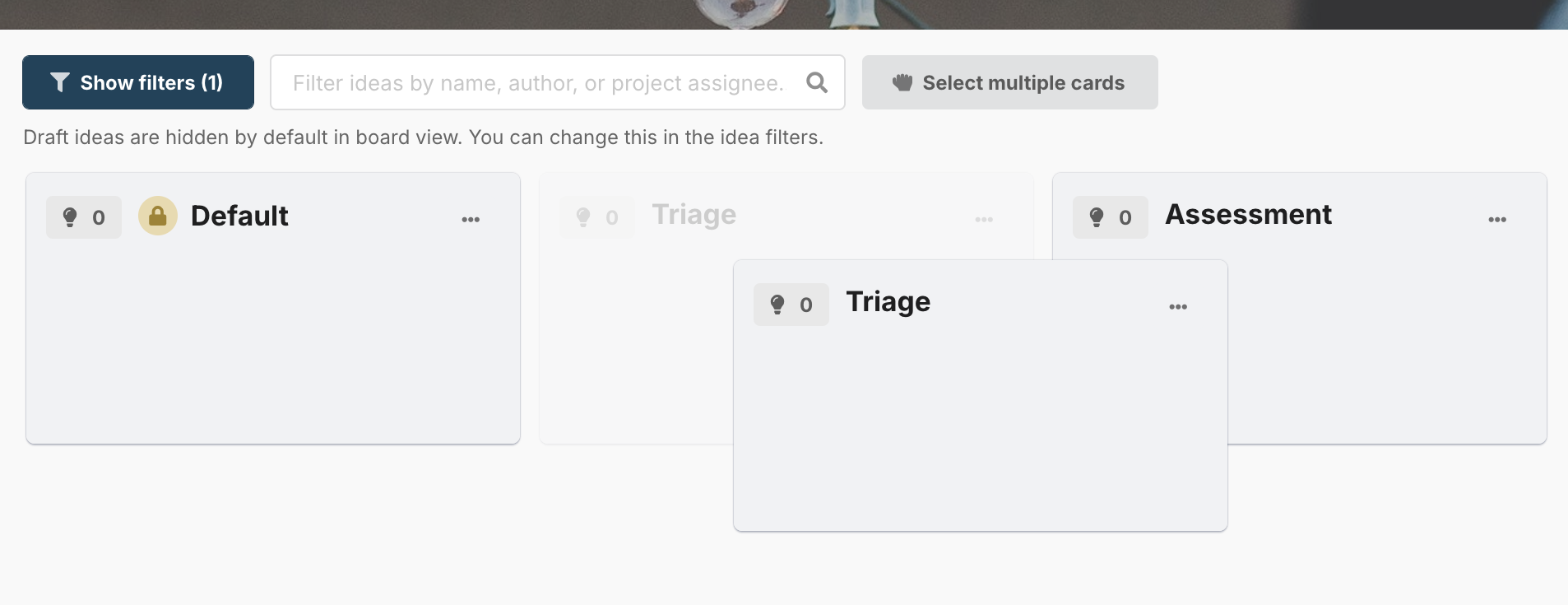
Lanes can be reordered simply by dragging them around the board to their intended position.
When a lane is moved, ideas stay on the lane.
8. Filter ideas on the board
As ideas begin to arrive on the board, it can be useful to filter the ideas to find ones you’re looking for.
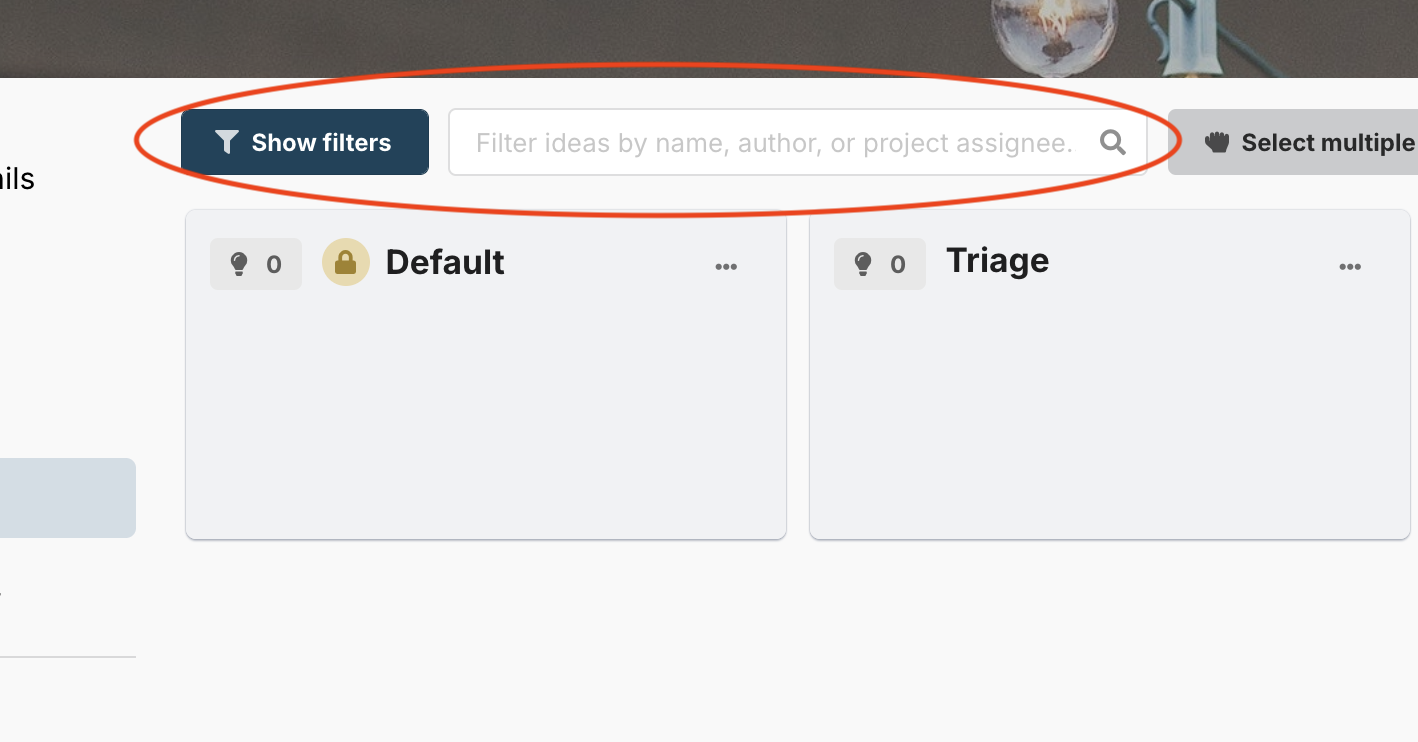
You can filter ideas using the search bar to type the name of an idea, author or assignee, or you can use the “Show filters” button to provide more granular controls.