In SimplyDo, impacts are the mechanism whereby estimated and realised benefits (e.g. ROI) for an idea can be recorded. Once recorded, other tools are provided to report on benefits on an isolated idea basis, across a challenge, and across your organisation. Please note that this article assumes that your organisational strategy impacts have already been configured.
It is good practice to set up your challenge impacts ahead of launching your challenge so that idea creators can begin to report on them.
In this article, we explain how to set up challenge impacts so that your challenge is ready to begin measuring estimated and realised benefit and return on investment.
1. Find the Impact Settings page
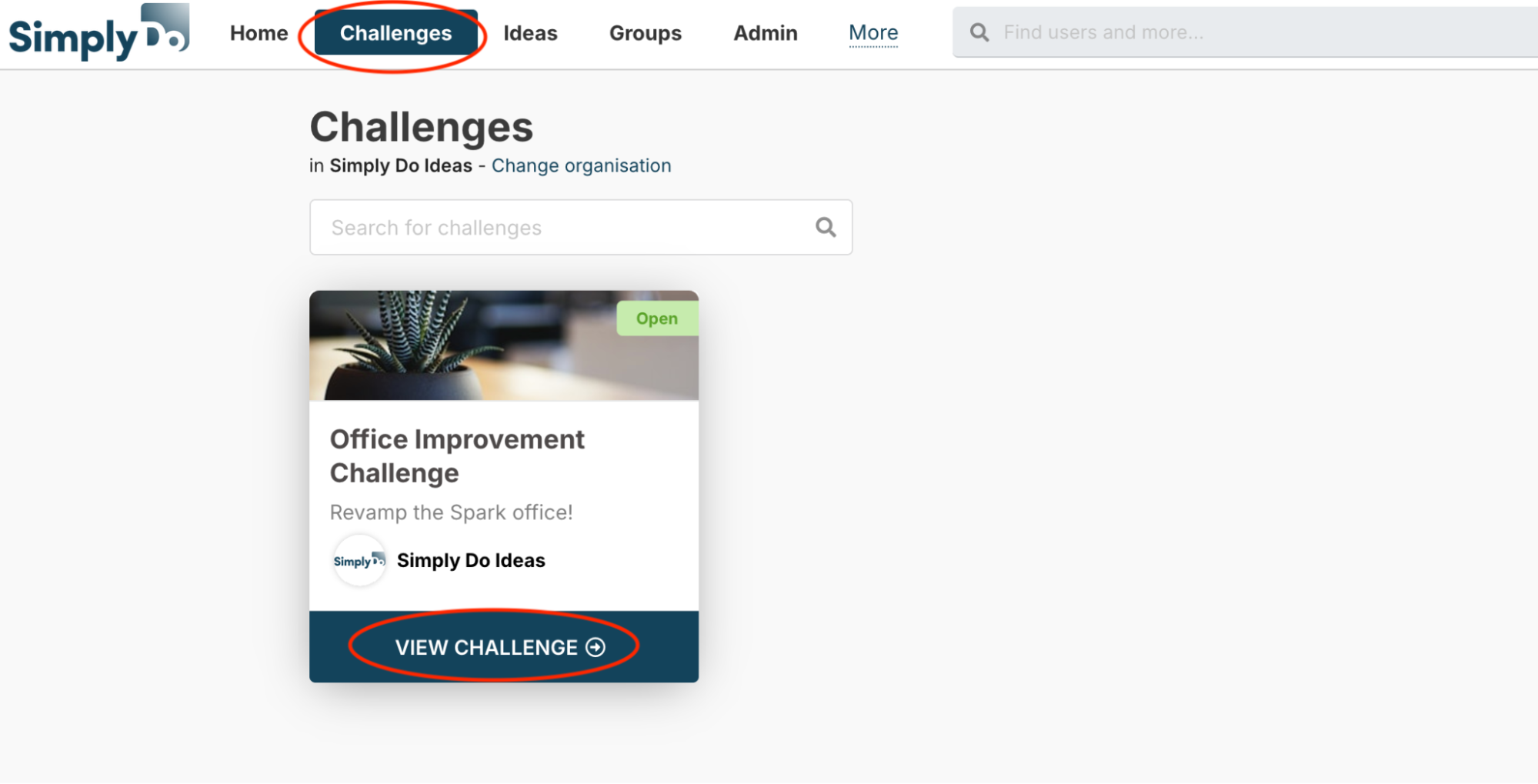
Firstly, navigate to the Settings page of your challenge. Find your challenge via the “Challenges” link in the top navbar, and then select “View challenge”.
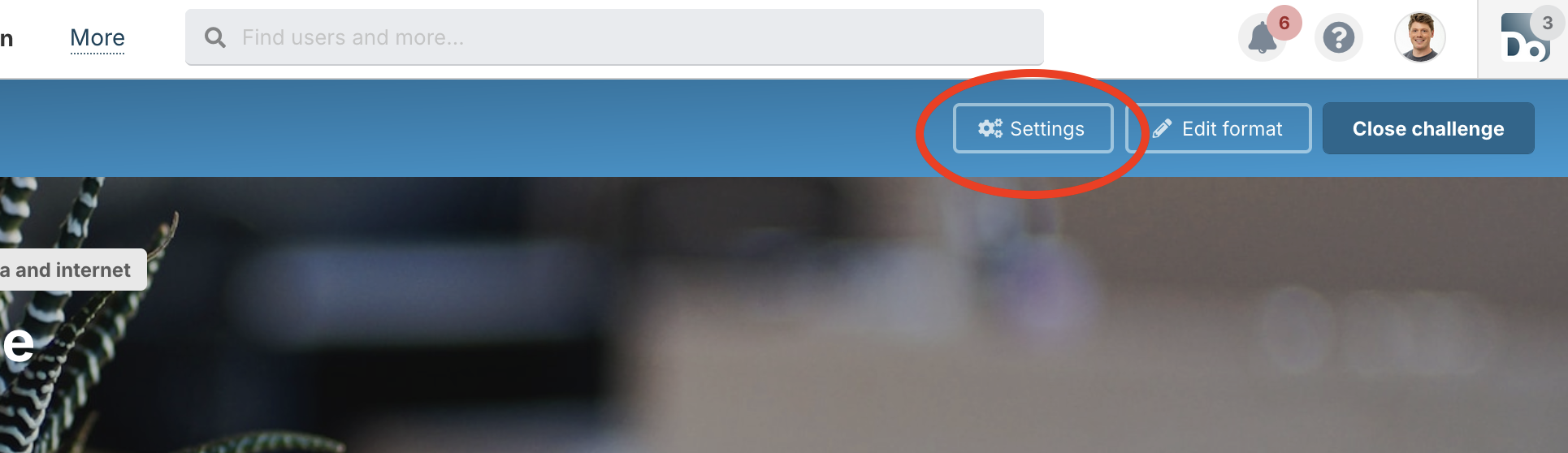
From here, use the “Settings” button in the challenge toolbar.
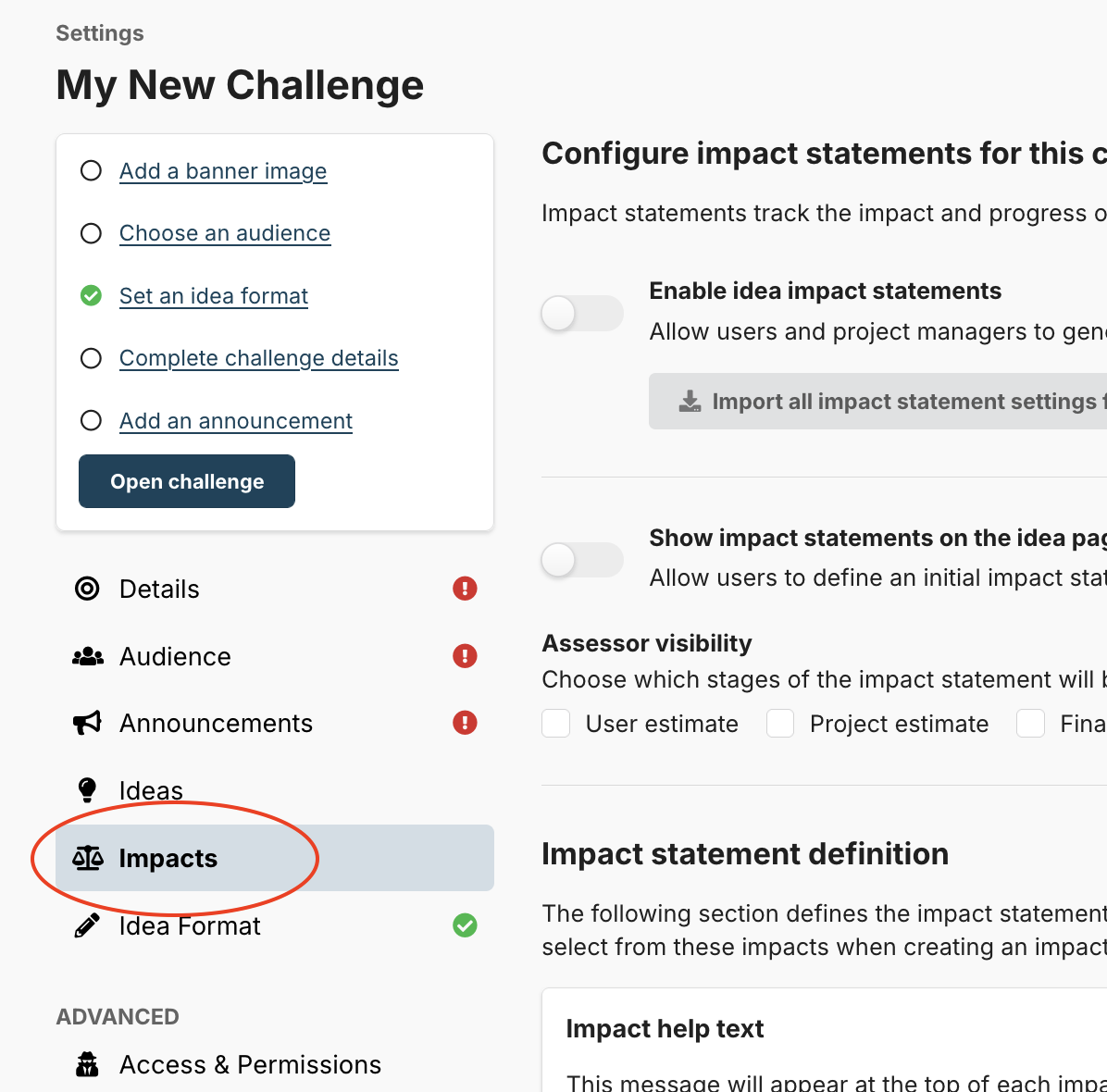
Finally, tap the “Impacts” tab in the sidebar.
2. About Estimates and Realisation
There are three stages of impact measurement available on each idea:
-
User estimate: the impact estimated by the idea author.
-
Project estimate: the impact estimated by idea assessors or challenge administrators.
-
Final outcome: the actual deployed impact.
The user impact can be provided at the point of idea submission, and the project estimate is provided as part of the impact review process (usually once the idea has been submitted and is being managed through the project board).
The final outcome is recorded further down the line once the idea’s project is complete and realised impact can be more accurately measured.
SimplyDo reports impact measurements via in-app reporting, PowerBI, and directly via the SimplyDo API.
3. Impact Statements
Impact statements are challenge-specific “templates” that represent a slice of the full set of organisational impacts already configured.
Since not all challenges may result in benefits associated with all of the organisation-wide impacts (for example, specific challenges in one domain that wouldn’t typically provide benefits in a different domain), building challenge-specific impact statements with a subset of the full list of available organisational impacts is useful for streamlining the challenge impact process for both idea craters and challenge managers.
Furthermore, different challenges may have different impact potential. Thus, impact statements also allow you to control how people record impact when creating or managing ideas in your challenge. For example, this can be done by offering challenge-specific numeric ranges (such as for “cost saving” type impacts).
The same impact statement template is used for each recording stage (user, project, and final), allowing for progressive and consistent changes as re-estimates or realisations are recorded.
4. Enable Impact Statements
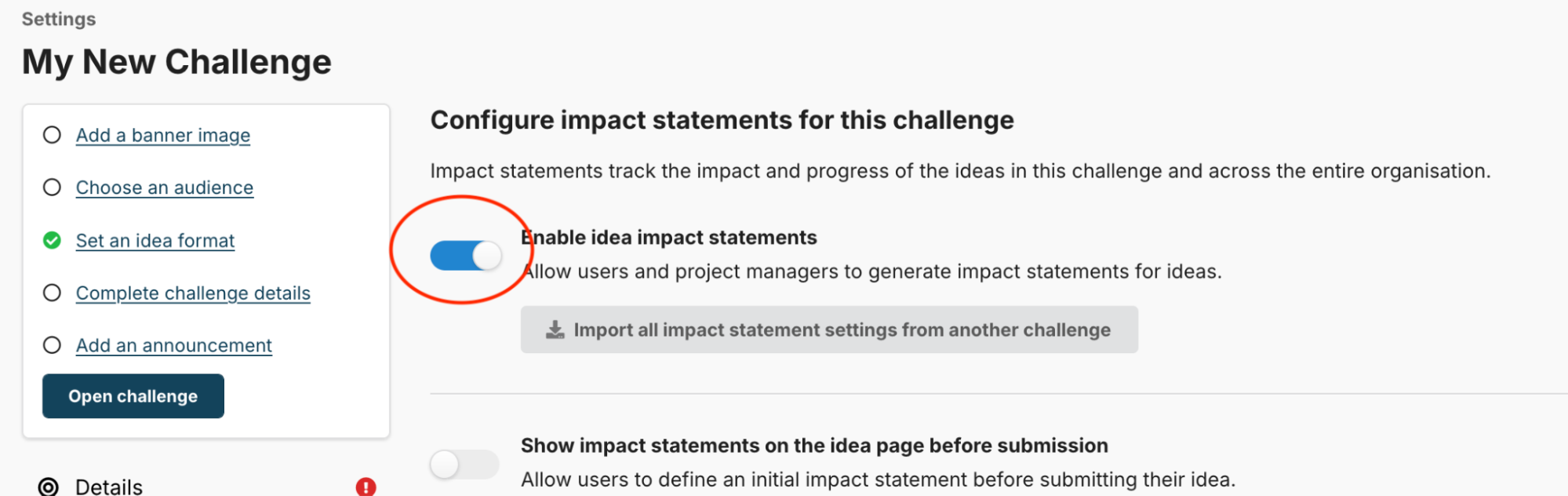
You can enable impact statements (and thus impact recording) for your challenge by toggling on the “Enable idea impact statements” option. Once enabled, the impact statement will be handled in your challenge in accordance with your impact statement configuration, which we’ll cover in this article.
5. Import an Impact Statement
If you have another challenge (past or present) that has an impact statement configuration you want to re-use, you can import it. This saves time in re-creating the same (or similar) statement each time you run a challenge.
Once imported, you can tweak the impact statement to fine-tune it for your new challenge without affecting the original challenge.
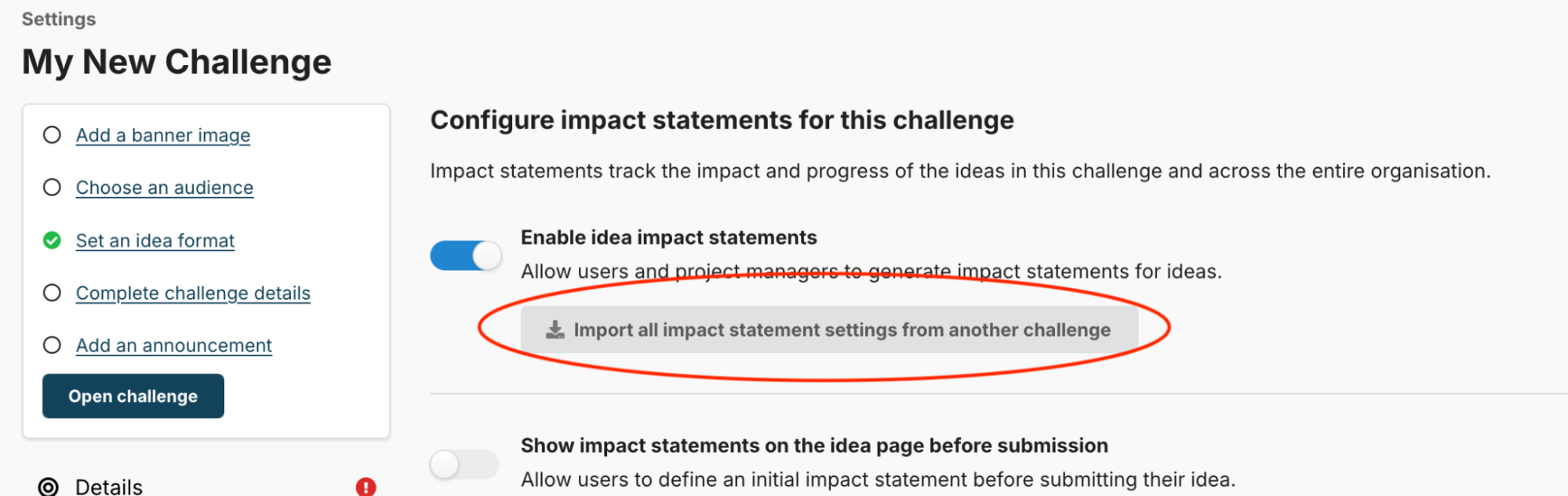
To import a statement, first tap the “Import all impact statement settings from another challenge button”.
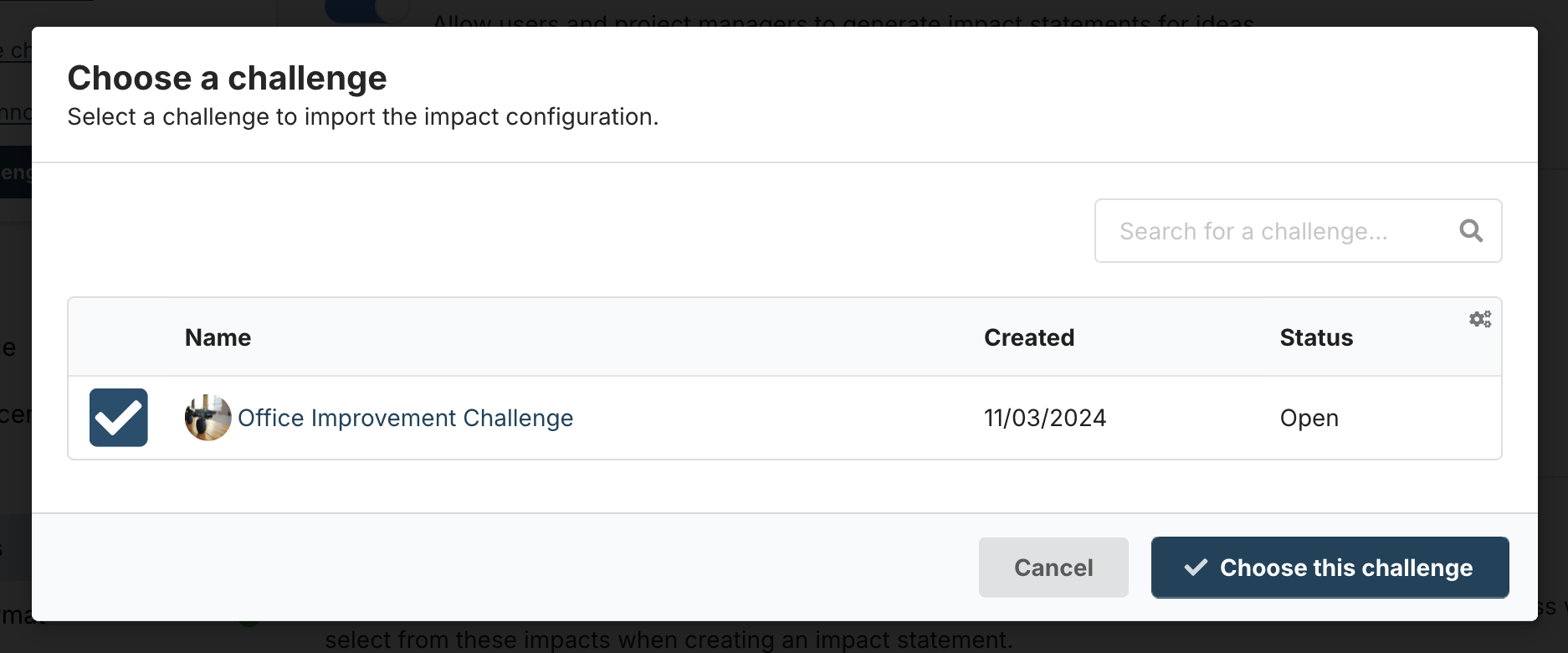
A window will display, inviting you to select another challenge from a list. Tick the challenge whose impact statement you want to import, and then click “Choose this challenge” to finish.
Your new impact statement will now be available for you to use or build from.
6. Manage Your Impact Statement Settings
Once enabled, you have some options to configure your impact statement.
Enable the “user estimate”
By default, idea creators cannot place an estimate on their own ideas during submission. This is known as the “user estimate”.
To enable the user estimate (recommended in most cases), toggle on the “Show impact statements on the idea page before submission” option.
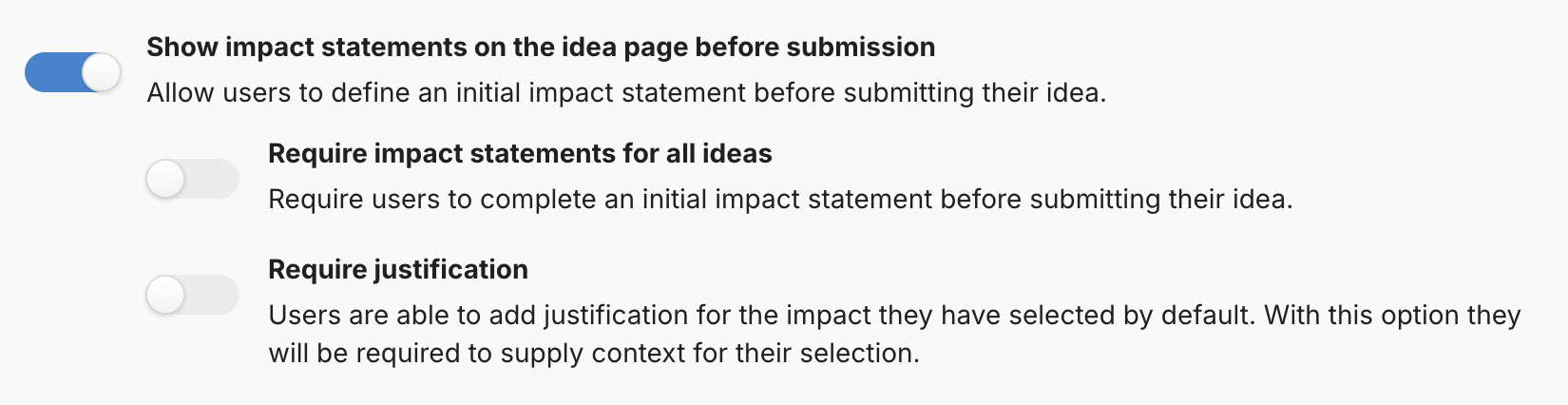
This then reveals two additional options:
-
Require impact statements: ensure that the user has completed the user estimate impact statement before they can submit the idea.
-
Require justification: ensure that a justification for their completed user estimate is completed before the user can submit the idea.
You can enable these options as required for your challenge.
Configure assessor visibility
By default, assessors (who aren’t challenge admins) cannot view impact statements recorded about ideas they assess.
If your challenge includes assessment, and you’d like assessors to view recorded impact statements, you can enable visibility at different stages by ticking the appropriate checkboxes in the “Assessor visibility” section.

Add impact statement “help text”
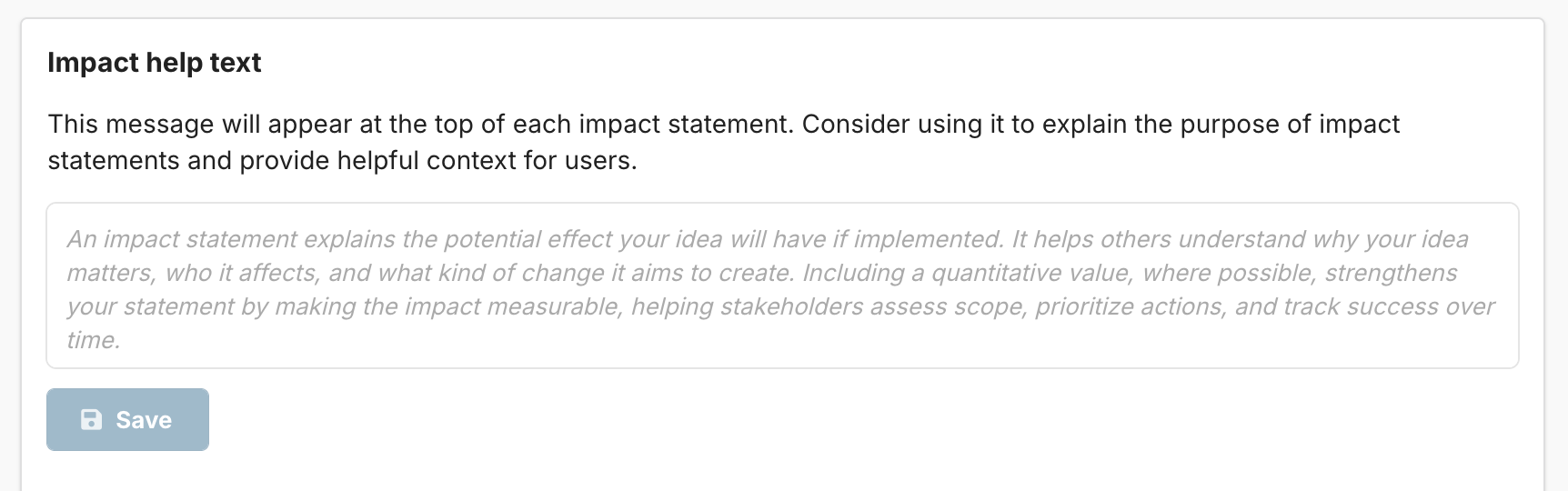
You can customise a help text message that appears above each impact statement. This can be used to provide context or instruction to people completing your challenge’s impact statement. The help text applies to statements at any stage (user, project, and final).
To change the message, enter some text into the “Impact help text” field and click “Save”.
7. Build Your Impact Statement Template
The key section of the impact statement is the “template” itself that people will complete when recording impacts for an idea. The same template is used for all stages (user, project, and final) and contains the specific impacts you want to record in your challenge.
This section assumes that you already have organisation-wide impacts configured on your organisation’s SimplyDo account. If not, please reach out to your organisational admin or your account manager.
7.1. Enable Your Desired Impacts
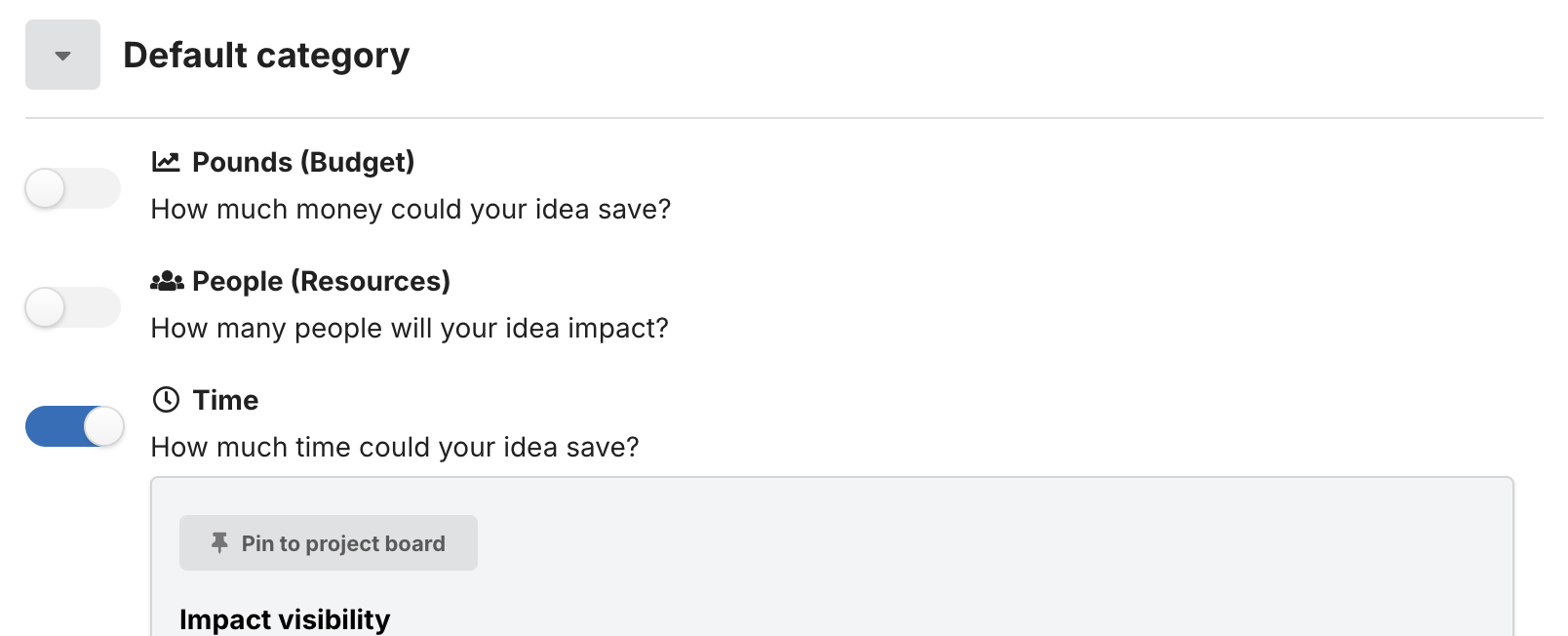
To build your impact statement template, first use the toggles shown in the “Impacts in this challenge” section to enable the organisational impacts you want to have recorded for your challenge. You can enable any number of your organisational impacts as relevant to your challenge.
In the example below, we have enabled the “Time” (timesaving) impact.
7.2. Configure Your Enabled Impacts
Once enabled, a settings area will appear, allowing you to control how this impact can be interacted with when part of your impact statement. In this section we describe the settings available.
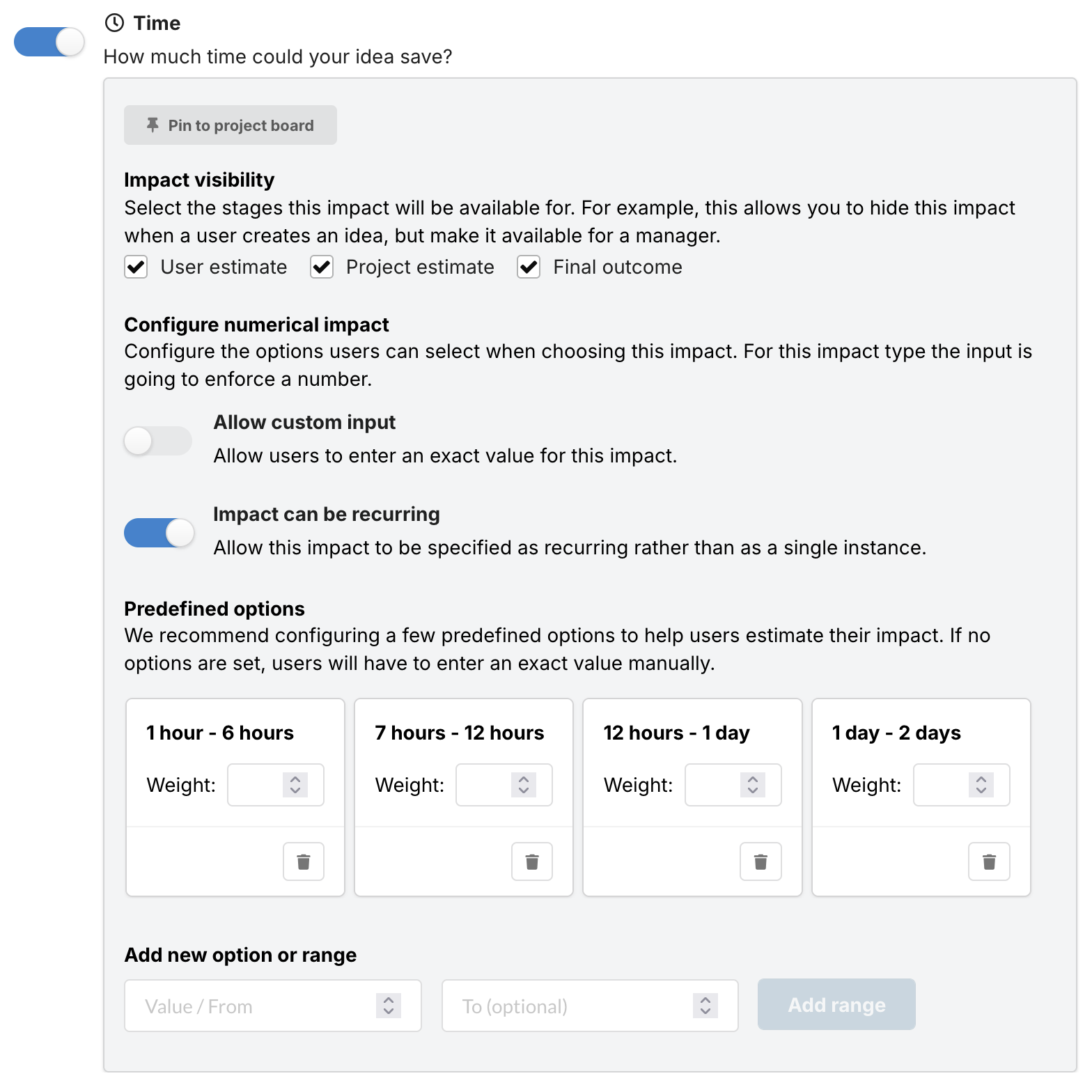
The image below shows a completed example of a configured impact in an impact statement. You can follow the same guidance for each impact you wish to enable on your statement template.
-
The “Pin to project board” button toggles whether or not this impact should be displayed by default on each idea on the project board. We recommend choosing your top 3-4 impacts to display on the project board.
-
In “Impact visibility” you can choose the stages where this impact applies. For example, some impacts may only be recorded by challenge admins reviewing the idea, and others may only be recordable as a final realised outcome.
-
If “Allow custom input” is toggled on, users can submit a raw numeric value (in this case) to represent the time frame. Precisely guessing impacts such as “time saving” is tricky and potentially inaccurate, so in many cases we recommend only enabling the “Predefined options” (as described below) instead of the custom input.
-
Enable “Impact can be recurring” to enable users to specify if the potential impact of their idea can recur (e.g. on a daily or weekly basis).
-
Add some “Predefined options” to your impact statement template to provide users with a selection of options to choose from. This can make it far easier for users to provide a realistic estimate at the “user” and “project” stages.
-
Once a predefined option is created, you can specify a “weight” for the option. The weight applies an impact level to the option. For example, you might give a higher weight to the most impactful option.
-
Some impact types allow categorical options (e.g. “Option 1”, “Option 2”, etc.). Others (such as time, in our example) allow for number ranges to be entered (e.g. representing the number of hours saved).
-
Repeat the process for each impact you want to include in your challenge’s impact statement template. Once finished, your challenge is ready to begin recording its ideas’ impact!