Engagement: Set Up Short Links
Before configuring a SimplyDo engagement plan, we recommend creating a set of “short links” to your challenge. Short links present an easier-to-use (and easier-to-remember!) method for accessing content on SimplyDo (for example, a direct short link to a challenge page).
SimplyDo short links are hosted at the domain name sdi.click, along with a simple path name. This allows for links like “sdi.click/mychallenge” to point to your own challenge, such that people who click the short link are automatically redirected to your challenge. Short links also come with a suite of analytics tools, allowing you to easily report on the performance of your campaigns.
In this article, we explain how to set up, manage, and view analytics for short links in readiness for inclusion in your engagement plan. Your account will need organisational-level permissions to access these features.
1. Find the Short Link Manager
Option A: Via the Admin Dashboard
The short link dashboard is available from the admin dashboard. To get there, navigate to Admin in the top navbar, and then select the Links option on the left-hand sidebar.
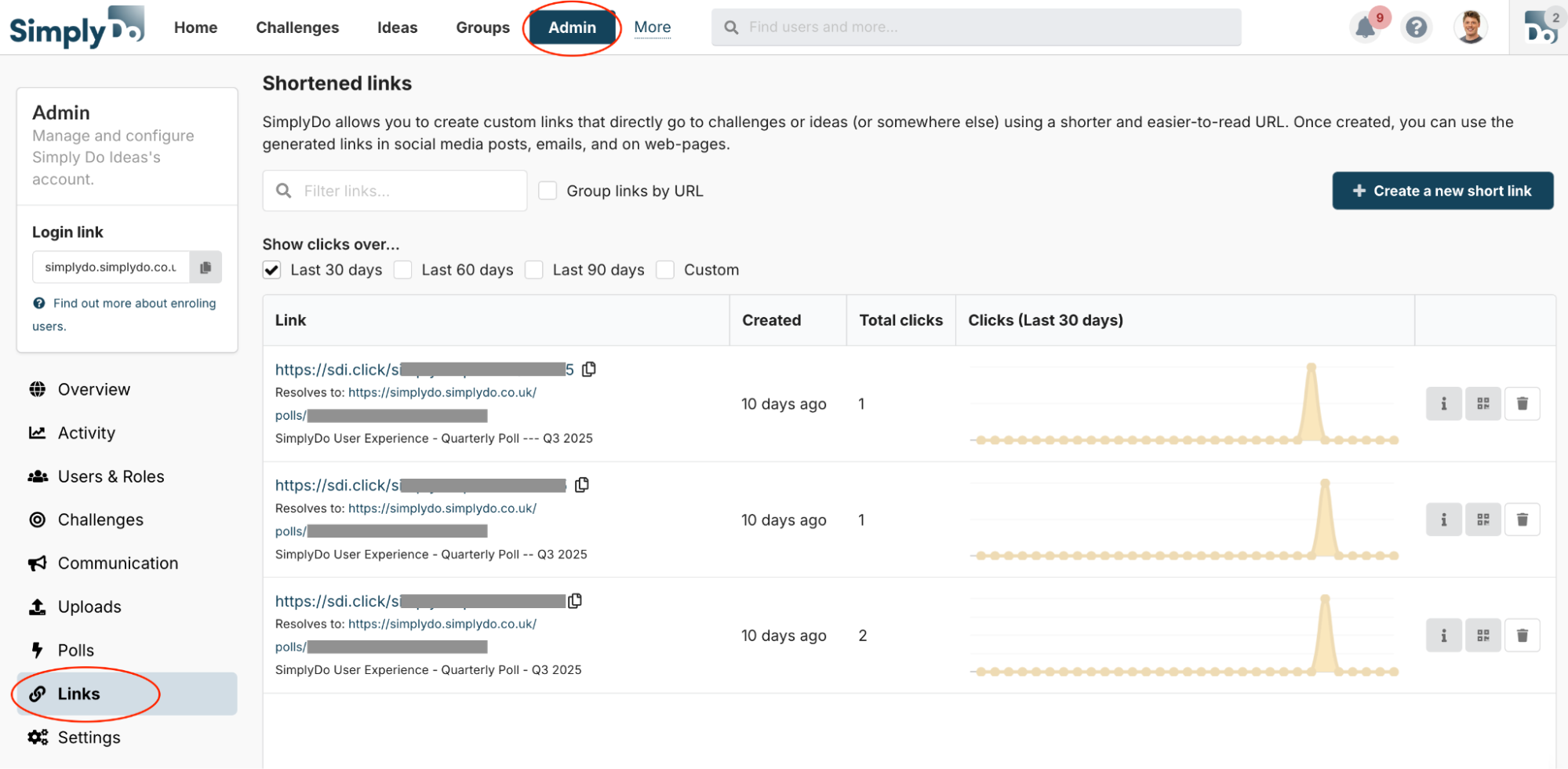
You’ll be presented with a screen showing you the links you’ve created so far.
Option B: Via the “Quick Manager”
Short links can also be viewed and created anywhere in the platform via the quick manager.
To access this manager, hover your mouse over the Admin option in the navbar, and select Manage short links.
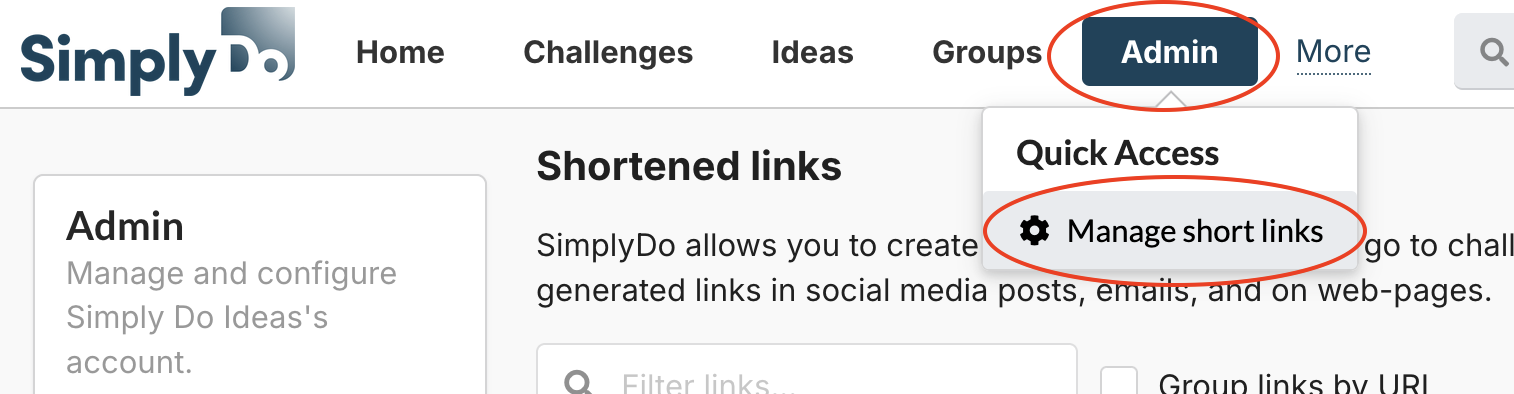
This will open up a window showing you a summarised view over your short links.
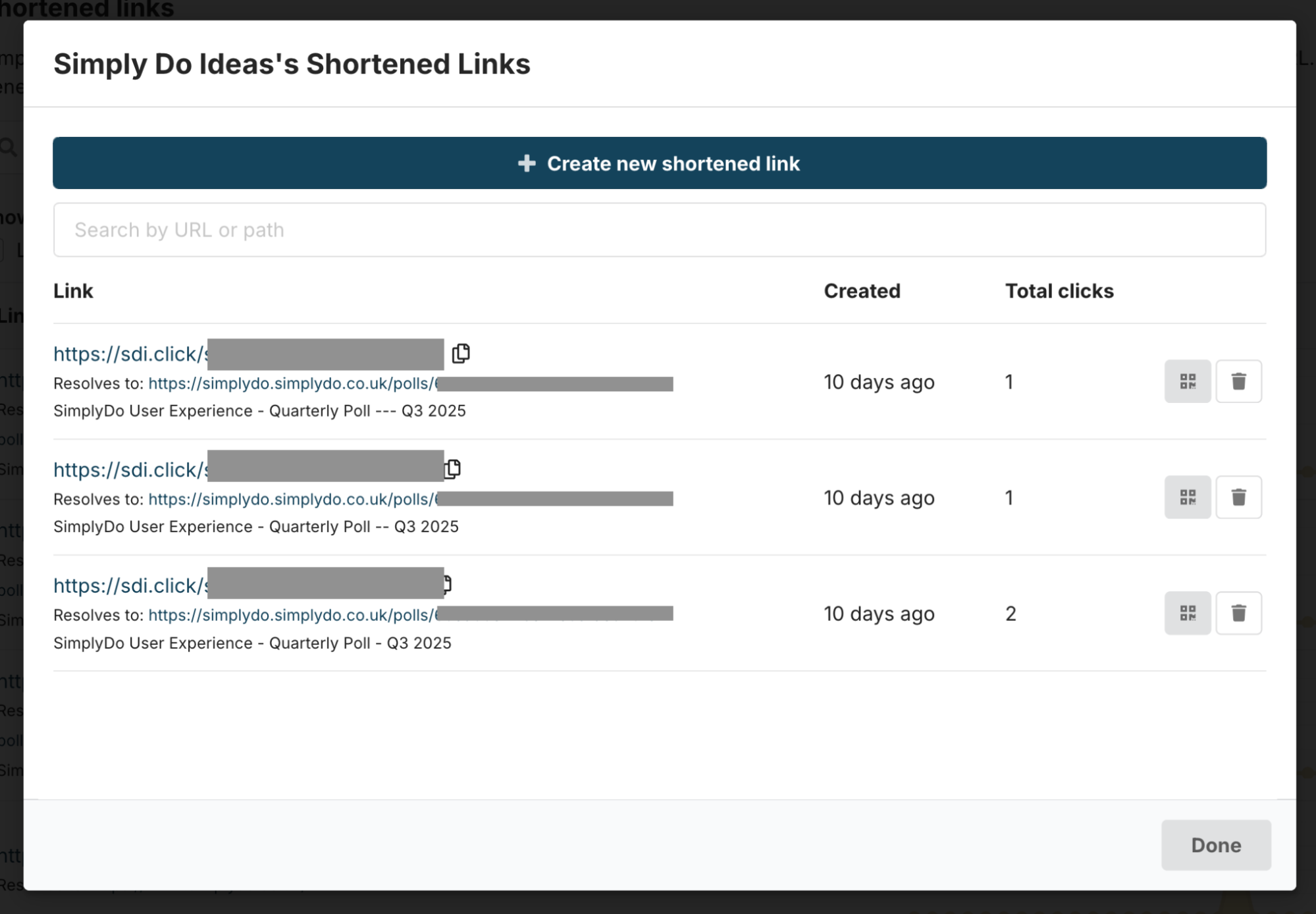
2. Create a New Short Link
Short links can be created from the short link manager available via either route described in section 1. To do so, tap the Create a new short link button.
You’ll be presented with a form that asks for some information in order to create the link.
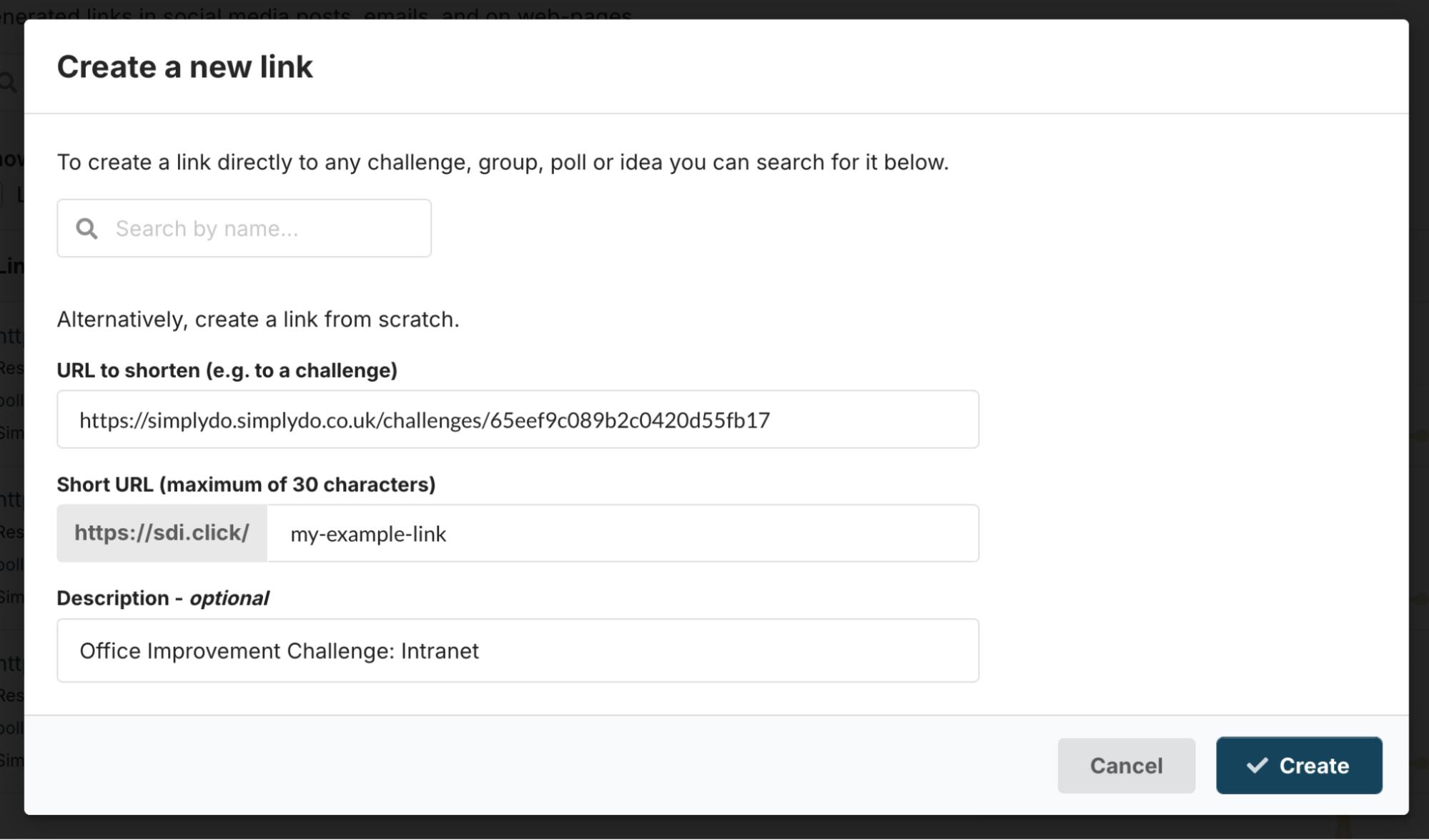
Complete the form by filling in the information:
-
The “URL to shorten” field is the address that will be eventually resolved by the short link. This should go to your challenge (or other page as you need).
- Note: we recommend using the “Search by name…” field to search for a challenge and to find the link you need.
-
The “Short URL” is the actual short link that will be created. In the example above, this will create a link available at sdi.click/my-example-link, which will take visitors directly to the challenge.
- Important note: the text you use in the short link must be unique across all of SimplyDo. You will see an error if you try to use a link that already exists.
-
The optional “Description” field lets you describe your link so that you can remember what it’s used for. In the example above, we indicate that this link is intended to be used for dissemination via an intranet system.
Click the Create button to complete the setup.
For each challenge, we recommend creating a different short link for each mechanism needed for challenge engagement (e.g. one for email, one for Teams, etc.). This then allows you to measure the effectiveness between different communication channels.
3. Access and Copy Your Short Links
Once created, you can view your short links via the short link manager. We describe how to find this manager in section 1 above, and you can choose either of the routes.
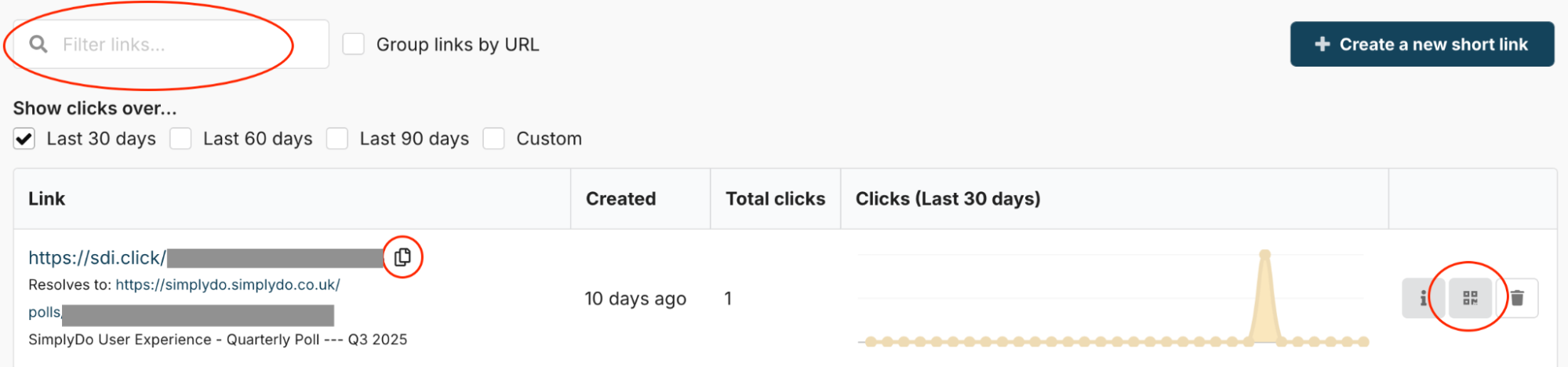
On this screen you can use the input box to filter your links to find the one you need. You can use the “copy” icon to copy the link to your clipboard (so you can paste it elsewhere).
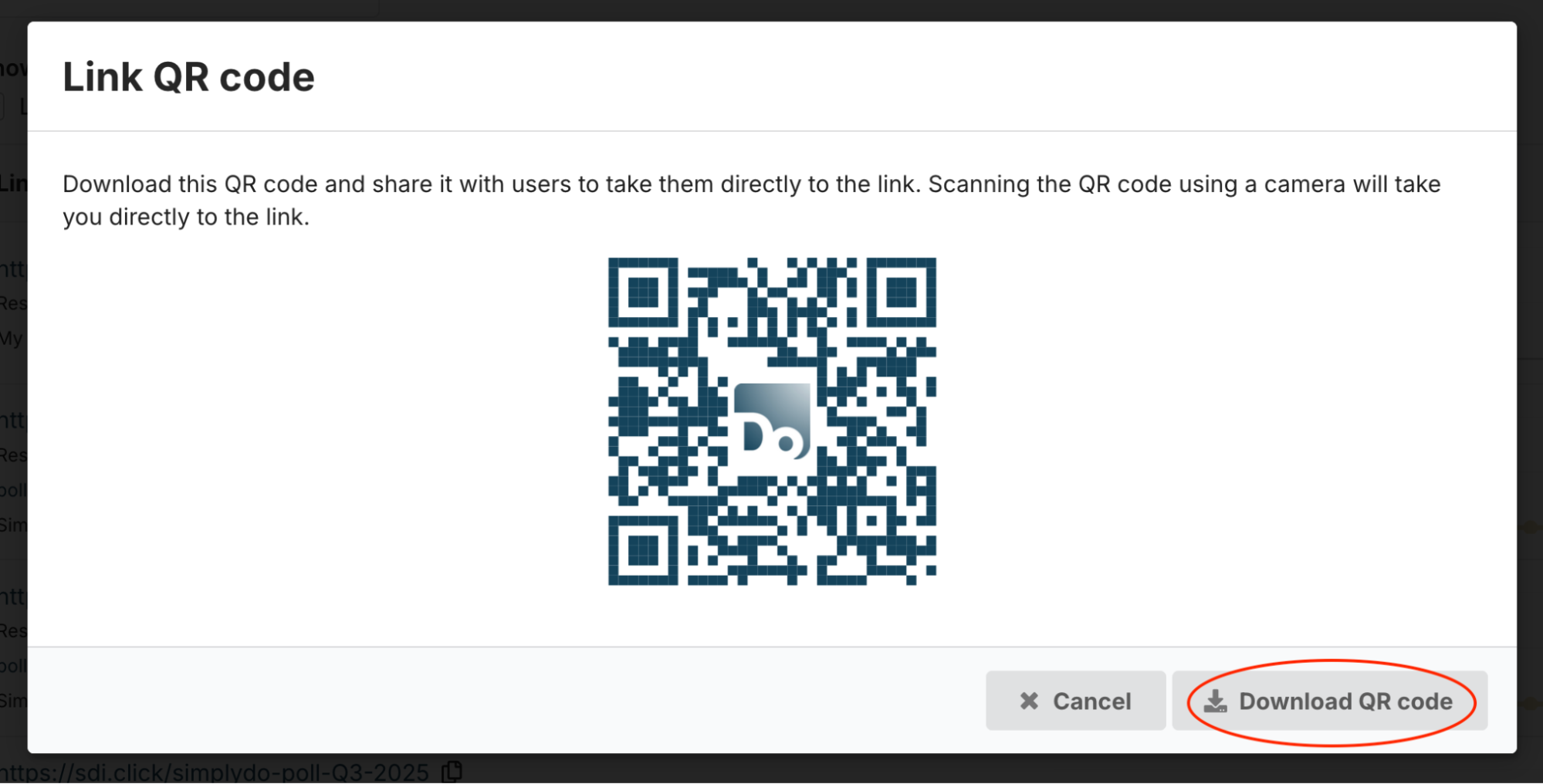
You can also click the QR icon button to show a downloadable QR code that you can print or use in your own comms to improve access for people with smartphones.
4. View Short Link Analytics
SimplyDo reports on key short link usage metrics.
To find this, navigate to the short link manager available via the admin dashboard, as described in section 1 above. On this screen, find the link that you’re interested in analysing. You can do this using the Filter links… option or by finding it in the list.
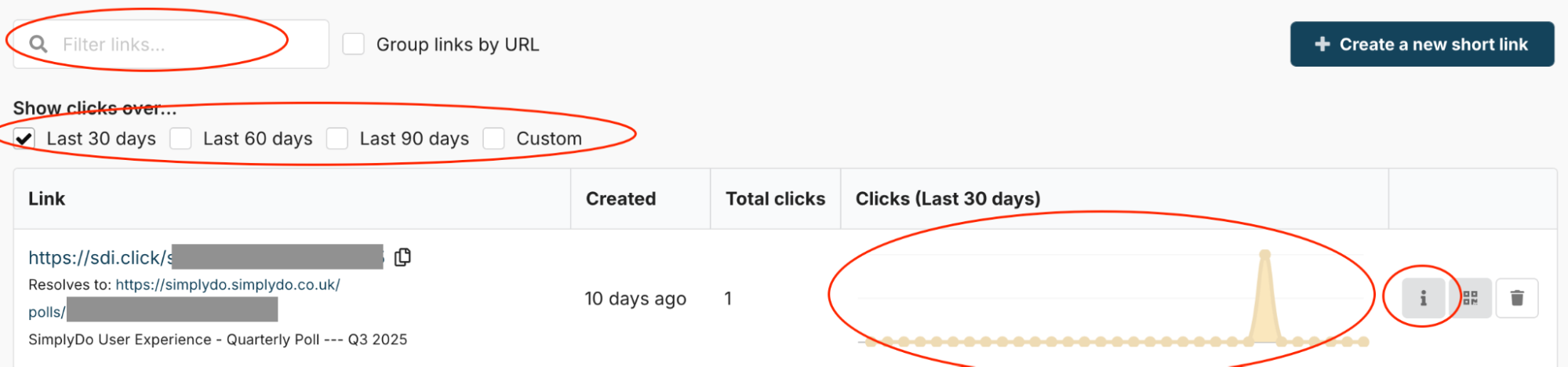
The mini chart in the table displays an overview of the activity over time for this link. You can change the timeframe for this chart using the Show clicks over… option.
By clicking the information (“i”) icon button, you’ll be presented with additional information about the link’s performance.
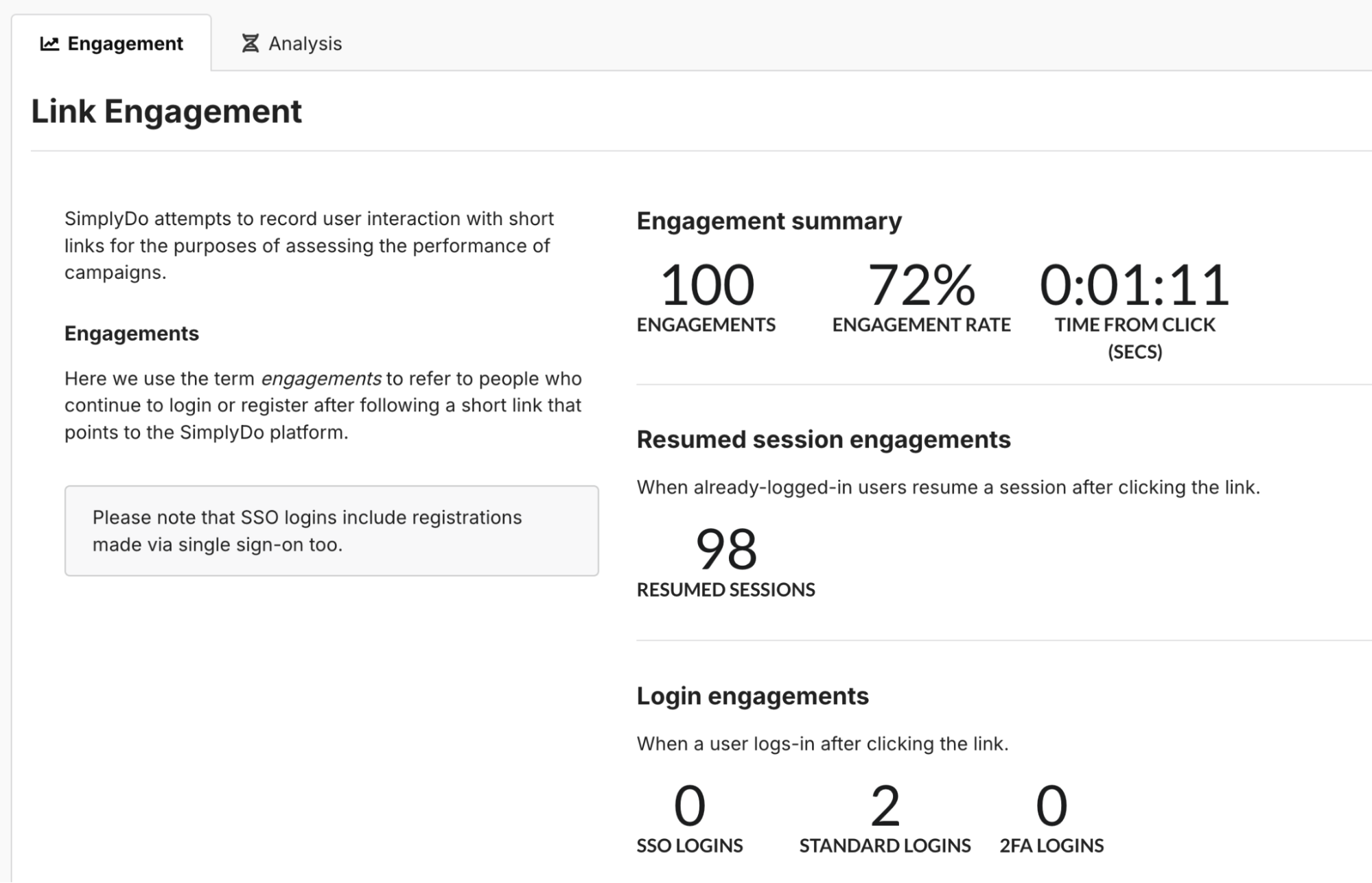
The Engagement tab shows high-level interaction analytics.
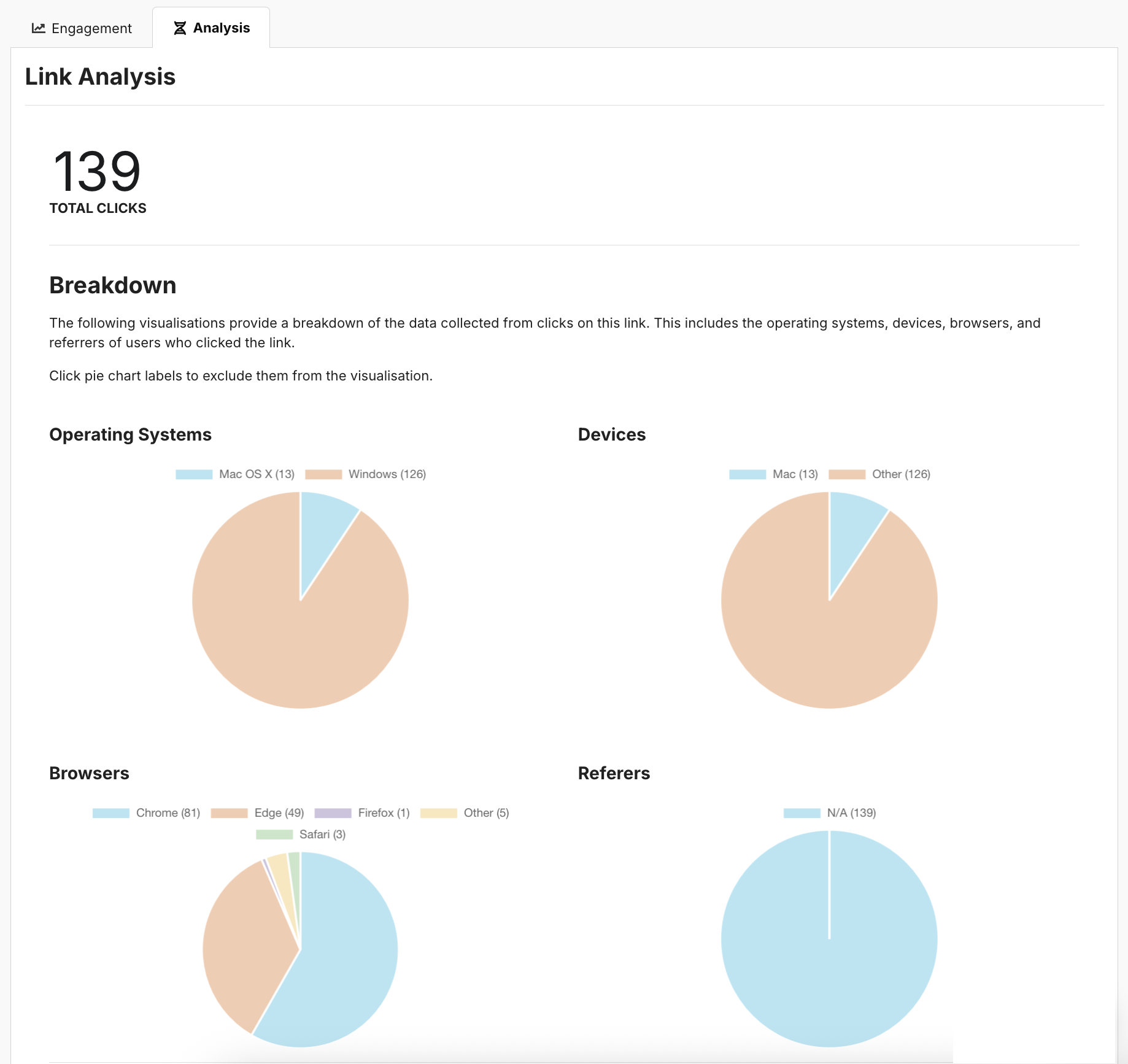
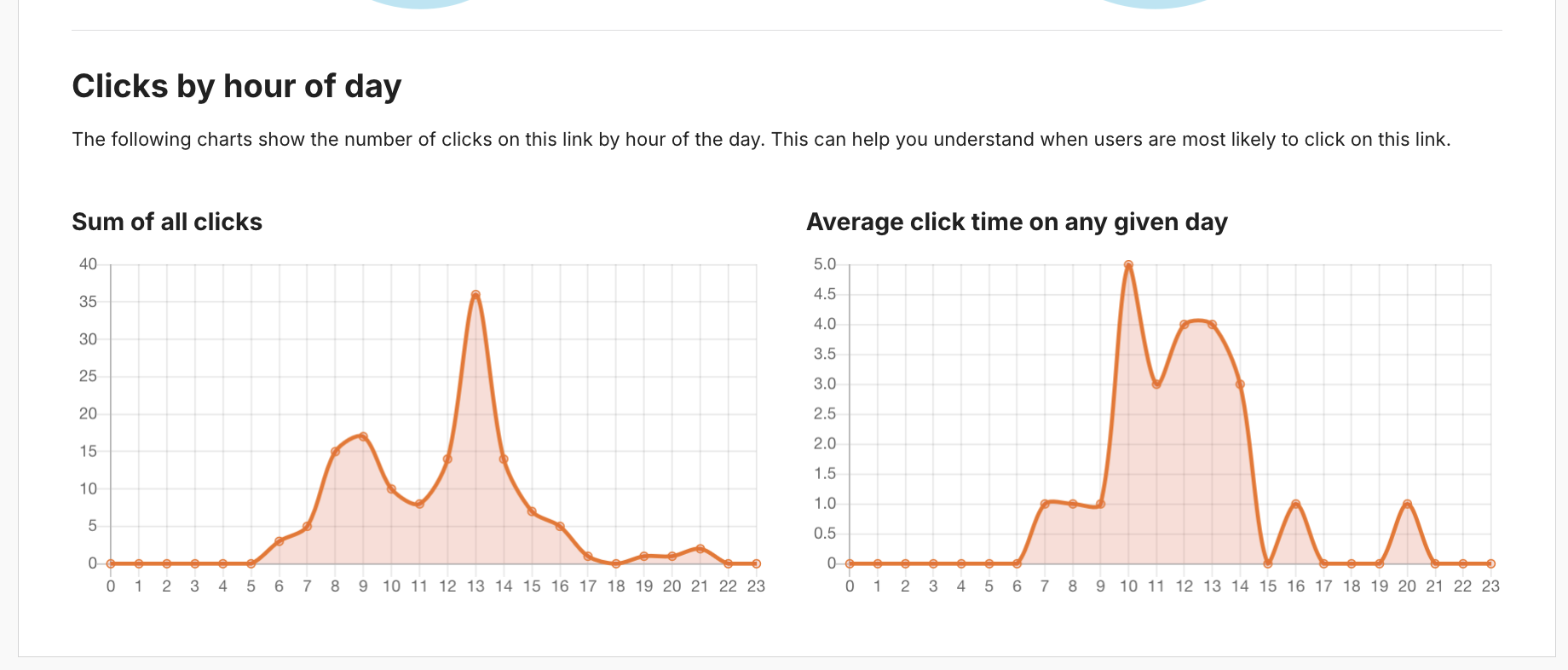
The Analysis tab shows information about the devices and browsers used, and typical usage during the day.
By comparing this data between the links pointing to a specific challenge, you can contrast the effectiveness of your communication campaigns.
5. Delete a Short Link
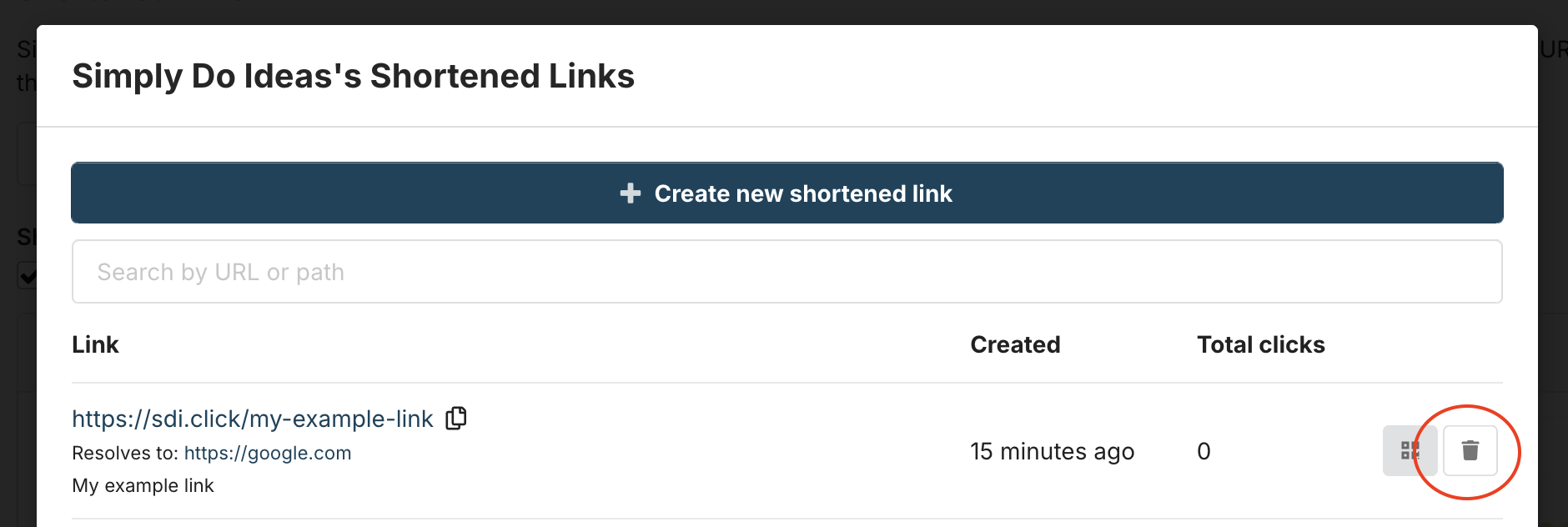
If you no longer need a short link, it can be deleted.
Important: Once a link has been deleted, it can be used by another SimplyDo user to be pointed to a different URL. Please only delete a link if you are sure that none of your own user base will use the link again in the future.
Short links can be deleted from the short link manager, via any route described in section 1 above.
Once on the short link manager, click the “bin” icon to delete the link.