The challenge planner is a tool designed to help you build an engagement and management strategy for your challenge. By encapsulating upcoming events, announcements, deadlines, and other relevant information, the planner provides a birds’ eye view of where you currently are in your challenge lifecycle, what’s coming up, and how your audience is being engaged.
In this article, we explain how to build and manage an engagement plan on the challenge planner tool.
1. Find the Challenge Planner Page
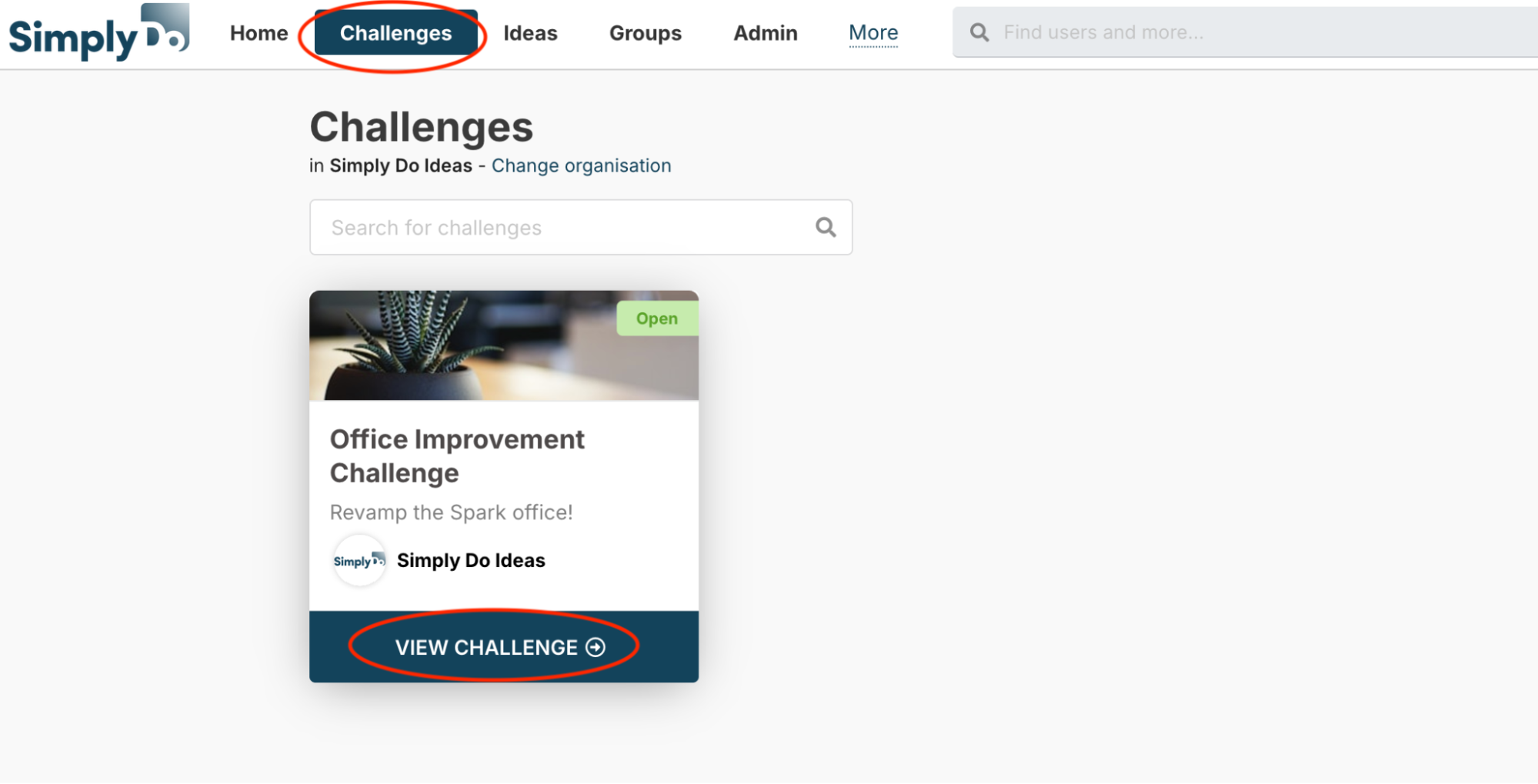
Firstly, navigate to the Settings page of your challenge. Find your challenge via the “Challenges” link in the top navbar, and then select “View challenge”.
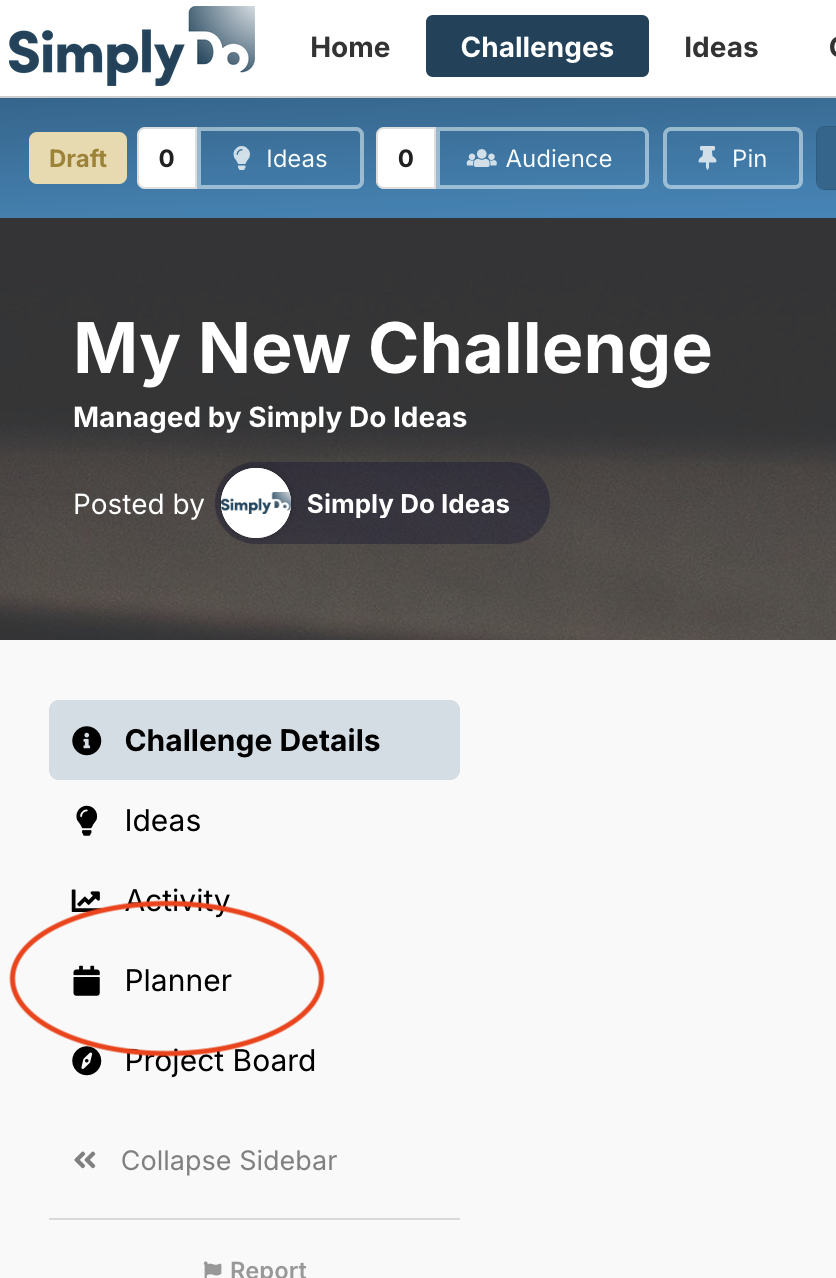
From here, tap the “Planner” tab in the challenge sidebar.
2. About the Planner
The planner provides a calendar-like view for your challenge timeframe.
The challenge “timeframe” is a custom period of time (which we’ll explain how to adjust later) to encapsulate challenge setup time, the duration for which the challenge is actually open for, and any time as needed after the challenge closes (e.g. for post-closure management).
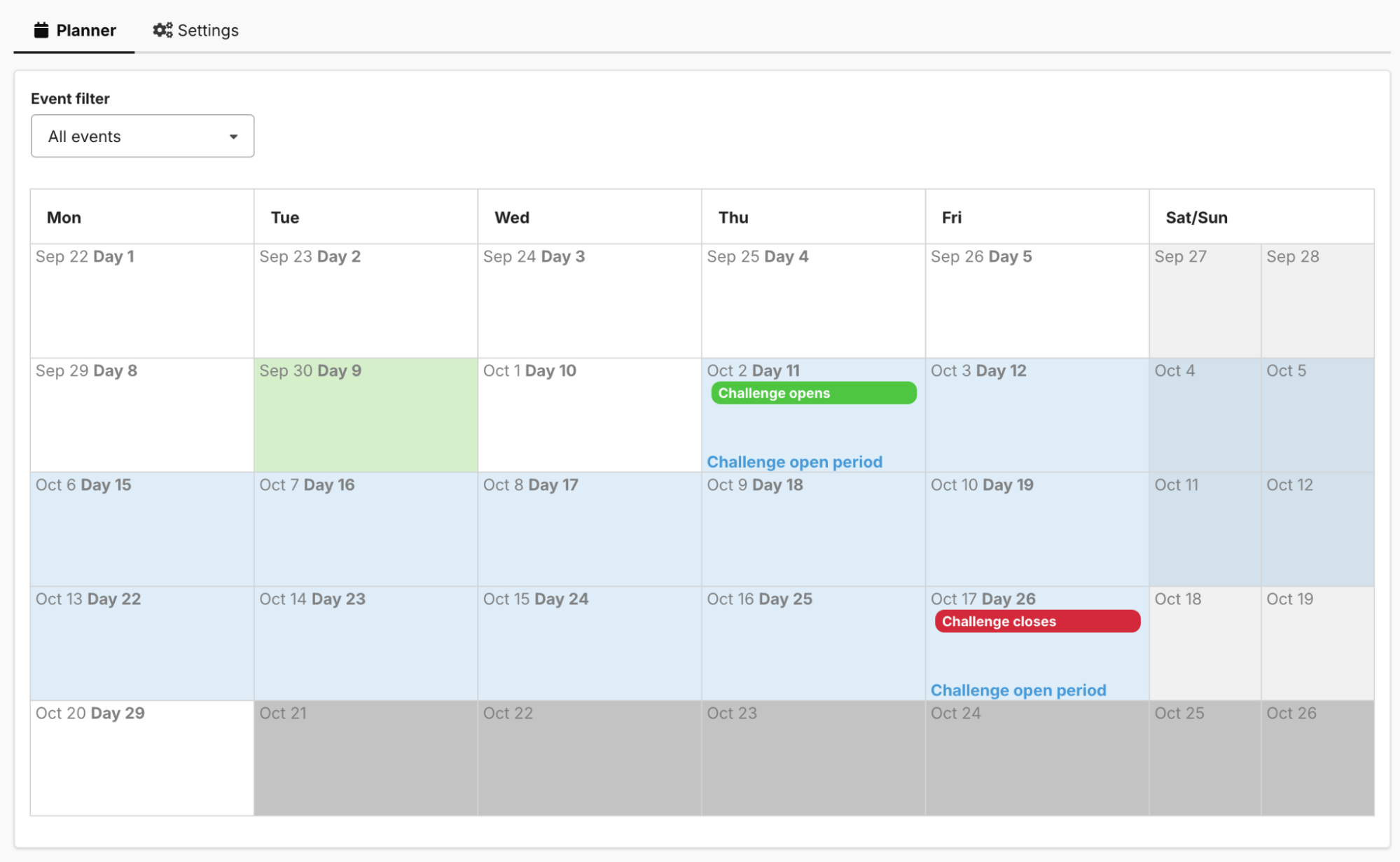
In the example below, the timeframe extends from 22nd September through to 20th October.
Other points of consideration:
-
The day highlighted in green shows the current day.
-
The days highlighted in blue show the days during which the challenge is open to new submissions (i.e. between the “Challenge opens” event and “Challenge closes” event).
-
Days in light grey are weekends.
3. Manage the Planner
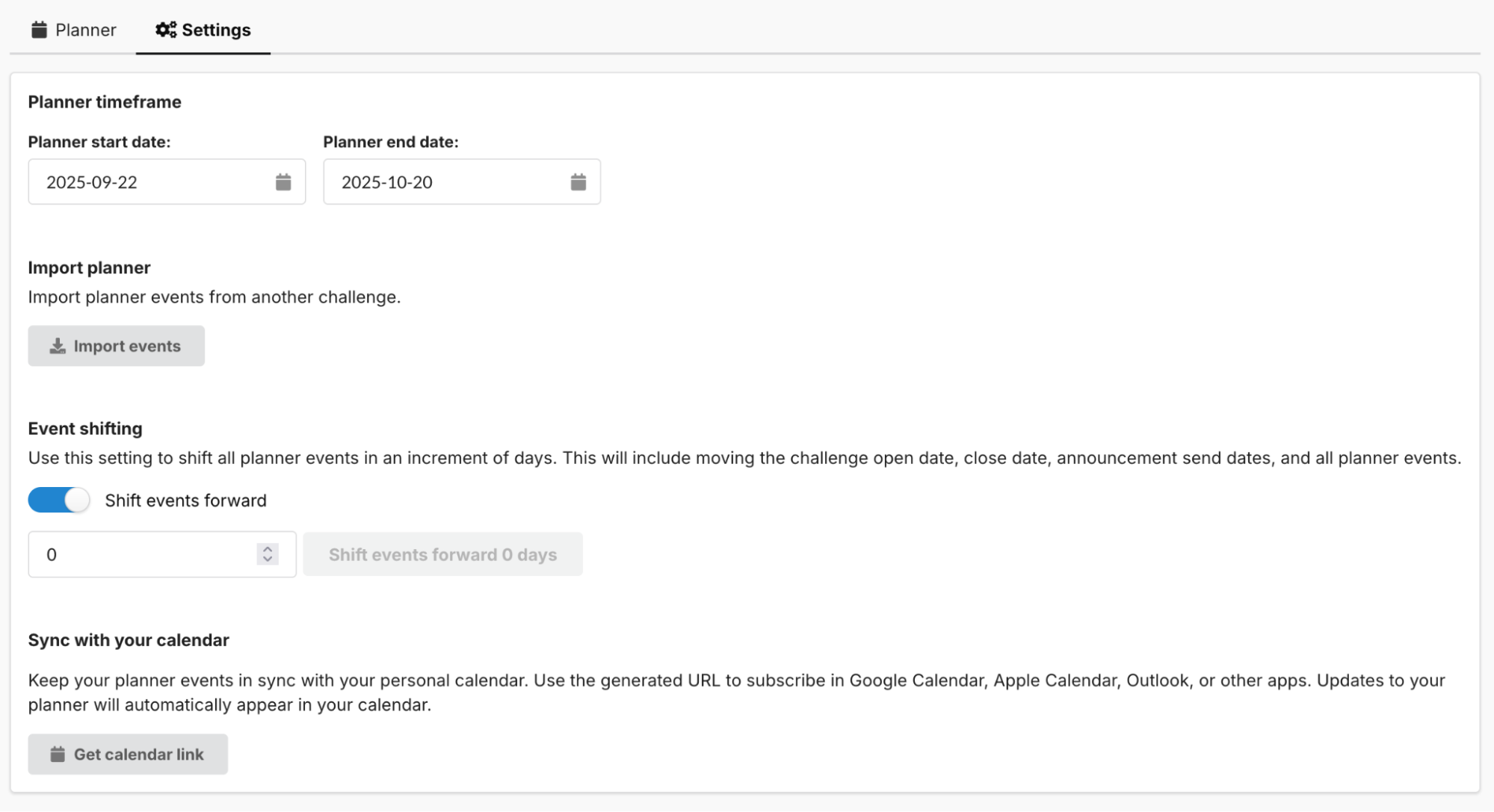
The planner’s Settings tab provides a number of options for customising the planner.
Change the timeframe
At any time you may change the challenge’s “timeframe” that the planner uses as its calendar view.
To do so, modify the Planner start date and/or the Planner end date on the Settings tab.
You cannot update the timeframe such that it excludes any events you’ve already created. If you need to reduce the timeframe, first delete or move any events that may fall outside of your new timeframe.
Import a planner
If you have an existing challenge and want to re-use the same planning structure again, you can import a planner from another challenge.
To do so, tap the Import events button, and a window will open to ask you how to proceed.
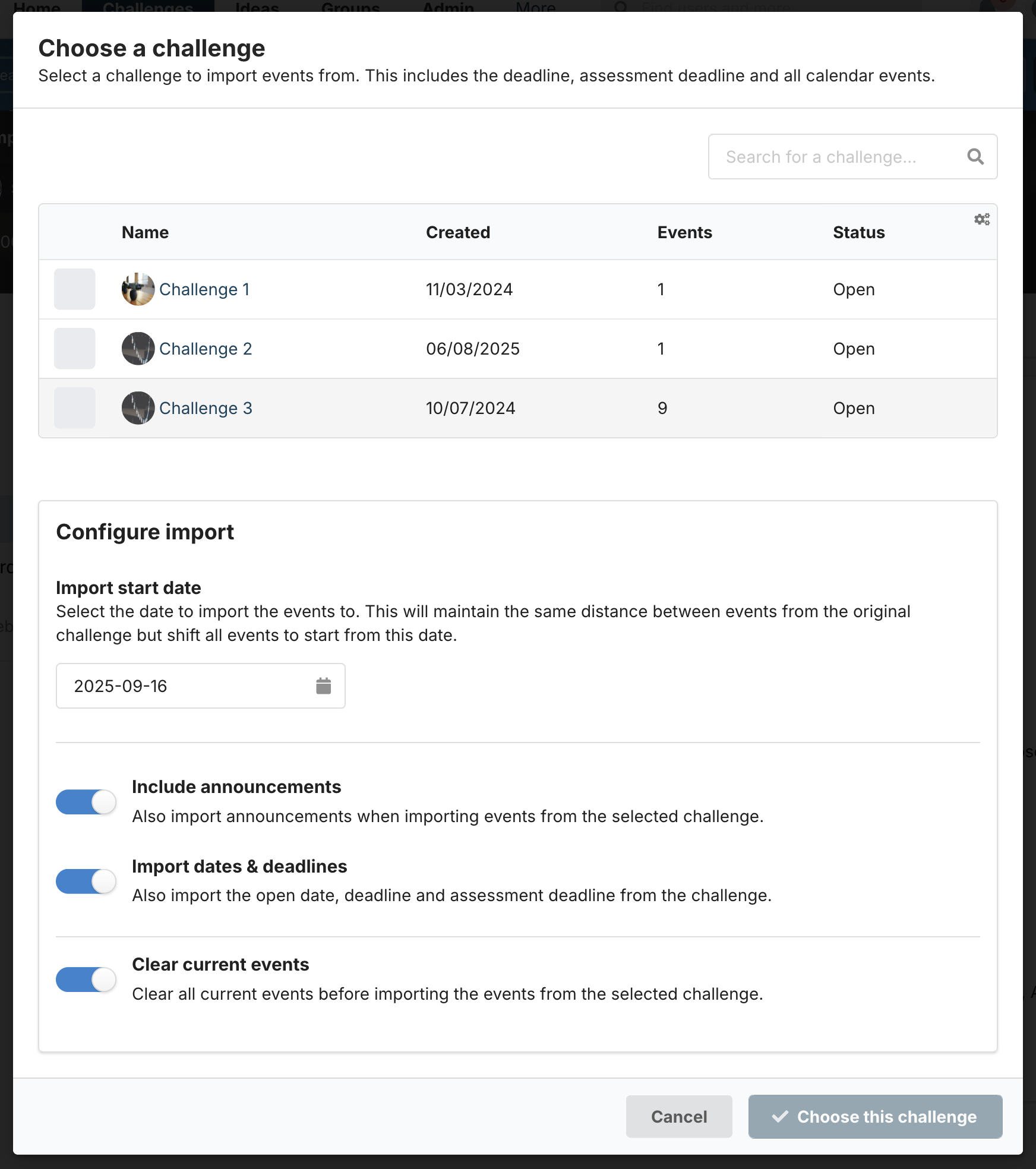
To continue, tick the checkbox next to the challenge that contains the planner you want to import. The Events column in the table indicates how many events will be imported.
Your chosen source challenge likely ran at an earlier date than your present challenge. As such, you can provide a Import start date to align the first imported event to this date, and ensures equal separation between the remaining imported dates.
Toggle the Include announcements control to include announcements in the import.
Toggle the Import dates & deadlines control to also import the open date and deadlines (e.g. challenge closure or the assessment deadline) from the source challenge.
Toggle the Clear current events control to delete all events from the present challenge before carrying out the import.
When you’re ready, tap “Choose this challenge” to complete the import. You’ll see the new events back on the Planner tab.
Shift events forwards or backwards
The Event shifting controls on the planner Settings tab allow you to move events in-bulk.
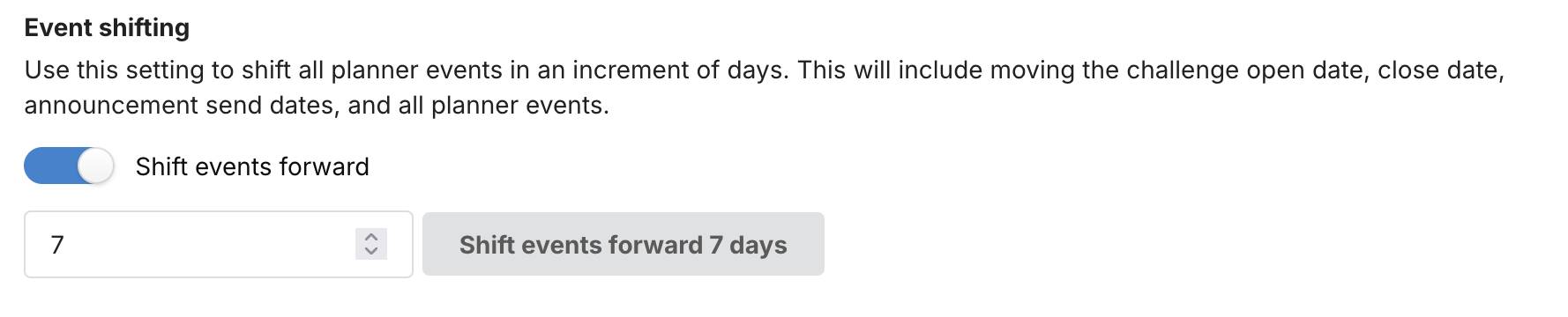
To do so, first choose which direction to shift events (forwards in time, or backwards in time) using the Shift events forward/backward toggle. Then, enter a number of days into the text field and tap the Shift events… button.
Add your challenge’s planner to your own calendar
You can subscribe to your challenge’s planner, such that its events appear in your own calendar. As events get added or changed in your planner, they will automatically update in your own calendar.
This feature is compatible with any calendaring system that supports the iCal format (including Outlook, Google Calendar, Apple Calendar, and many more).
To do so, tap the Get calendar link button on the planner settings page, and paste the generated link into the relevant section of your calendar system’s calendar.
4. Add a New Event
On the planner, events can mean a number of things, depending on your own work pattern or context. They could refer to a meeting, a task reminder, or anything else you might need to include in your plan.
Each event has typical attributes, such as a title, description, start date/time, and an end date/time. You can also configure an event “label colour”, members, and a notification schedule.
As well as organising yours and your team’s time, a key aim of the planner is to manage your challenge’s engagement plan. As such, we recommend using label colours to develop a meaningful structure for your events, such that you and your team know what they mean at-a-glance. For example, “green” events might represent meetings, “blue” events might represent a Teams message reminder, and “yellow” events may represent an intranet message reminder.
To create a new event, hover your mouse over the cell in the planner representing the day in which you wish to create the event.
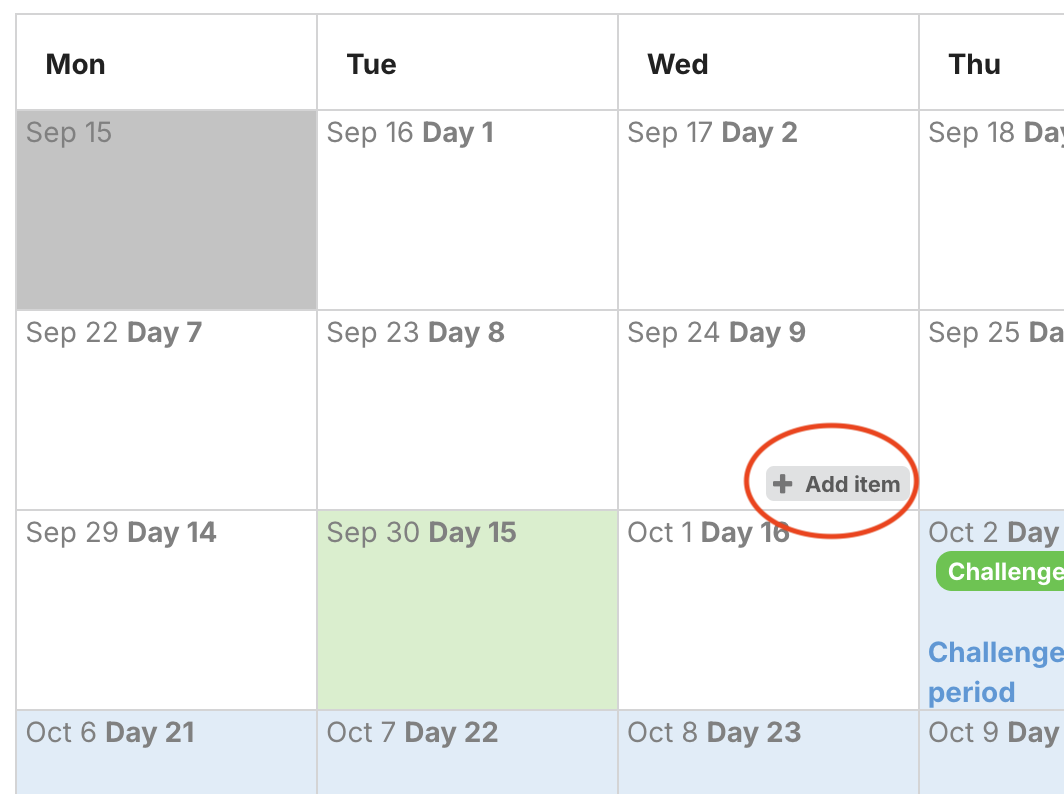
An Add item button will show. Click this to bring up the event creation window.
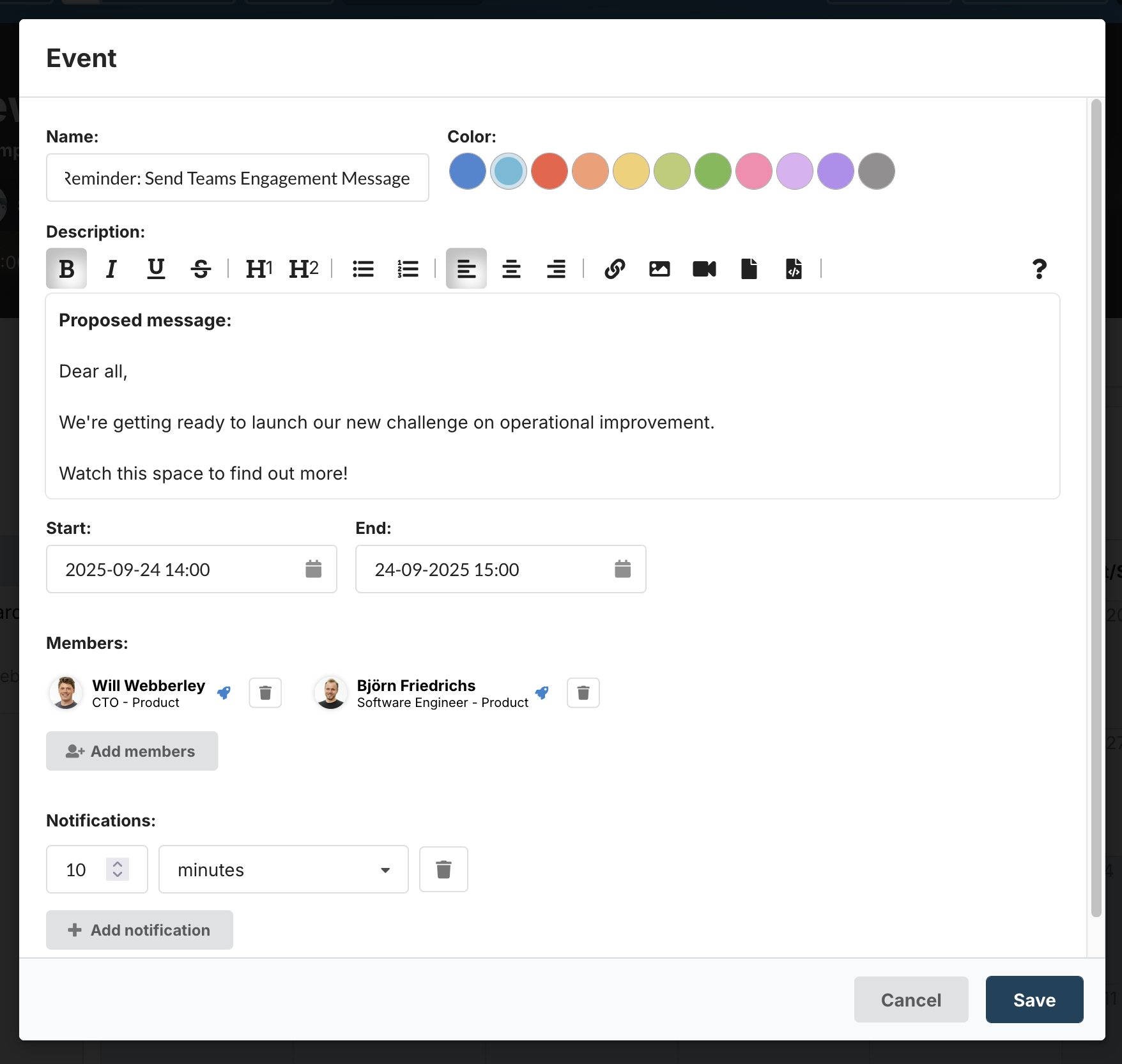
In the above example, we’ve added a couple of members (so that they get reminded 10 minutes before the scheduled event), and a date and time for the event.
In this case, our event is a reminder to us to send a message to our proposed challenge audience via Teams. We label the event in blue and provide the proposed message itself in the description.
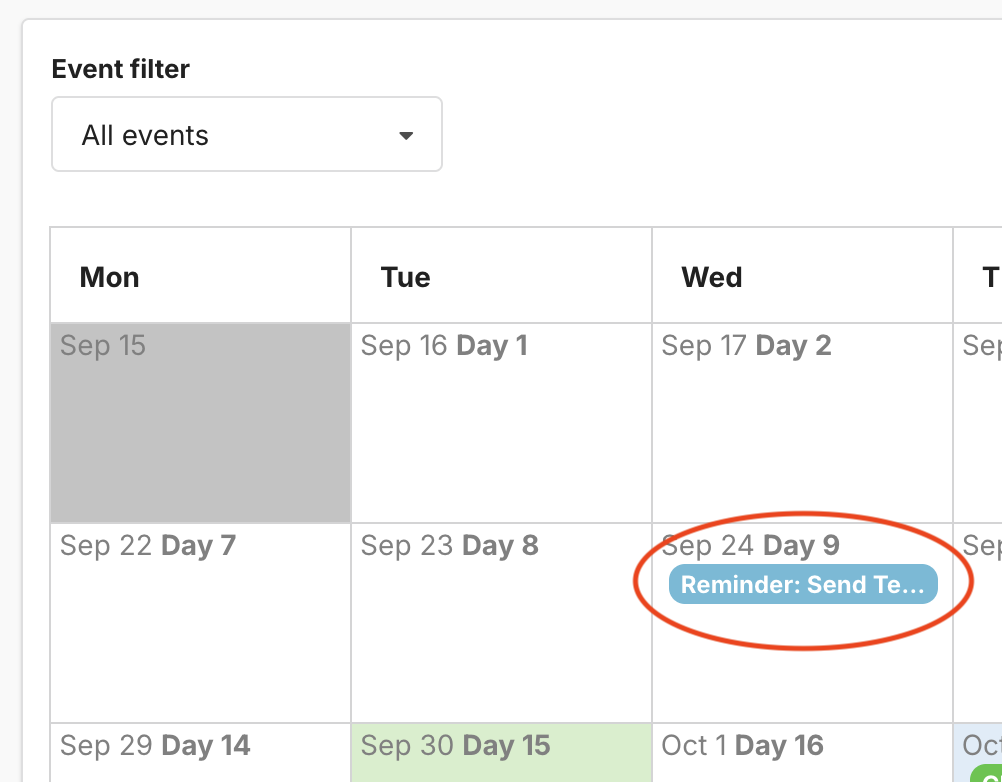
Tap Save to create the event, and you’ll now see it on the planner view.
5. Move an Event
If you wish to quickly move an event to another day, you can simply click and drag the event to the new day on the planner view.
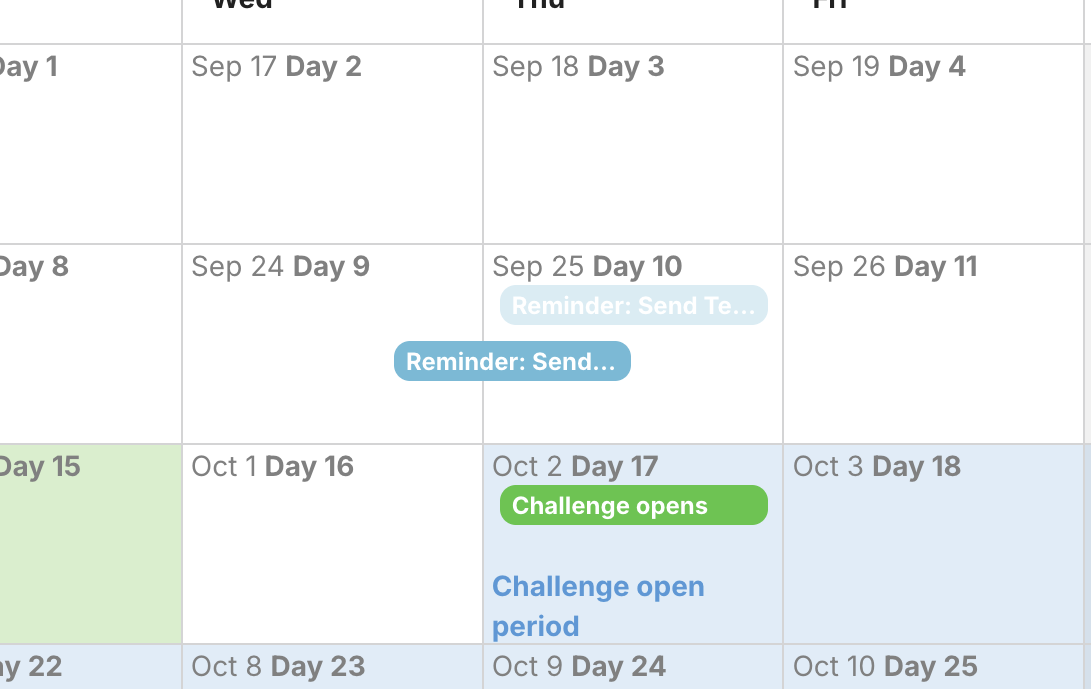
Moving an event in this way maintains the time-of-day. If you wish to change the time as well as the day, please edit the event as described below.
6. Edit an Event
To edit an event’s details, tap the event from the planner to open up the details window, and then tap the Edit button.
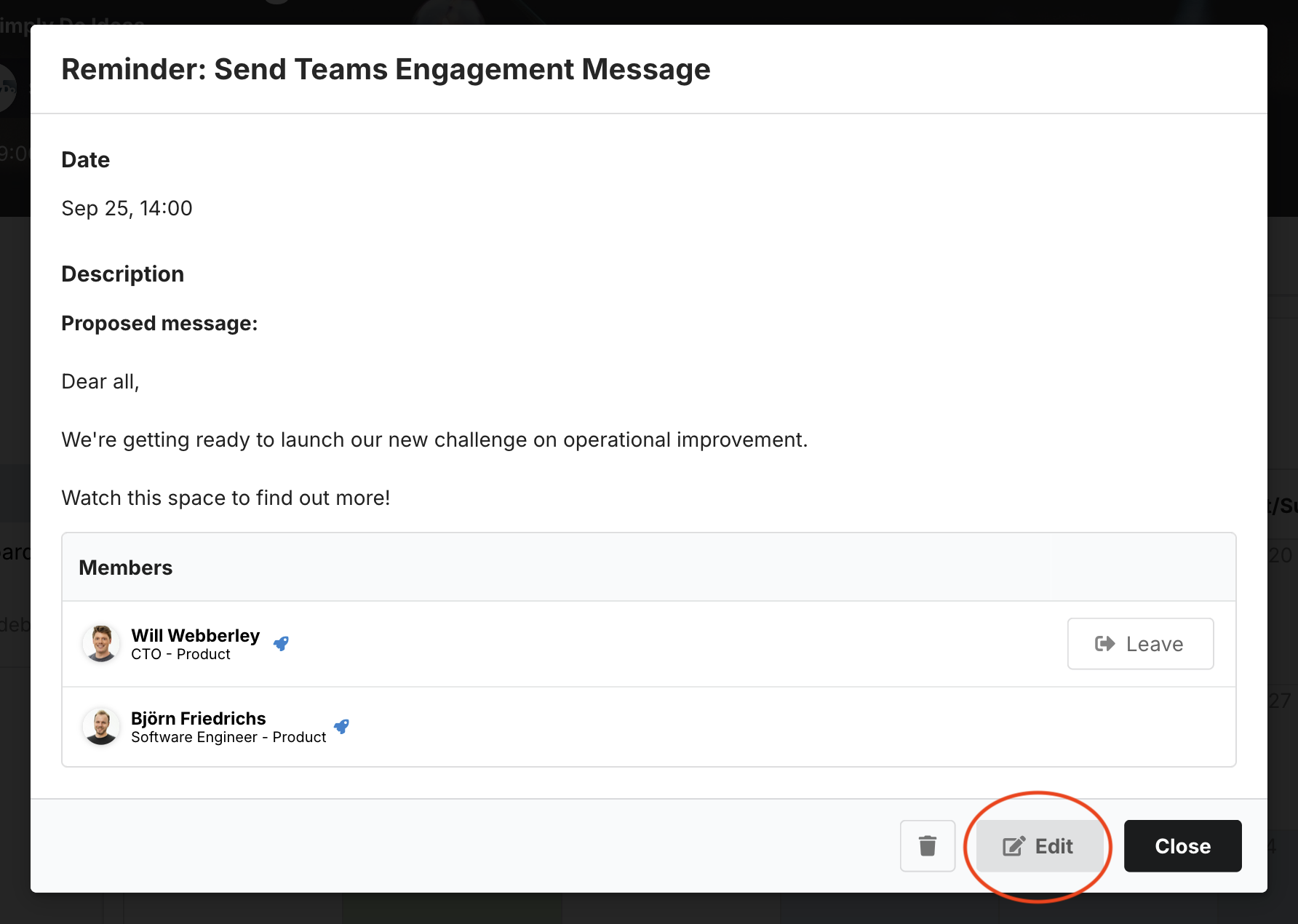
This will bring up the same familiar window that you used to create the event.
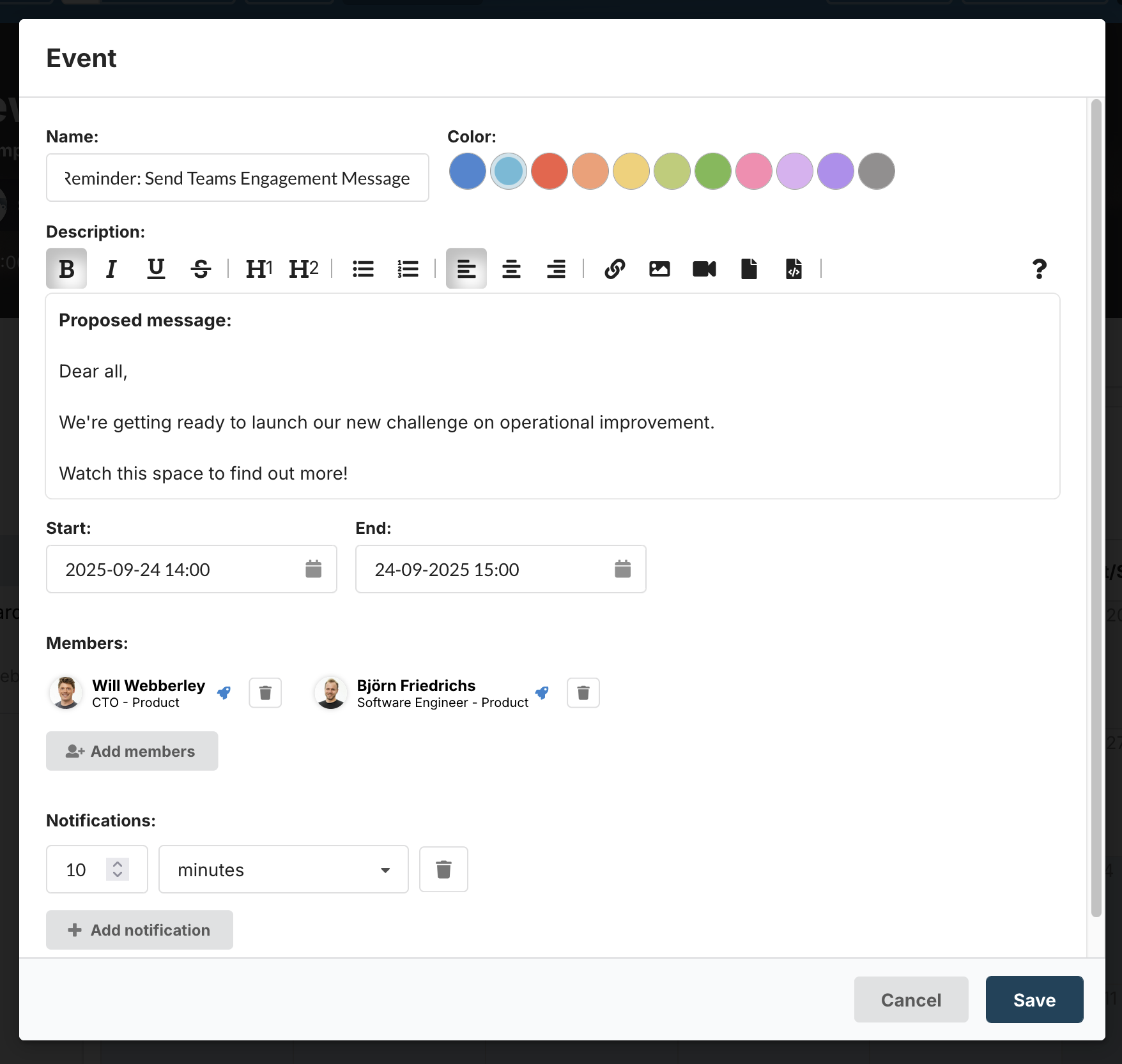
Make any changes you need (e.g. in our example we updated the event time to 16:00) and then click Save to finish.
7. Delete an Event
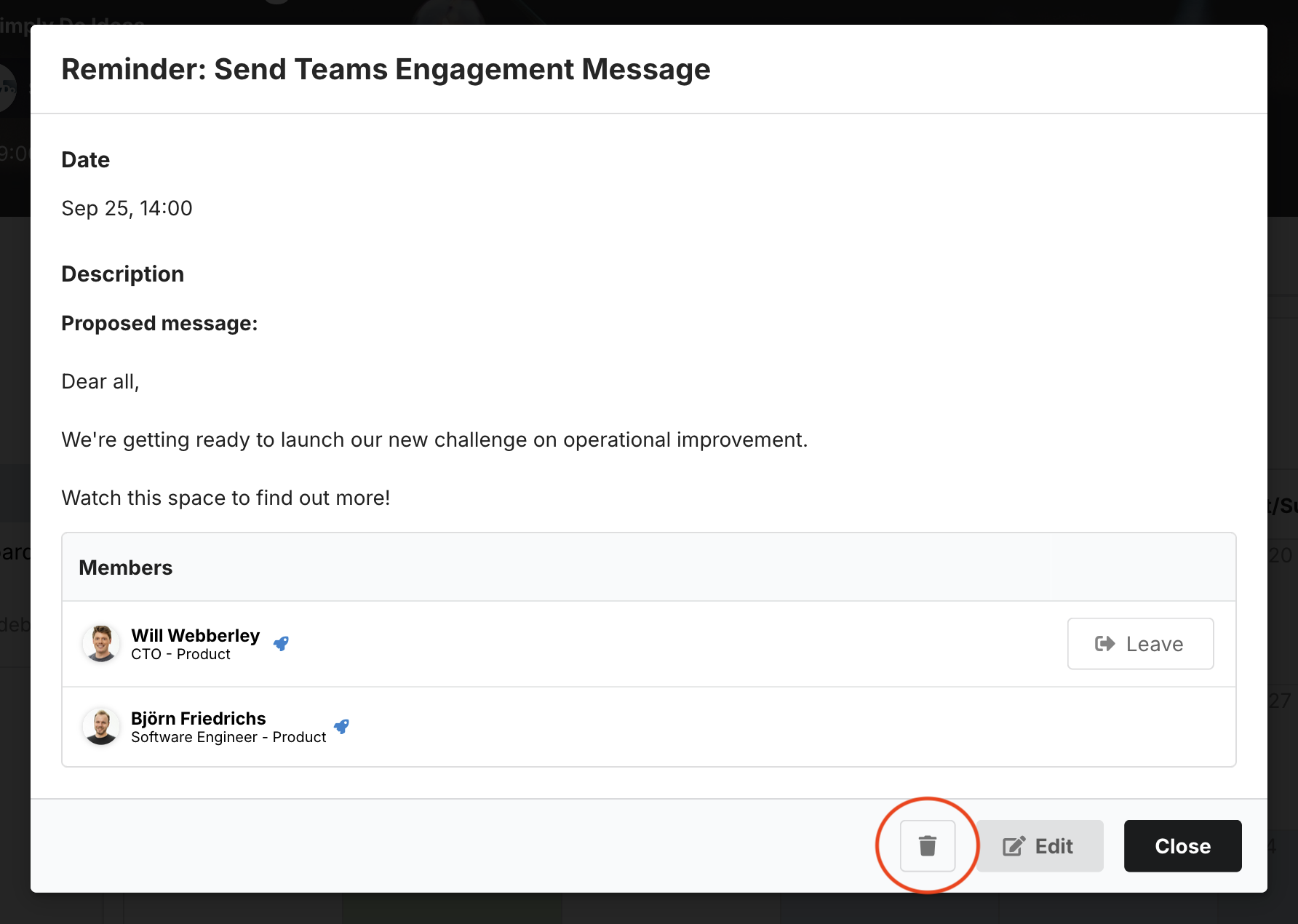
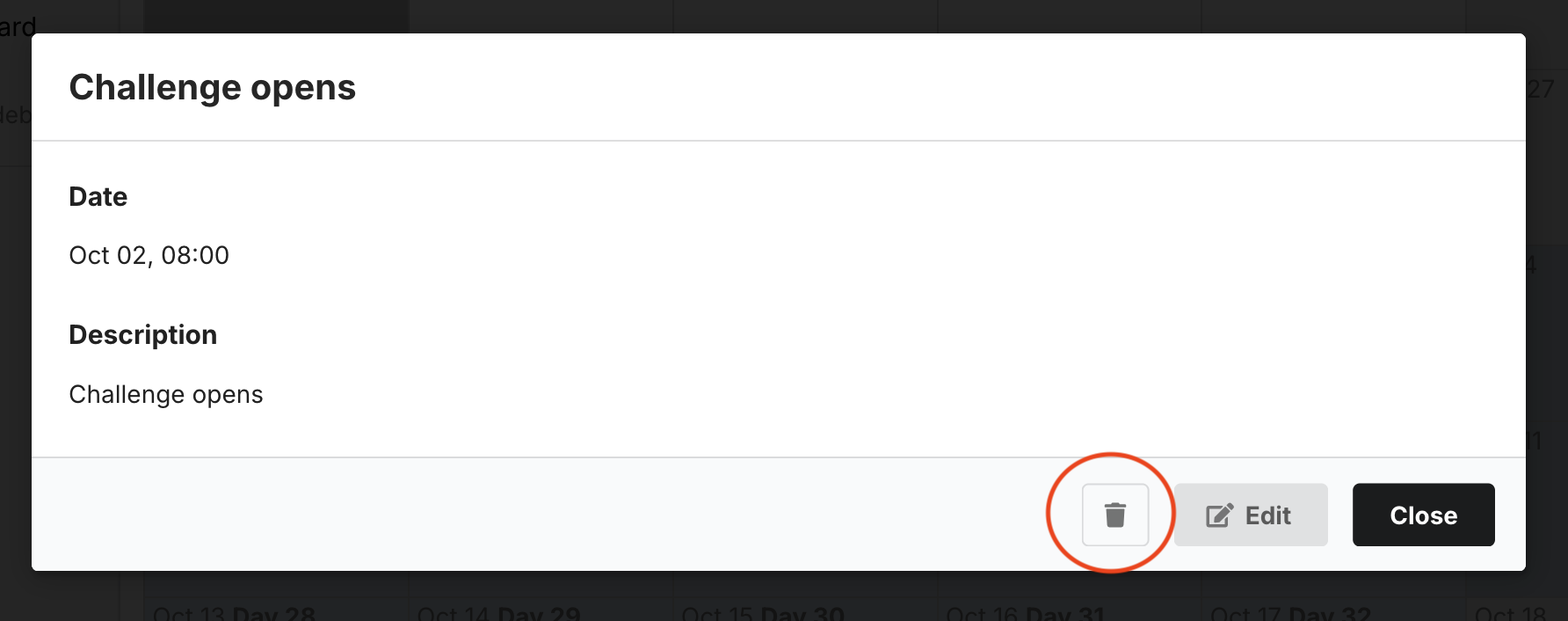
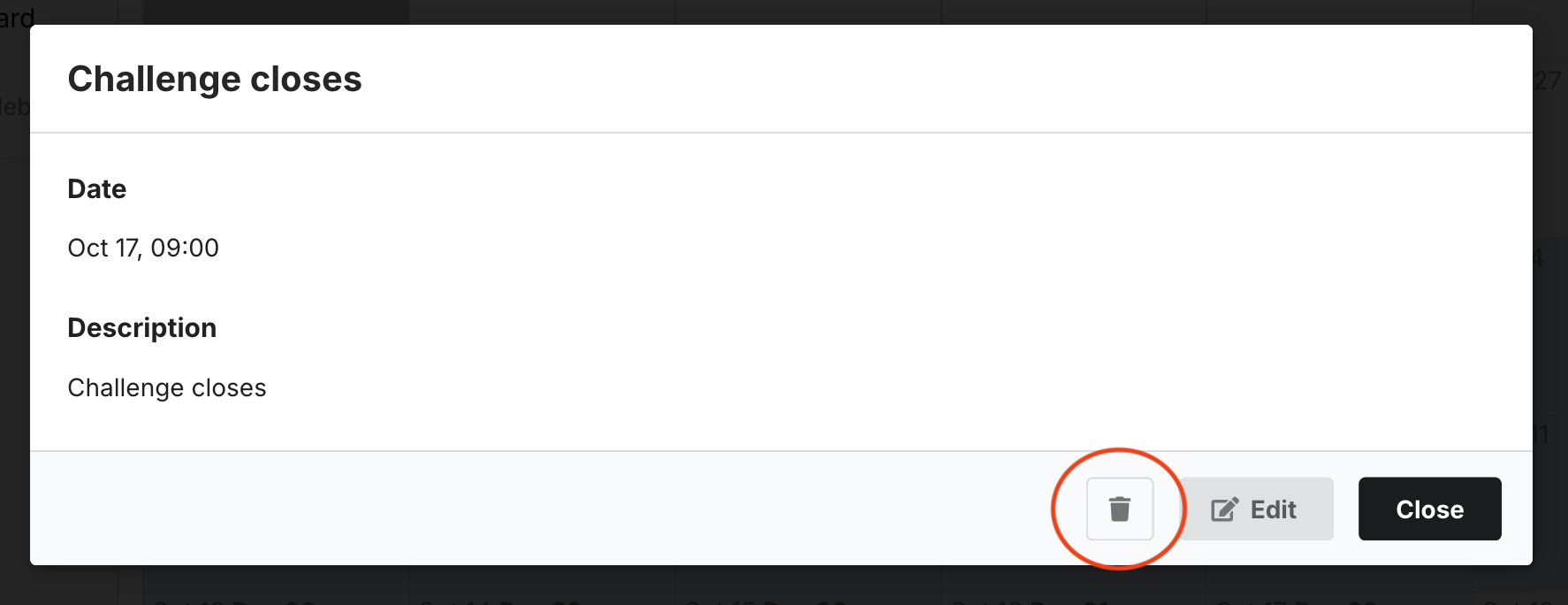
To delete an event, tap the event from the planner to open up the details window, and then tap the bin icon button.
8. Schedule an Announcement
To schedule a standard announcement for a future date and time, hover your mouse over the desired day and tap the Add item button.
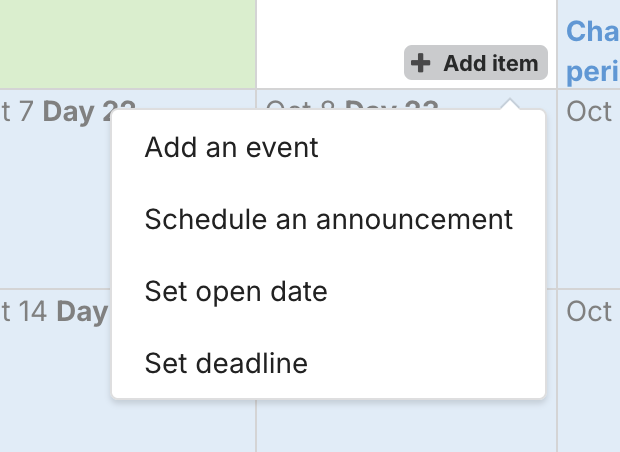
From the dropdown that shows, select Schedule an announcement. For more information about announcements, including how to set them up, please take a look through our Announcements article.
9. Set or Remove an Open Date
If your challenge is currently still in-draft, you can specify a future open date and time, at which SimplyDo will automatically publish your challenge.
Note that you can use this same process to update an already in-place open date.
To begin, hover your mouse over the desired day and tap the Add item button.
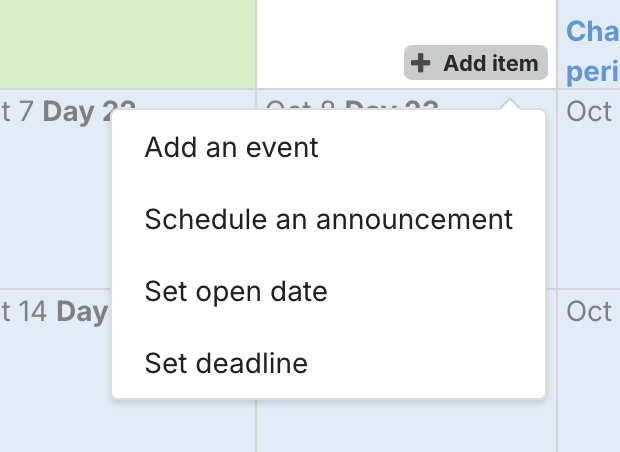
From the dropdown that shows, select Set open date. A window will open asking you about your preferences.
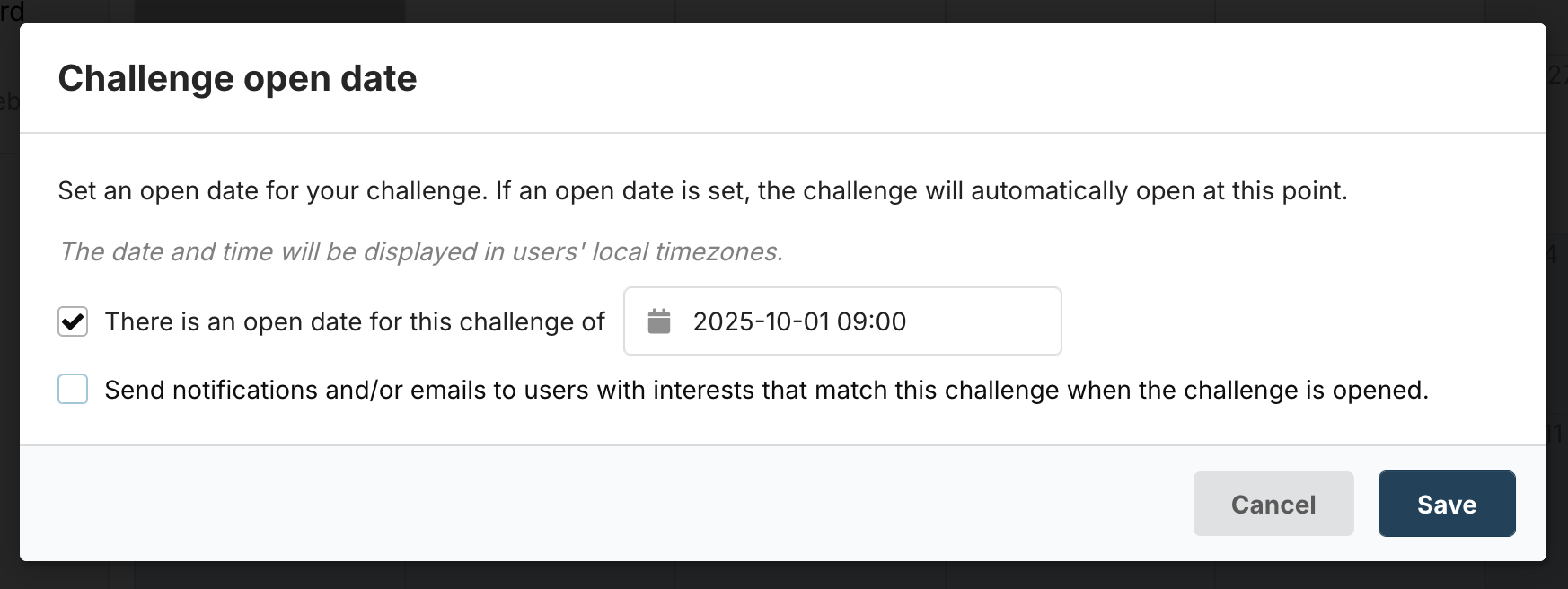
Use the There is an open date… checkbox to enable the feature, and use the text input to select a date and time. Please note that your chosen date and time must be in the future and before the challenge deadline (if it’s set).
If you want to automatically notify users in the challenge audience with matched interests to the challenge’s tags, tick the Send notifications… checkbox.
Click Save to finish. SimplyDo will now automatically publish your challenge at the specified time. If you already had an open date configured, your new settings will replace the old ones.
Remove (Unschedule) the Open Date
If you no longer want SimplyDo to automatically publish your challenge, find the entry for the Challenge opens event in the planner and tap it.
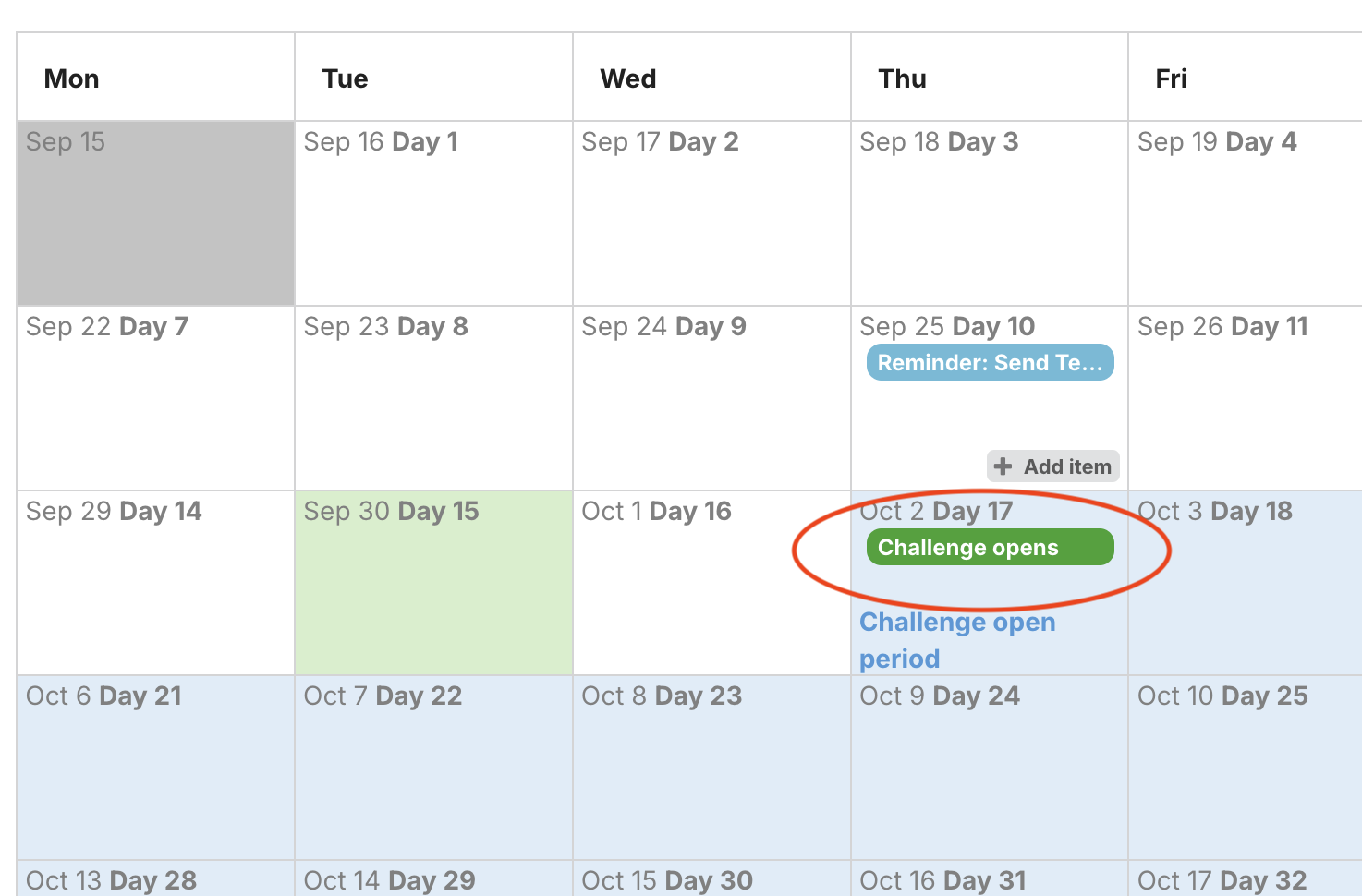
This will open a details window for the event. You can delete it using the bin icon button.
10. Set or Remove a Deadline
You can specify a future deadline date and time, at which SimplyDo will automatically close your challenge to new submissions.
Note that you can use this same process to update an already in-place deadline.
To begin, hover your mouse over the desired day and tap the Add item button.
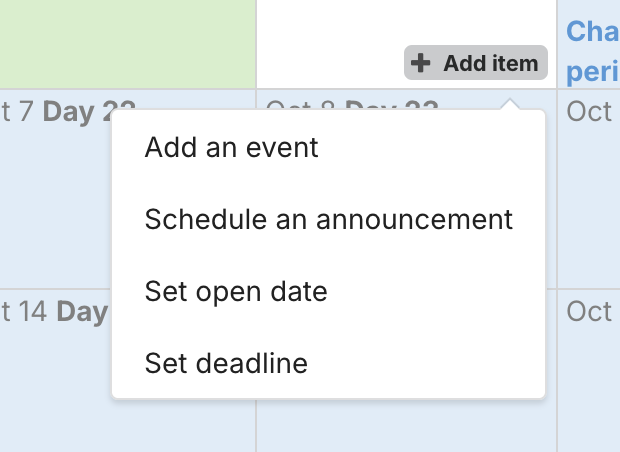
From the dropdown that shows, select Set deadline. A window will open asking you about your preferences.
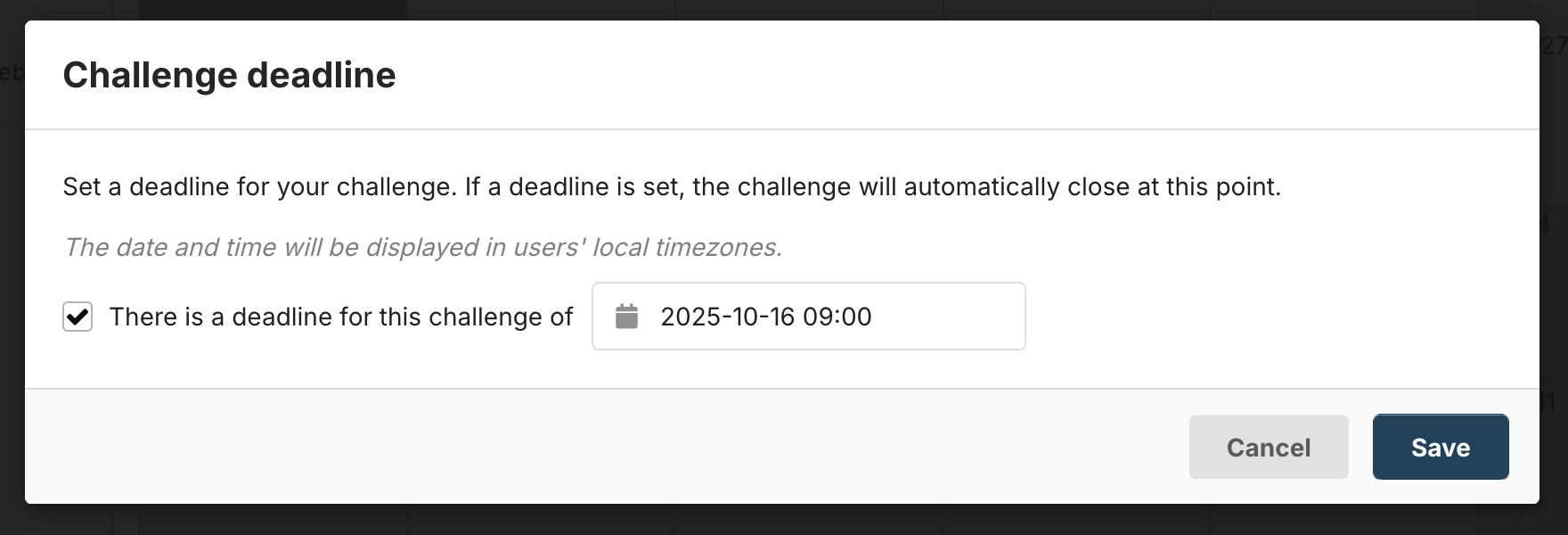
Use the There is a deadline… checkbox to enable the feature, and use the text input to select a date and time. Please note that your chosen date and time must be in the future and after the challenge open date (if it’s set).
Click Save to finish. SimplyDo will now automatically close your challenge at the specified time. If you already had a deadline configured, your new settings will replace the old ones.
Remove (Unschedule) the Deadline
If you no longer want SimplyDo to automatically close your challenge, find the entry for the Challenge closes event in the planner and tap it.
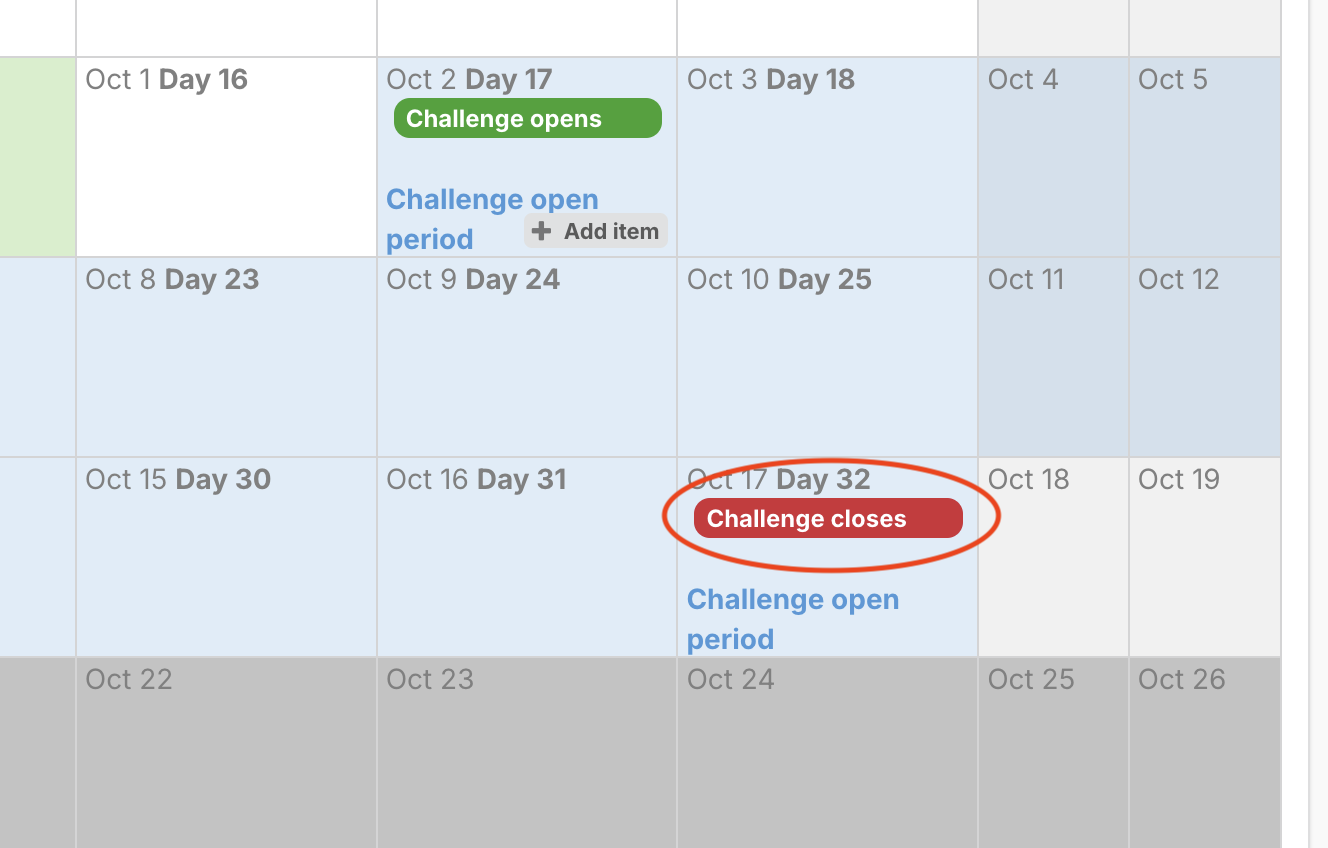
This will open a details window for the event. You can delete it using the bin icon button.
11. Filter Events on the Planner
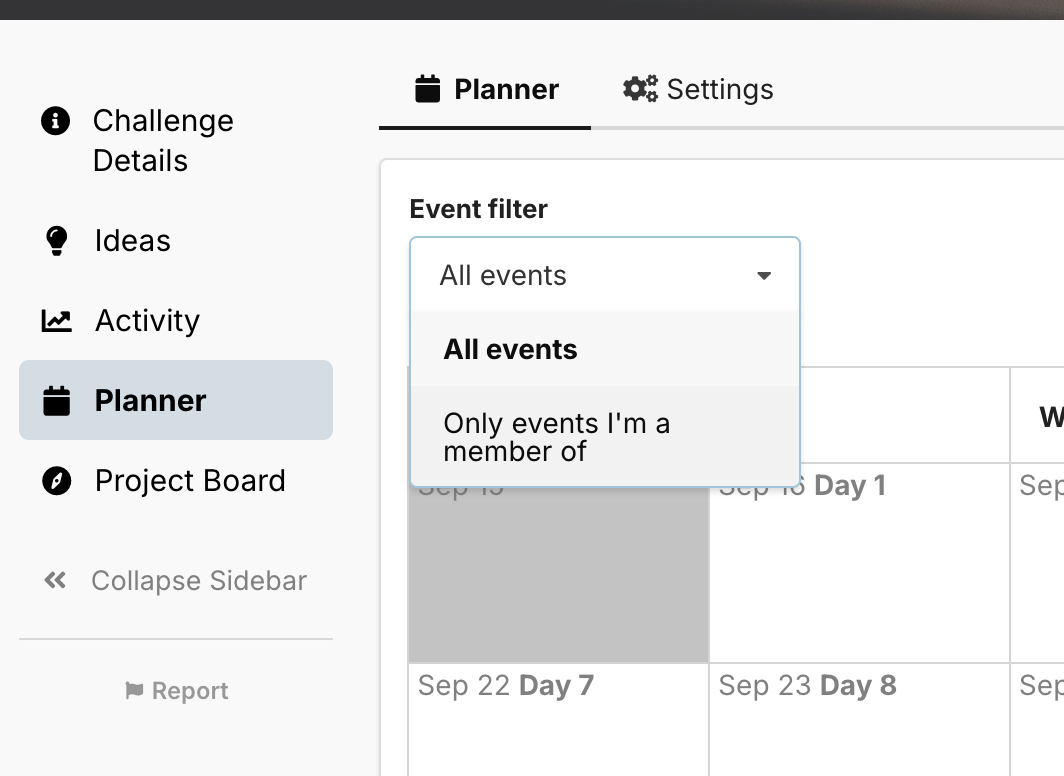
If you have lots of events on the planner, but only wish to see the ones relevant to you, you can use the Event filter dropdown to only show events of which you are a member.