In this guide, we explain our recommended steps for building an application format for your open call. Now that the settings are done, you need to create or copy and amend an application format for users to complete when submitting their applications. Typically, you will have an Excel file containing the format that you have been working on.
For the purposes of this guide, an open call can also be referred to as an opportunity or a challenge. An application can also be referred to as an idea.
Overview
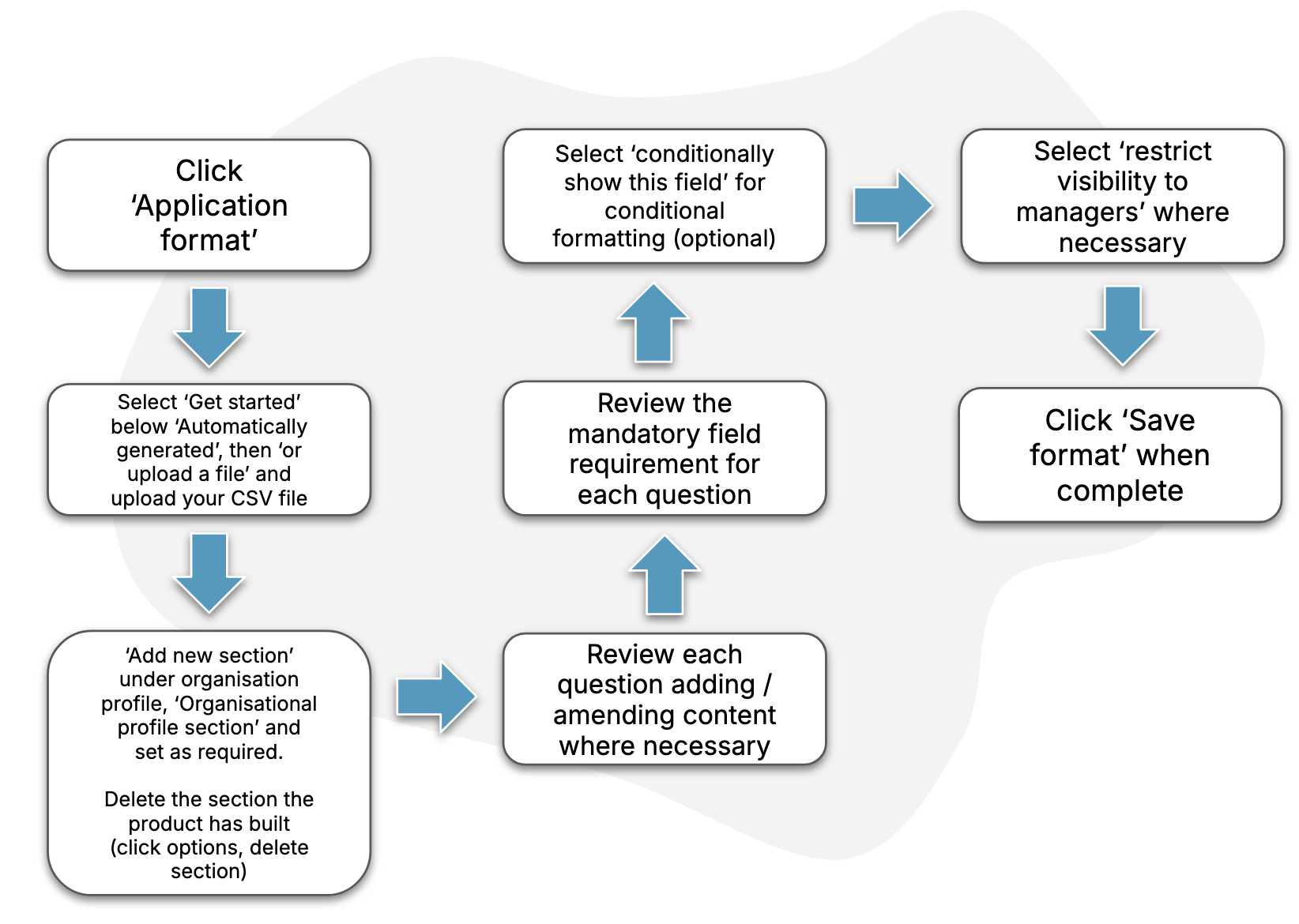
The diagram below describes the key steps in the process.
Guide
1. Find the format settings page
Follow the steps in this How-To to find the page for your open call’s application format.
2. Use the “Automatically generated” starting point
On the “starting point” screen, select the option for “Automatically Generated”. This How-To describes the various options available to you.
3. Upload your Excel-based format
Export your Excel-based application format into a CSV file. In the “automatic generator” option, select “upload a file” and then choose your CSV file.
Your application format will now be created in the background.
4. Handle your business profile
If your Excel-based format included fields for a business profile, follow the steps below to ensure you use SimplyDo’s native business profile feature:
-
Add a new “Organisational profile section” to the top of your format named “Business Profile”.
-
Delete the section that was automatically generated during the previous step (as it will contain duplicate questions).
For help with creating and managing sections in the format, see this How-To.
5. Review your format
SimplyDo uses generative AI to create your format. As such, it is imperative that you read through what it has produced in order to ensure (or add) at least the following:
-
Each question title and description is correct
-
Each mandatory field is correctly marked
-
Conditional fields are correctly managed (see this How-To for help with branching formats)
-
The relevant fields are restricted to only be visible by admins (see this How-To for help with managing field settings)
6. Complete
Make sure to use the “Save format” button frequently, and once you have finished making any changes to your format.