In this guide, we explain our recommended steps for configuring an audience for your open call. You have built the content for the landing page. Now you need to set the open call audience and enable public visibility.
For the purposes of this guide, an open call can also be referred to as an opportunity or a challenge.
Overview
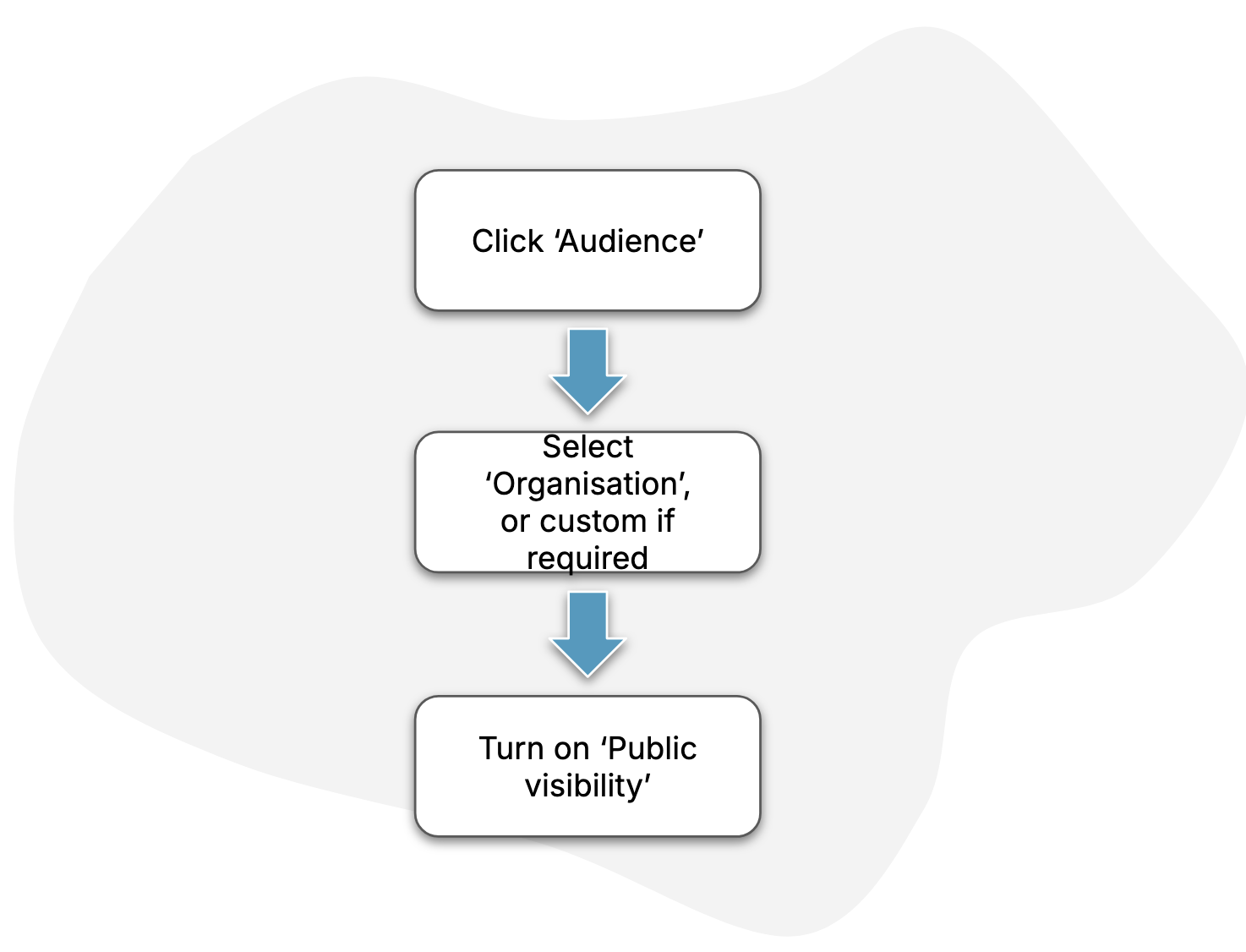
The diagram below describes the key steps in the process.
Guide
1. Find the audience settings page
Follow the steps in this How-To to find the page for your audience settings.
2. Select your audience
For most open calls, we recommend selecting “Organisation”. If you are running a multi-phase or gated open call, then you can instead select one or more groups via the “Custom audience” selection (which restricts access to the open call to approved applicants).
More information on setting your audience is available in this How-To.
3. Enable public visibility
For most open calls, we recommend enabling the toggle for “Public visibility”, as this provides a publicly-accessible link to your open call page, and acts as a starting point for applicants.
If you are running a multi-phase or gated open call, you may prefer to not toggle this setting on, such that the contents of the open call is restricted only to your approved applicants.
This How-To has more information on the “Public visibility” setting.